Short description
The Interview Scheduler is a new feature that syncs customers calendars with ReachMee, making it easier to schedule, manage, and conduct interviews.
It offers smart time suggestions and enables online meetings with various platforms.
This simplifies the interview process for both recruiters and candidates.
How does it work?
To get the best experience, users must sync their calendars. This is to get suggested timeslots, auto adding/removal of interviews, view availability on other users and use online tools.
Sync users
First step is to invite users to sync their calendars.
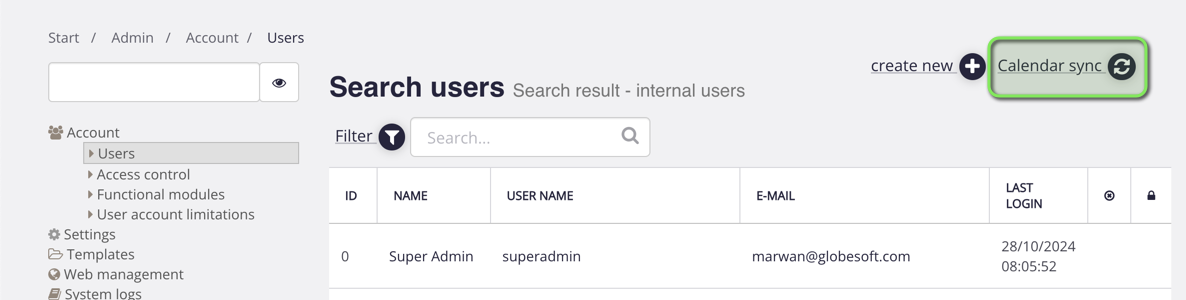
Go to Admin, click on Account and Users. Here you will see the option “Calendar sync”:
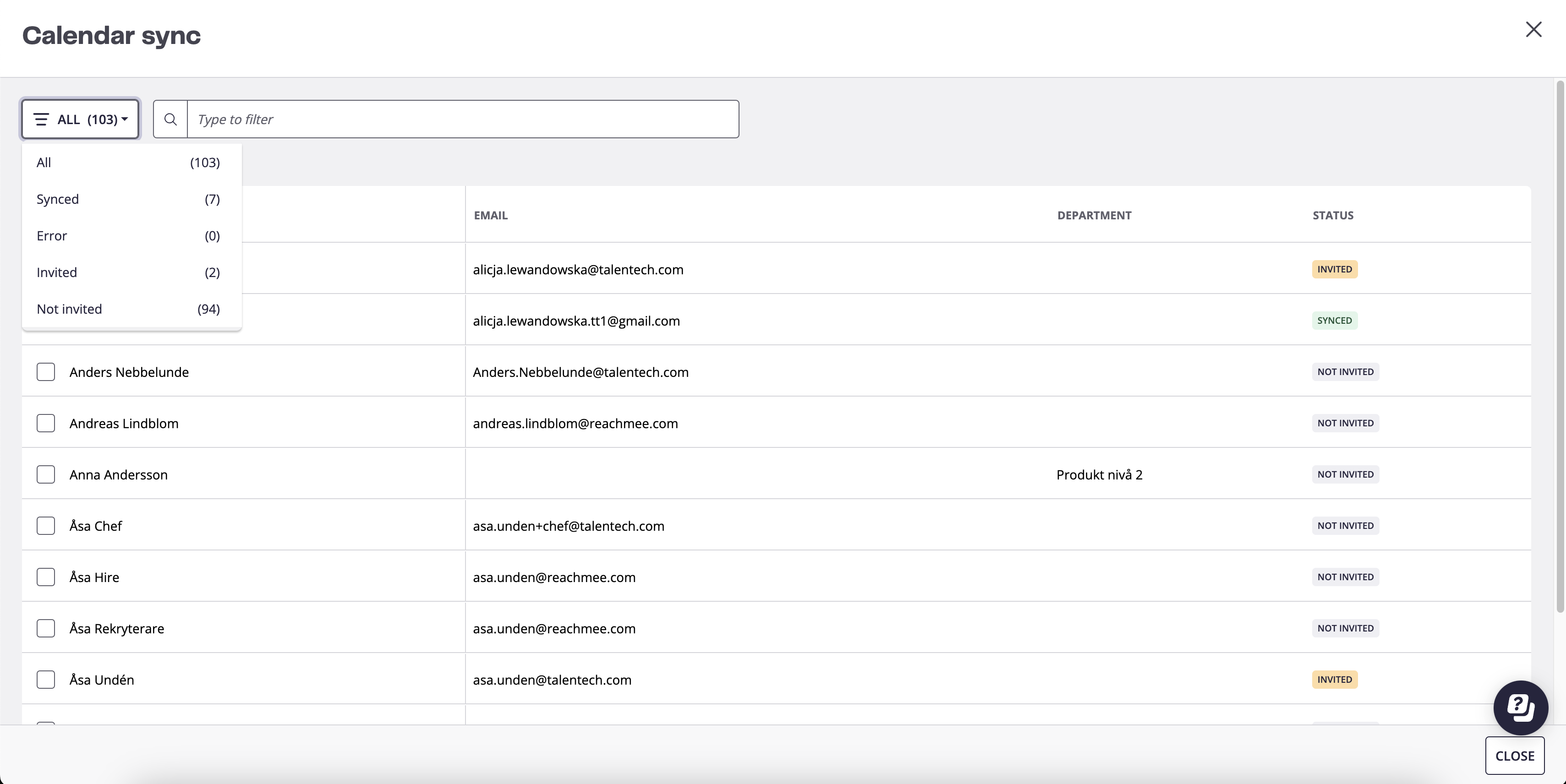
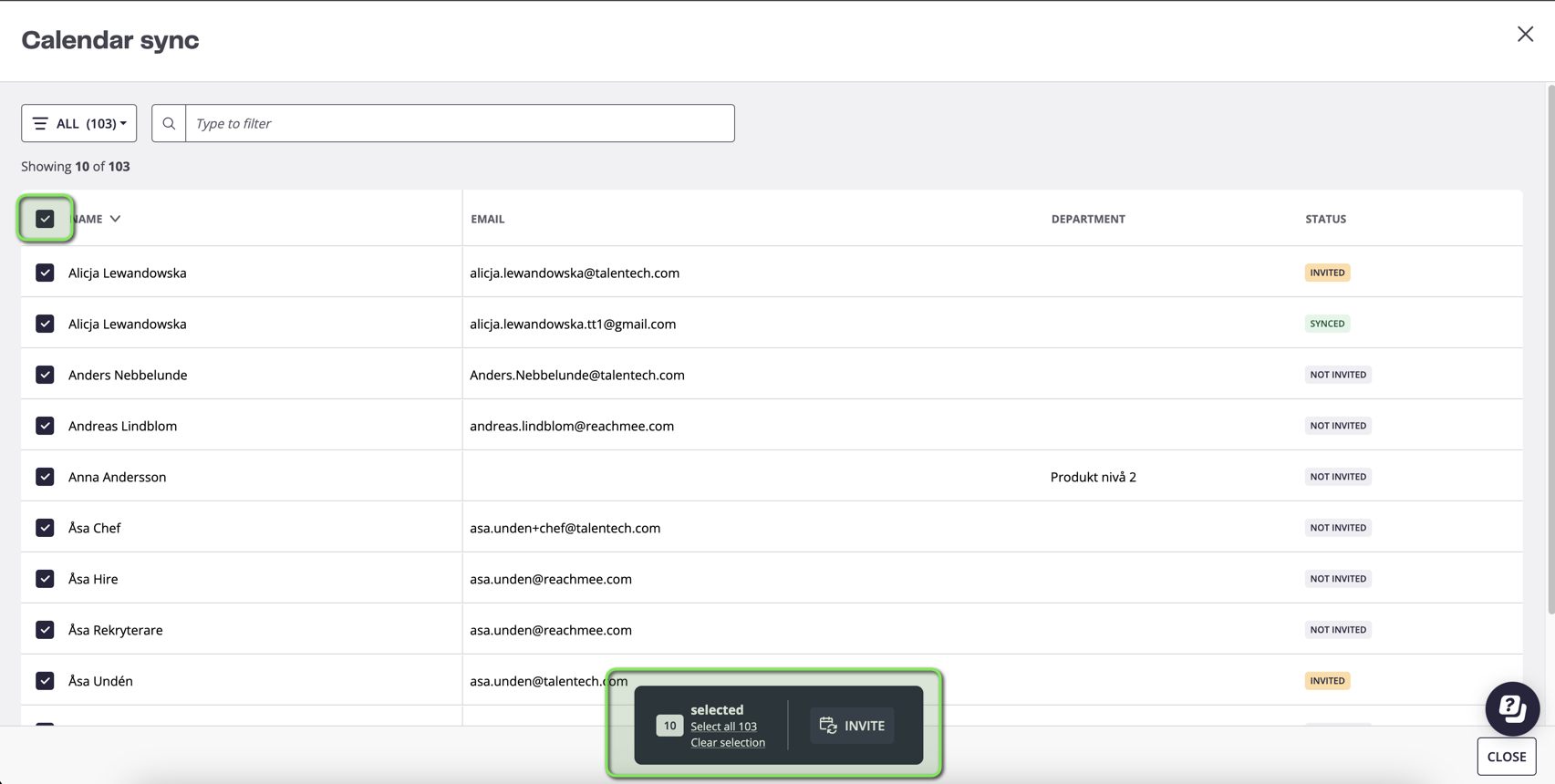
When you click on Calendar sync, you will get a new list of users, where you can invite, view status on sync and filter on status if more invites are needed:
You can easily select all and send the invite:
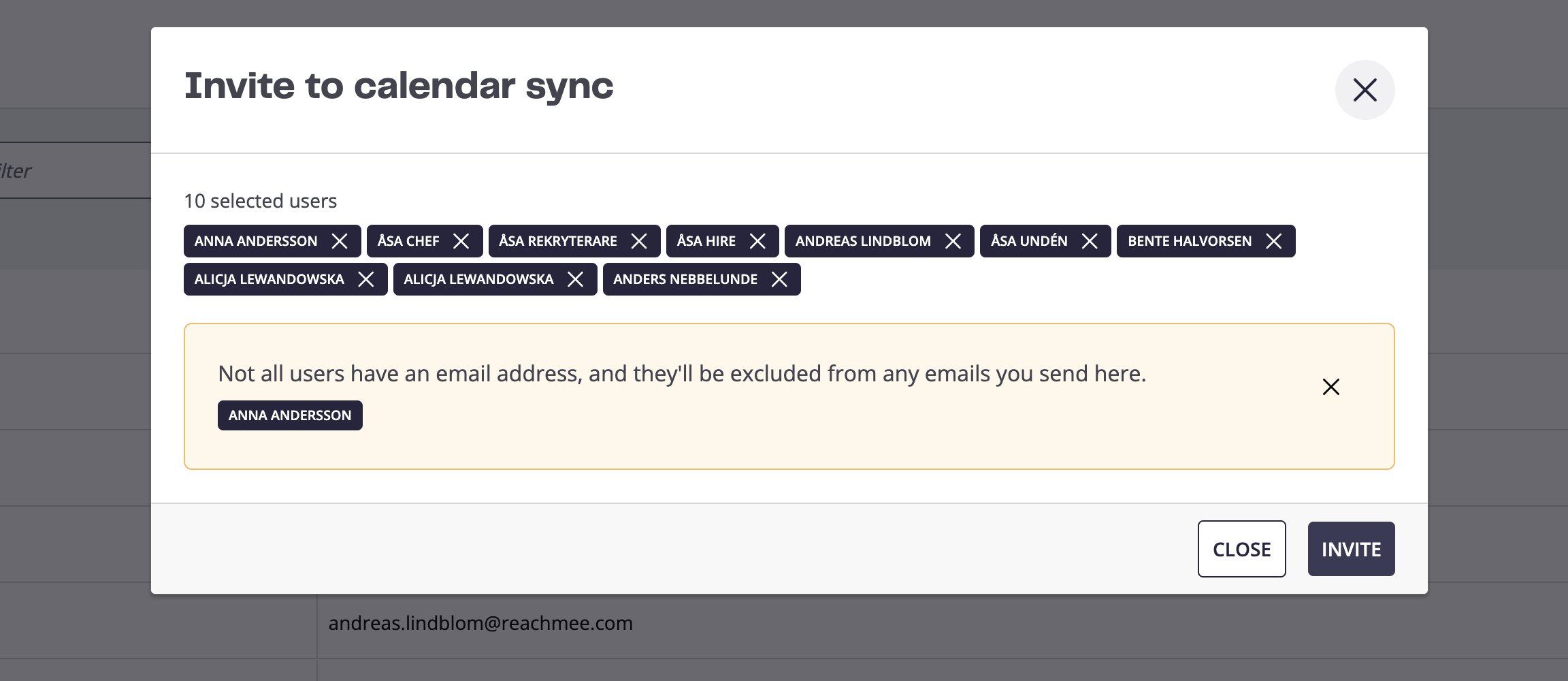
If some of your selected users don’t have an email, we will show this to the user:
Preparing and sending interview invitations
Our interview scheduler is flexible and enables users to pre-book interview so participants time is blocked and invite candidate - or send invitations directly.
Pre-booking
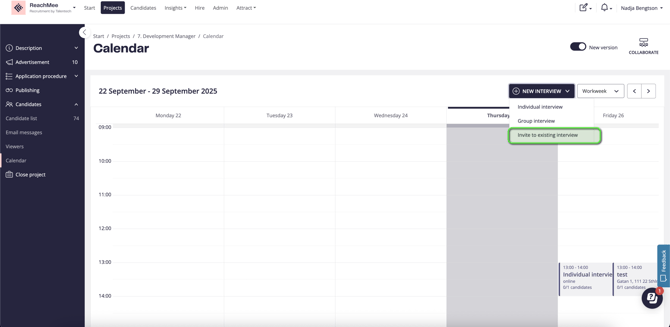
To pre-book interviews, users can go into the calender view on the project and prepare individual interviews or group interview:
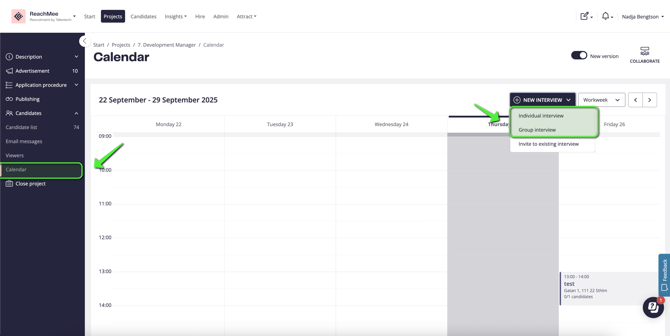
Select the type of interviews you want to create and simply don’t add candidates yet:
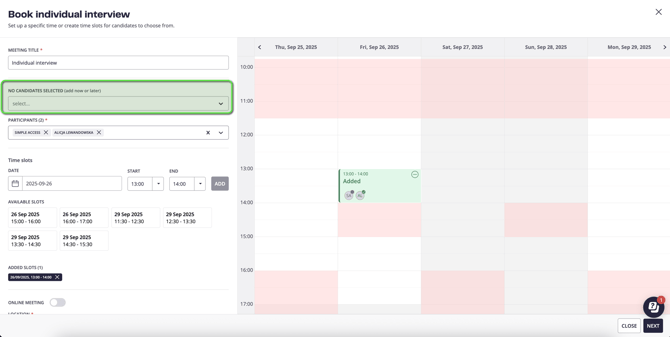
A message is added about that only participants will receive it at this stage:
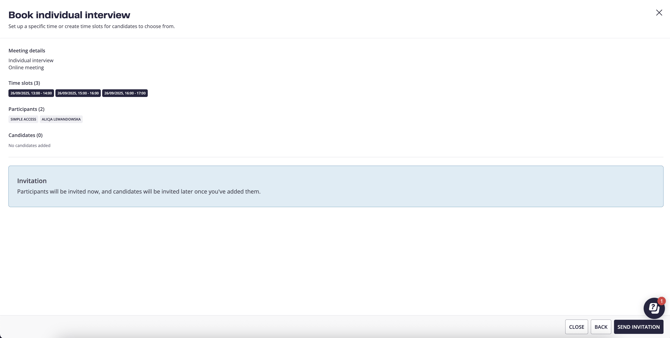
The timeslots you added, will now become available under “Invite to existing interviews”:
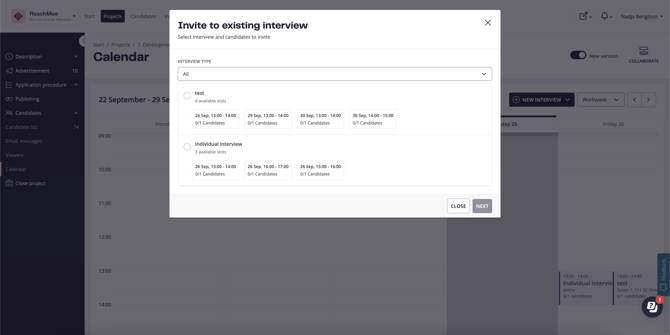
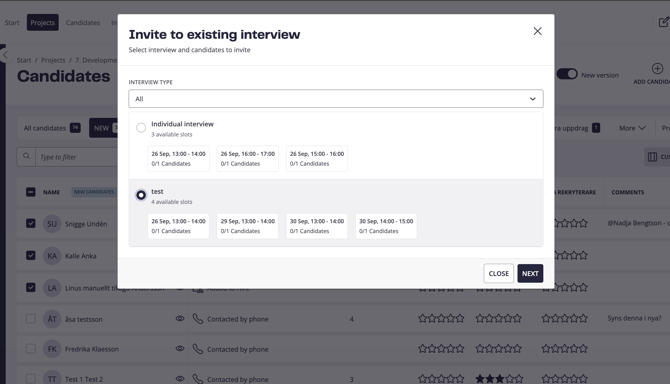
When inviting to existing interviews, you will get the options to select between the series of slots you have created:
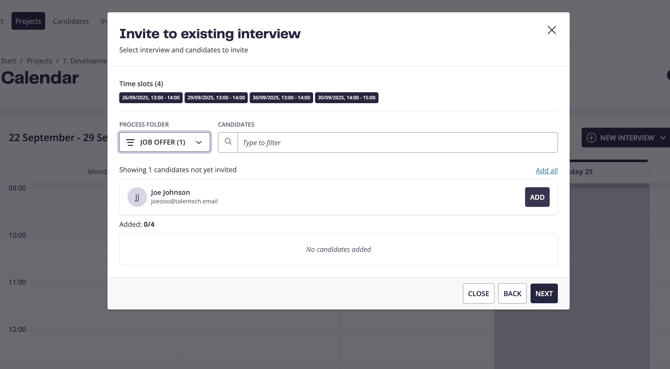
Select the timeslot you want to use and add the candidates you want to invite:
You’ll then see a preview of the invitation and can edit if you like before sending:
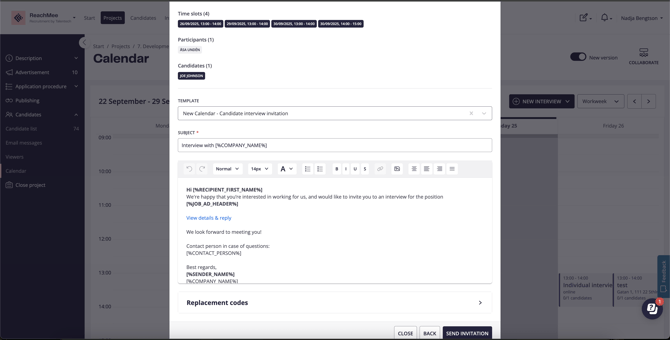
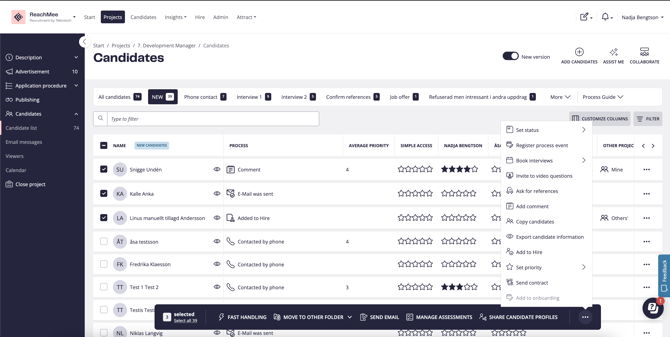
You can also use your pre-booked slots from the candidate list.
Select one or more candidates, click the more menu (three dots), go to Book interviews and select “Invite to existing interviews”:
You will now get the same options as from the calendar and be able to select slots and send invite:
Make changes/updates to existing interviews
When entering the calendar view, you can view all interviews.
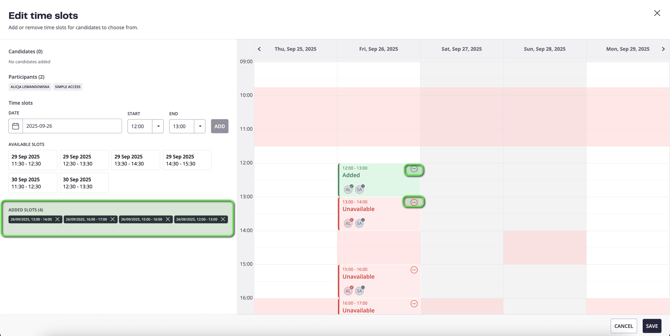
Here you can select a timeslot and edit the invitations:
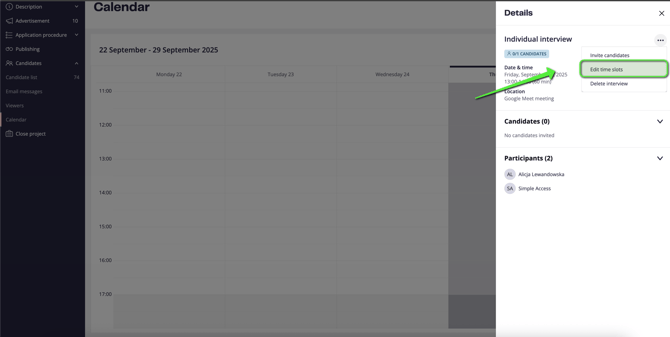
Add, remove or do the changes needed and save:
Direct invitations
On the candidate list, you can select one or more candidates:

You will now start to create your interview:
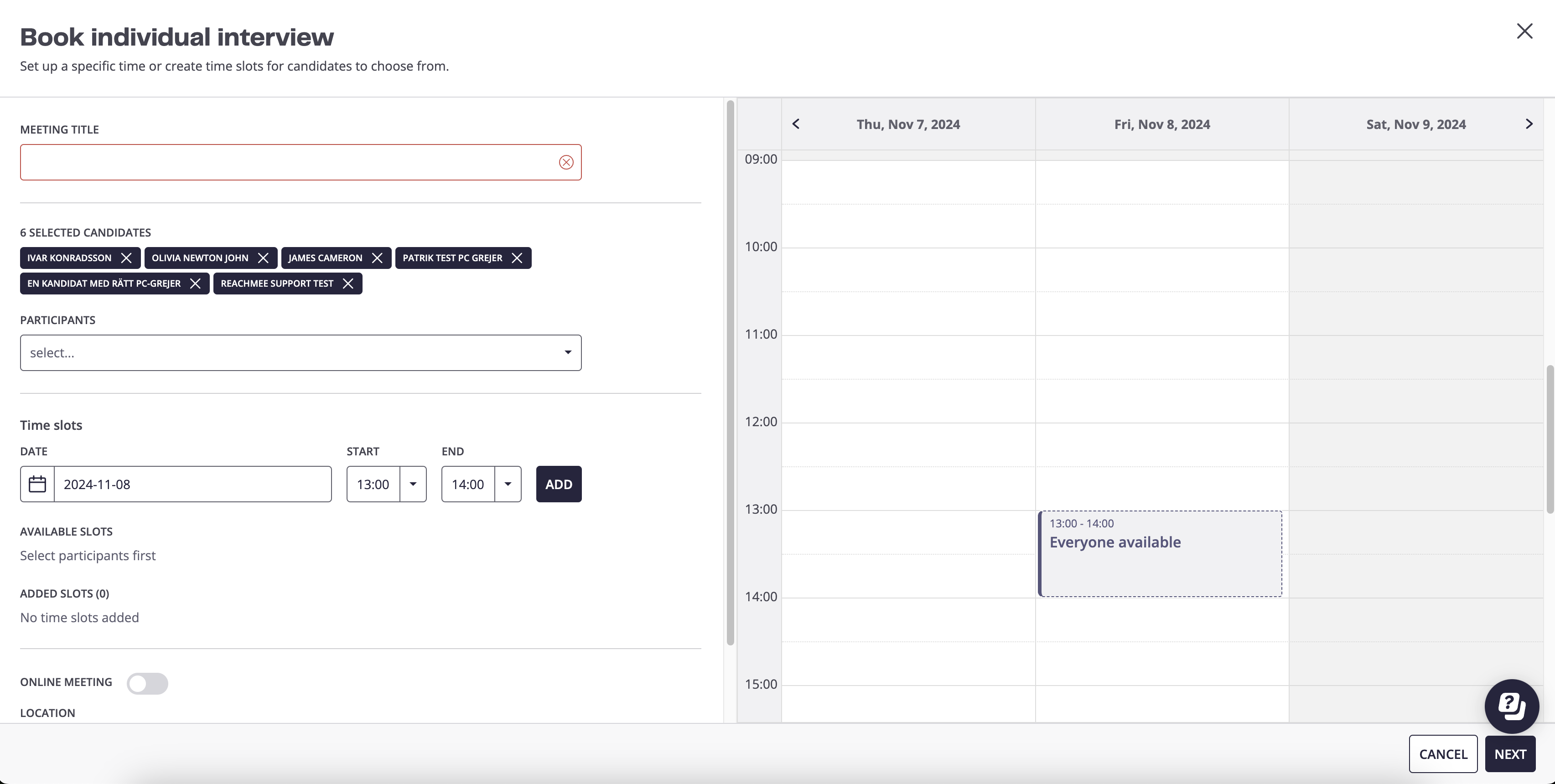
When you select participants who has synced their calendars, you will get suggested timeslots and be able to view if they are available:
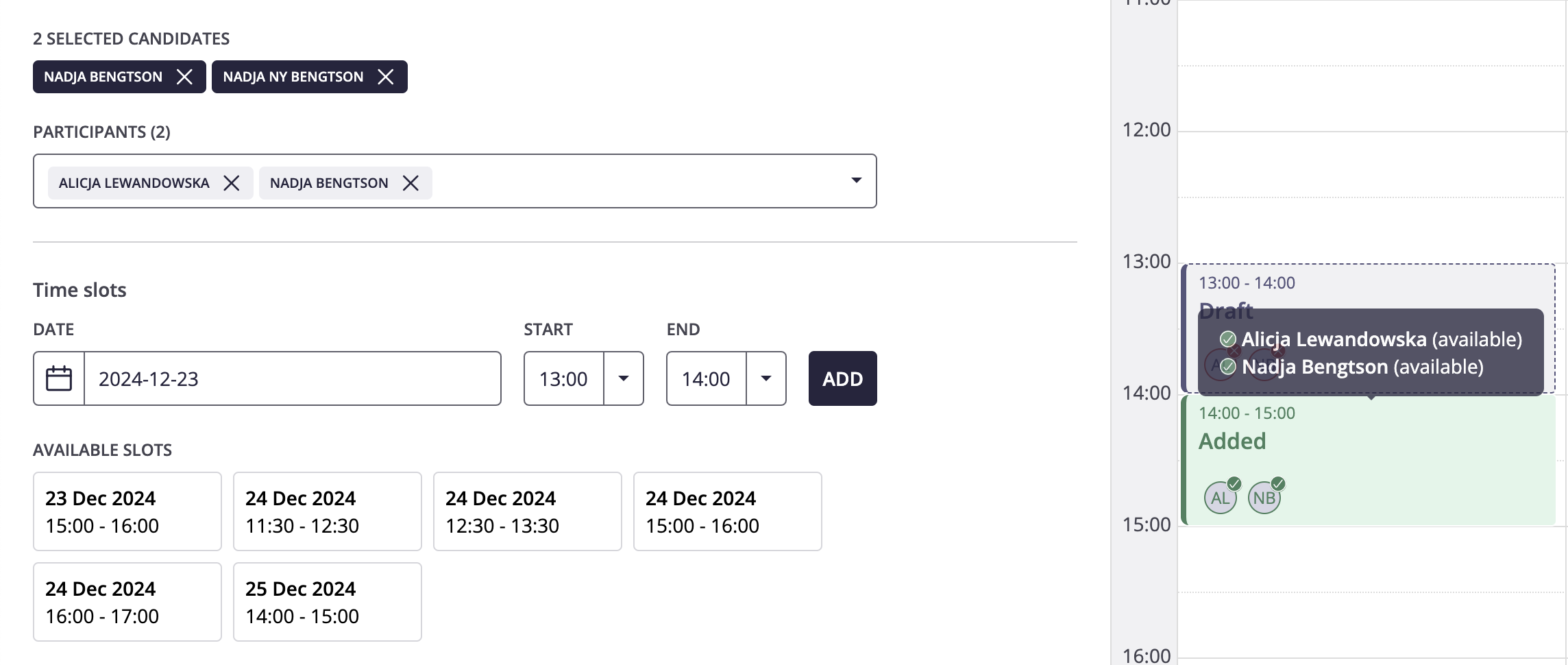
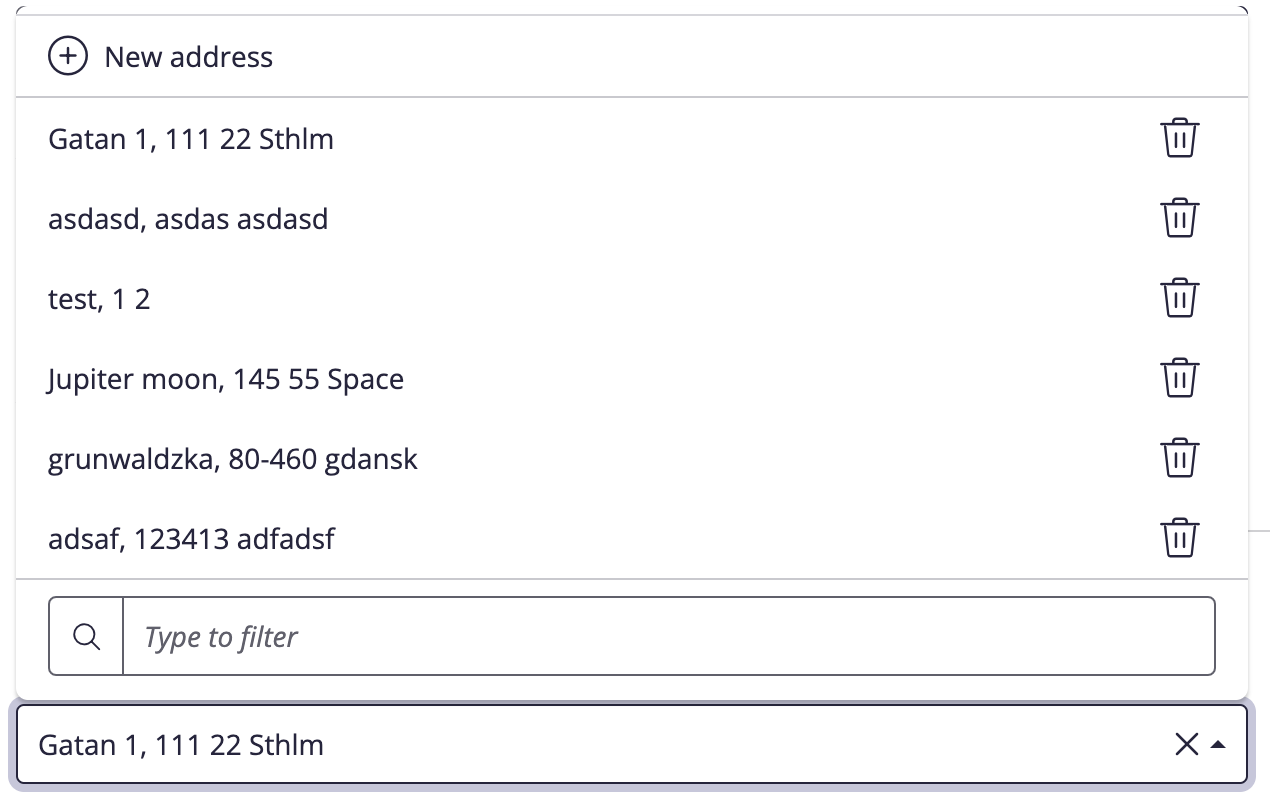
When choosing where to meet, you can decide on a location or online meeting:
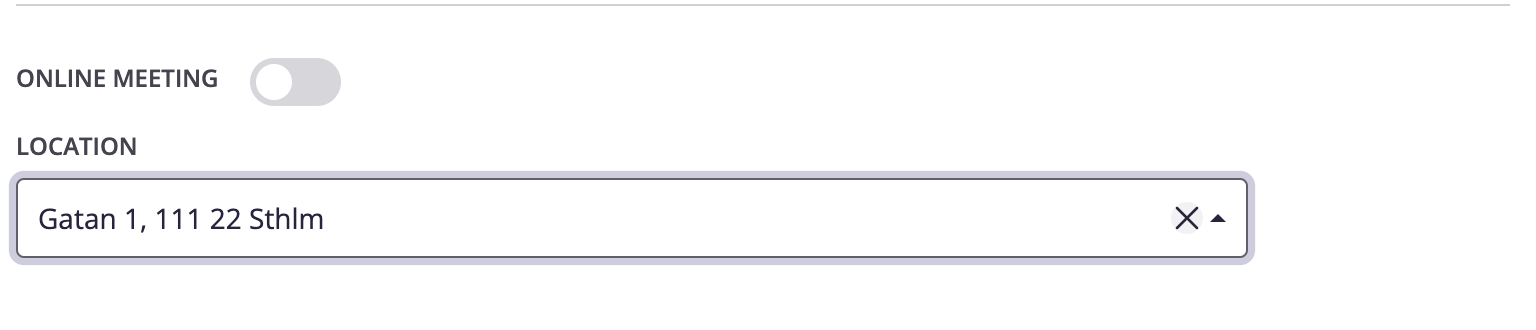
Locations can be managed direclty in the invites by all users, so they can select/add/remove as they like:
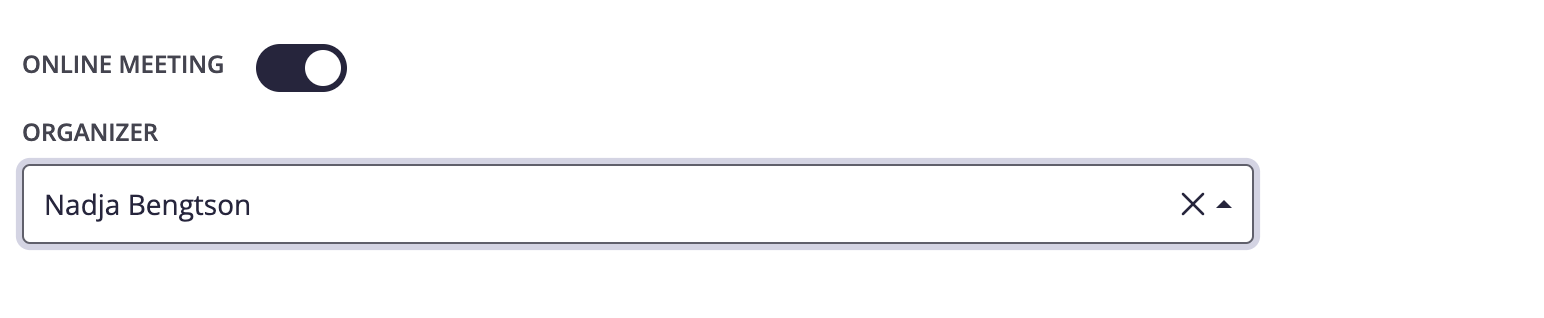
They can also choose to have an online meeting, but then the organizer has to have synced their calendar so that you can choose it:
When these selections have been added the next step is to send the email:

User experience
Synced users:
- Will be notified about booked meetings
- Will be notified about cancelled meetings
- Will automatically have booked meetings and removal of meetings
- Will have the possibility to be organizer on online meetings
Non-synced users:
- Will be notified about booked meetings
- Will be notified about cancelled meetings
- Will receive a calendar appointment to add and manually remove when cancelled
- Cannot be organizers on online meetings
Candidate experience
The invited candidates now receives an email with a link to slect a timeslot.
Here they can select or give feedback that there’s no suitable timeslots:
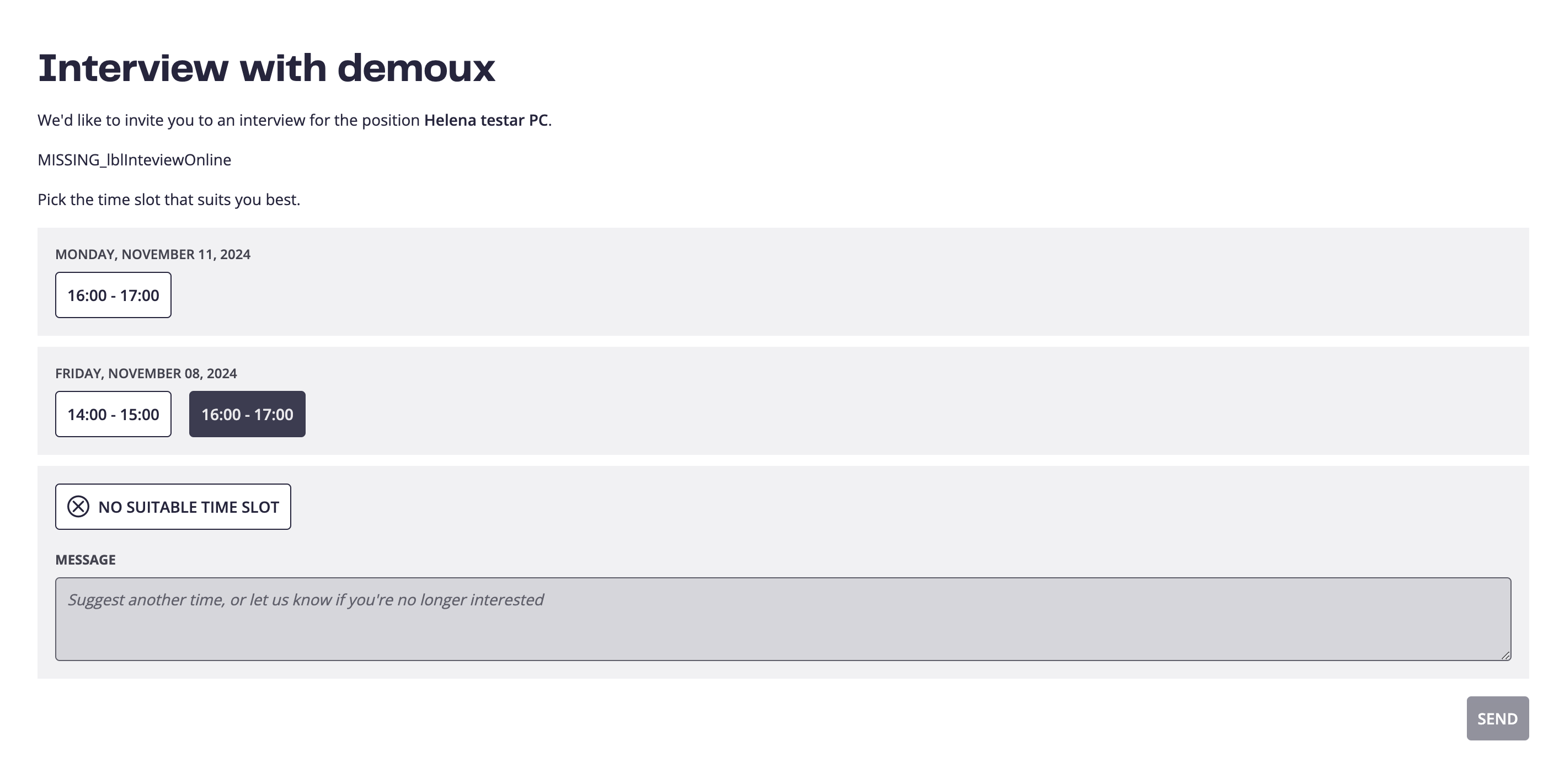
If no suitable timeslots, the candidate can add a comment that users can view inside ReachMee:

When selecting a timeslot, the candidate get a confirmation and option to add to their calendar:
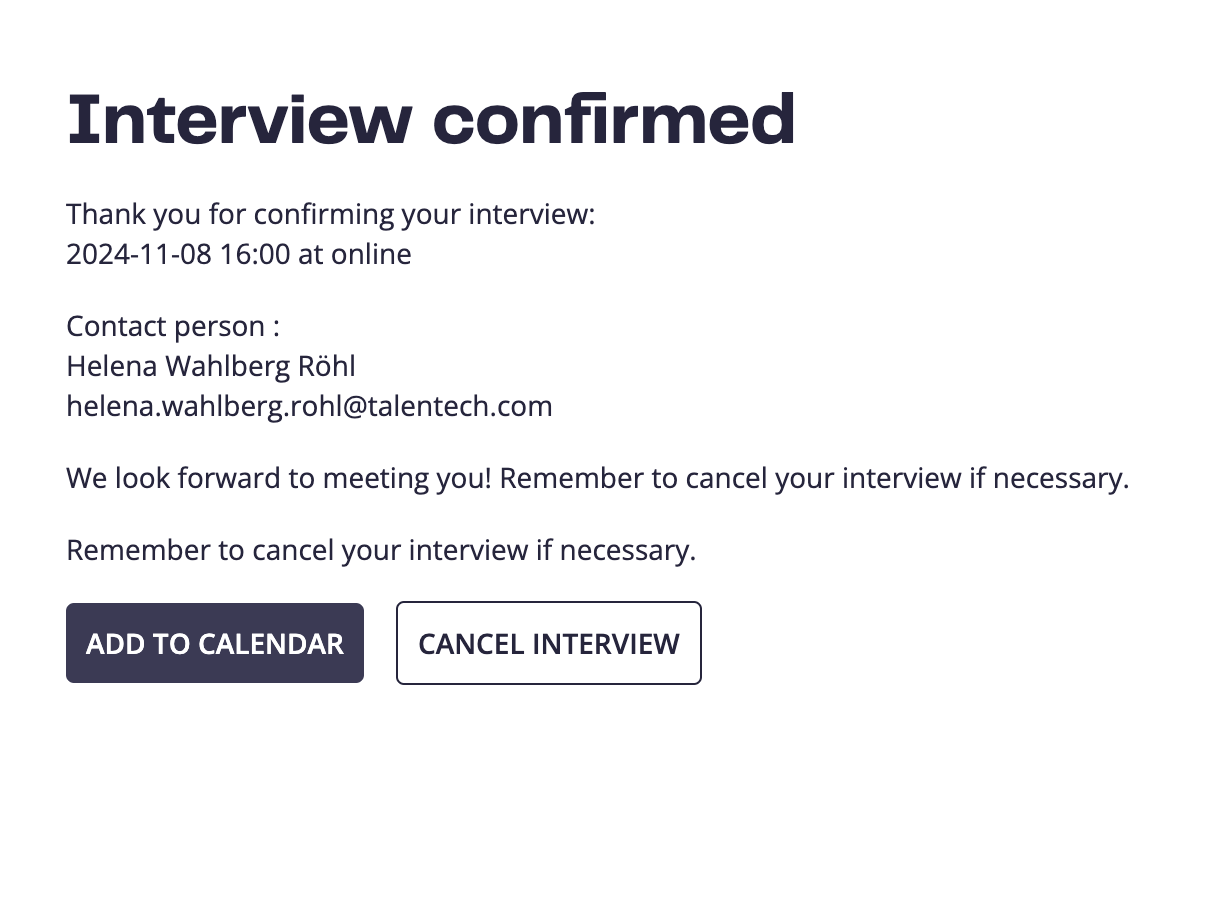
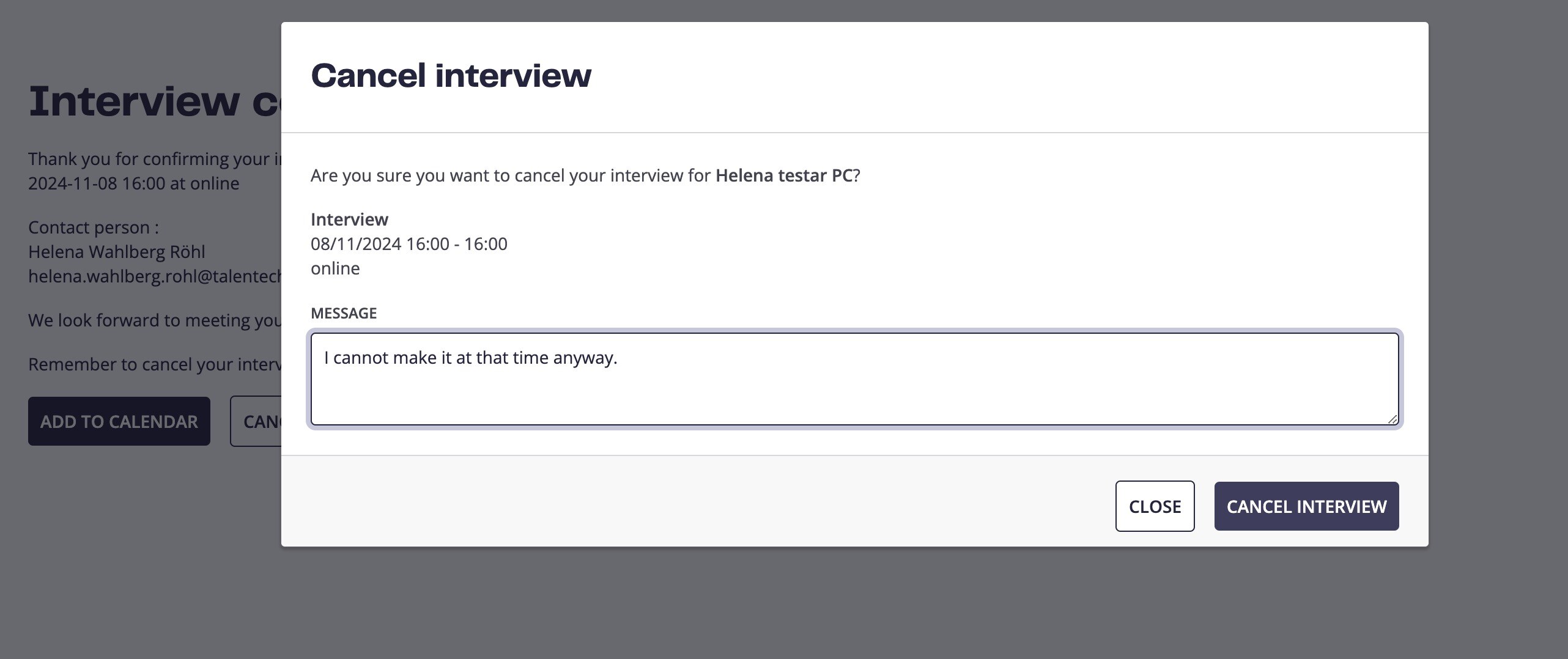
Candidates can also cancel the interview, if they cannot participate as expected.
When cancelling a meeting, candidates can give a comment to the cancellation to help recruiters understand what to do next:
Viewing interview bookings
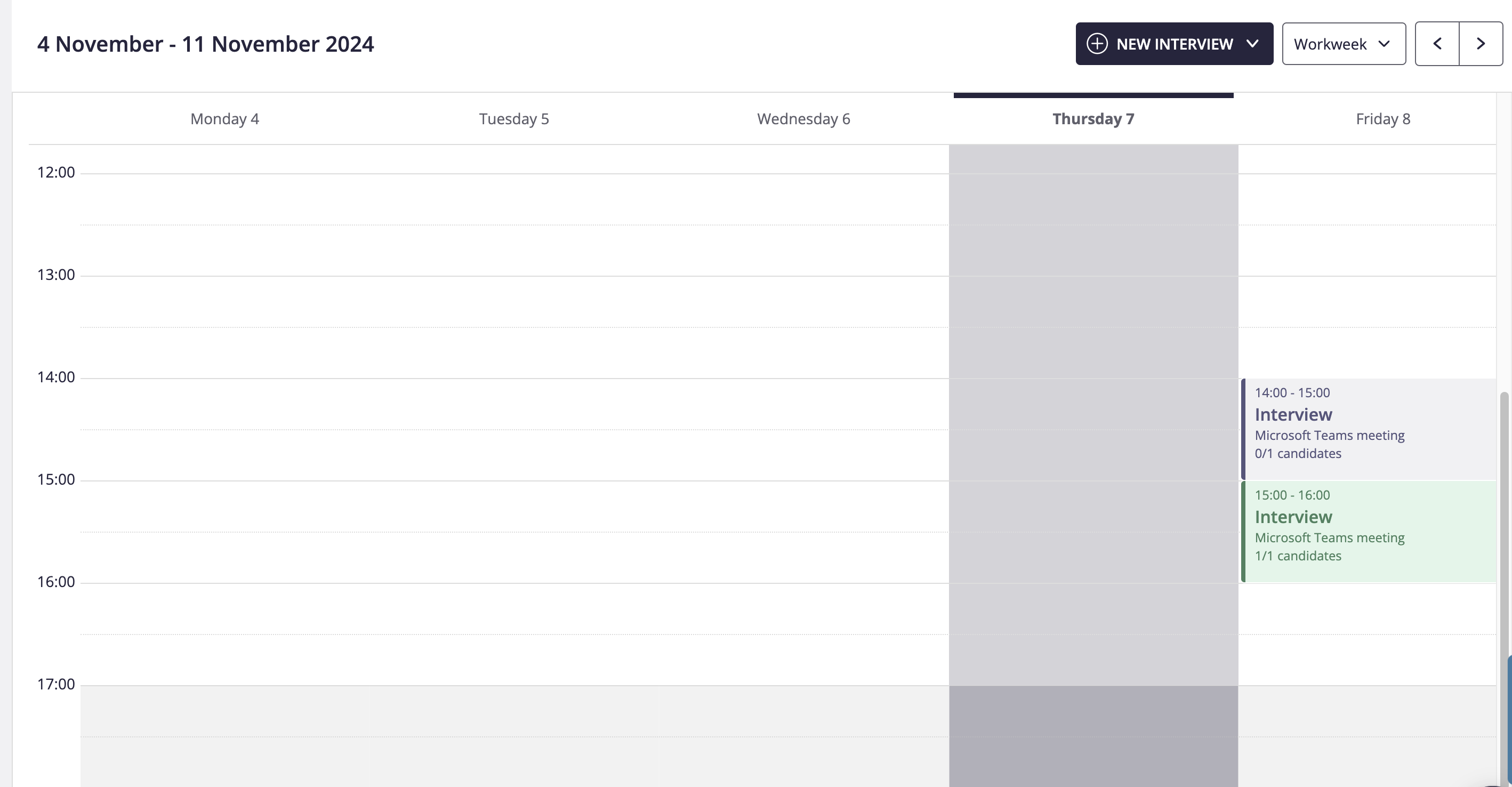
The overview of the recruitments interviews, can easily be found in the calendar view, where both booked and accepted can be viewed:
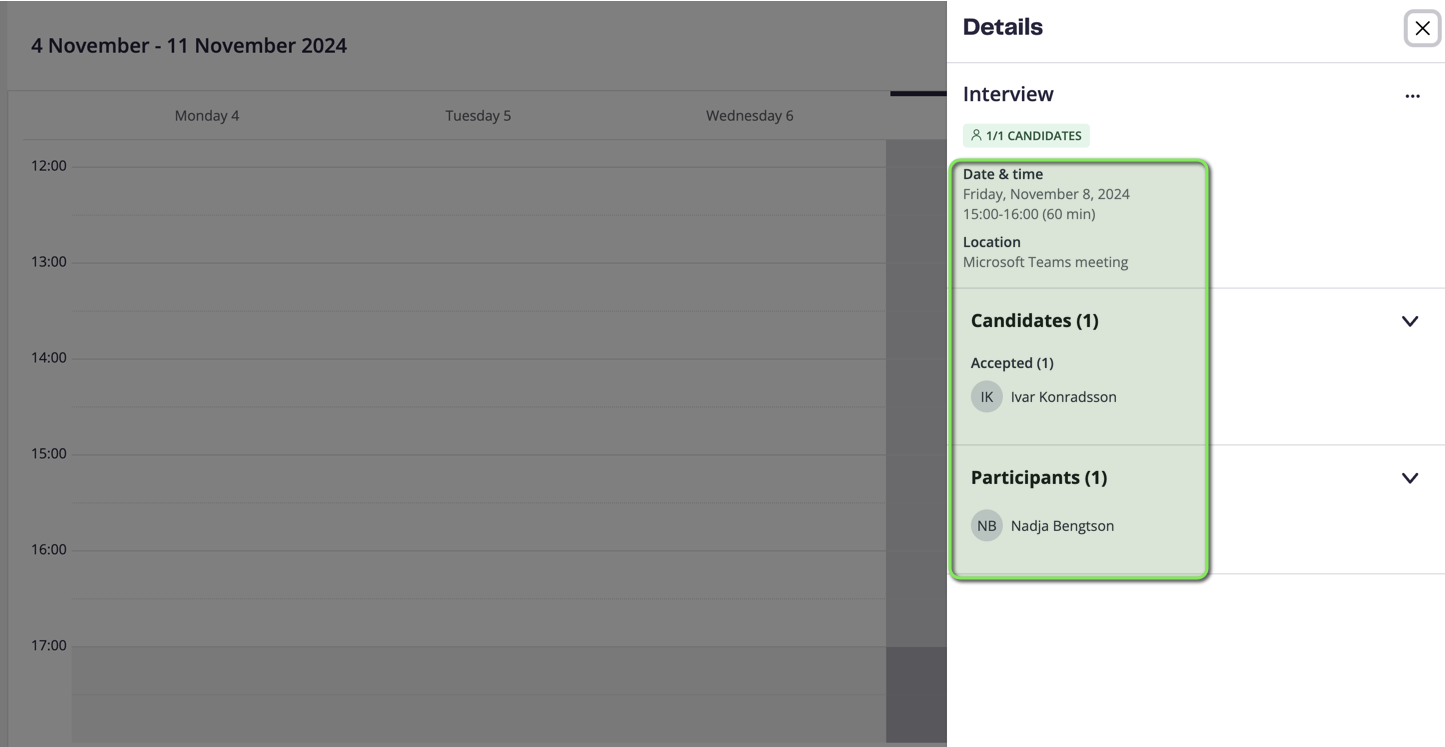
When clicking on the interview for an accepted meeting, you can view all the important details such as when, where and who will be joining:
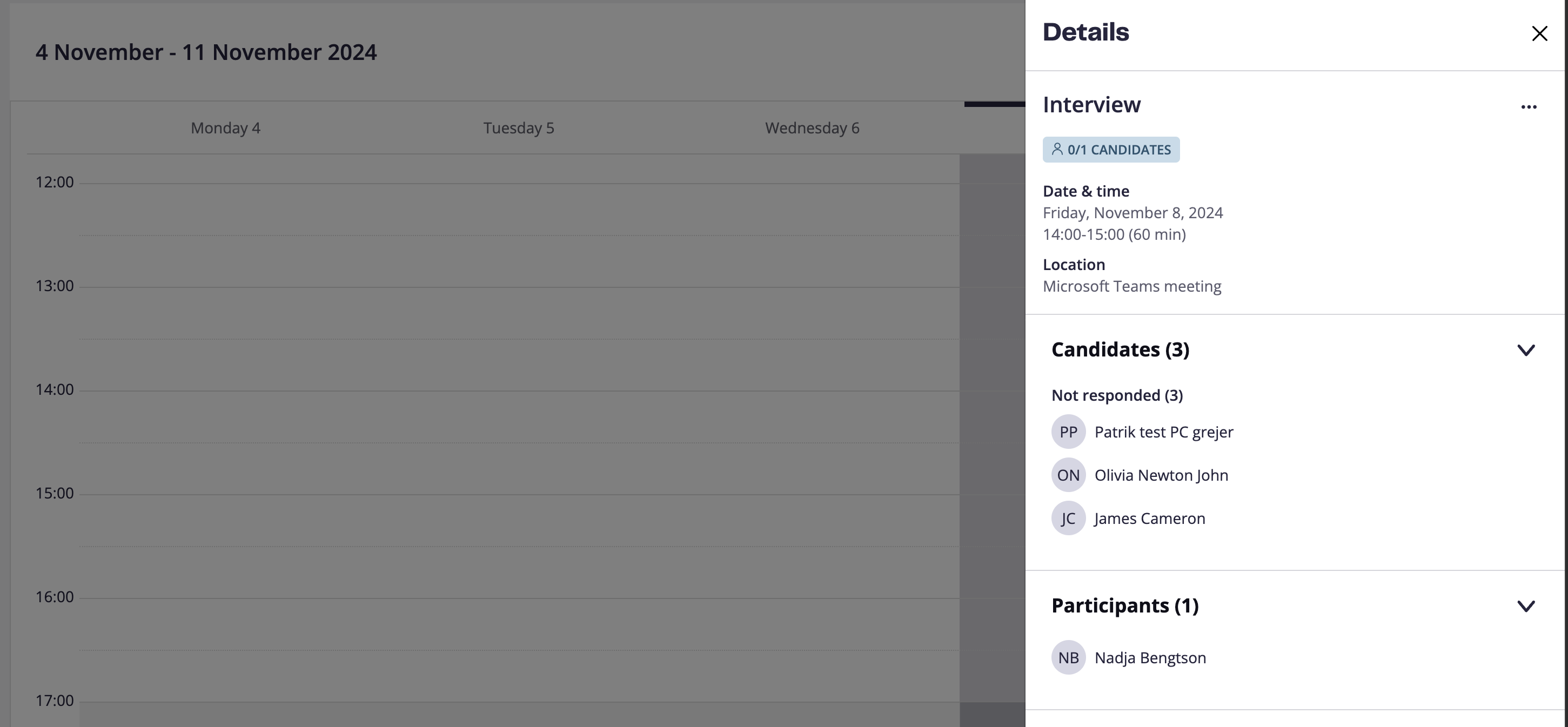
Interviews that haven’t been selected yet, shows like this:
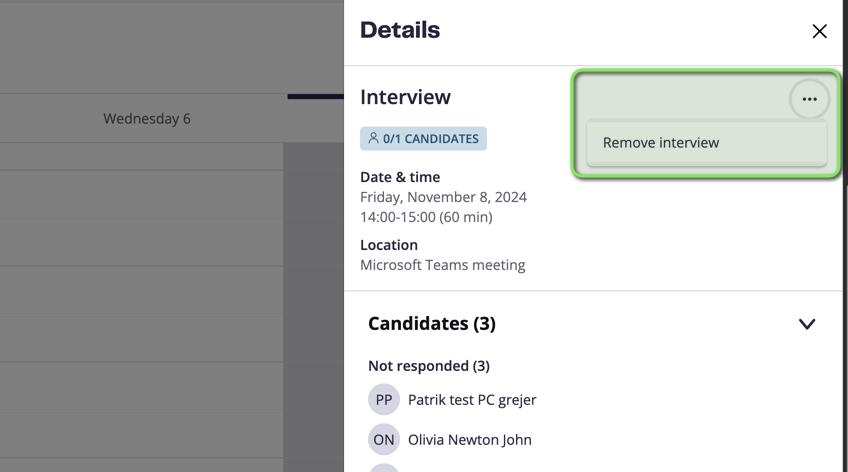
And if needed to remove a timeslot, you can easily do it directly here:
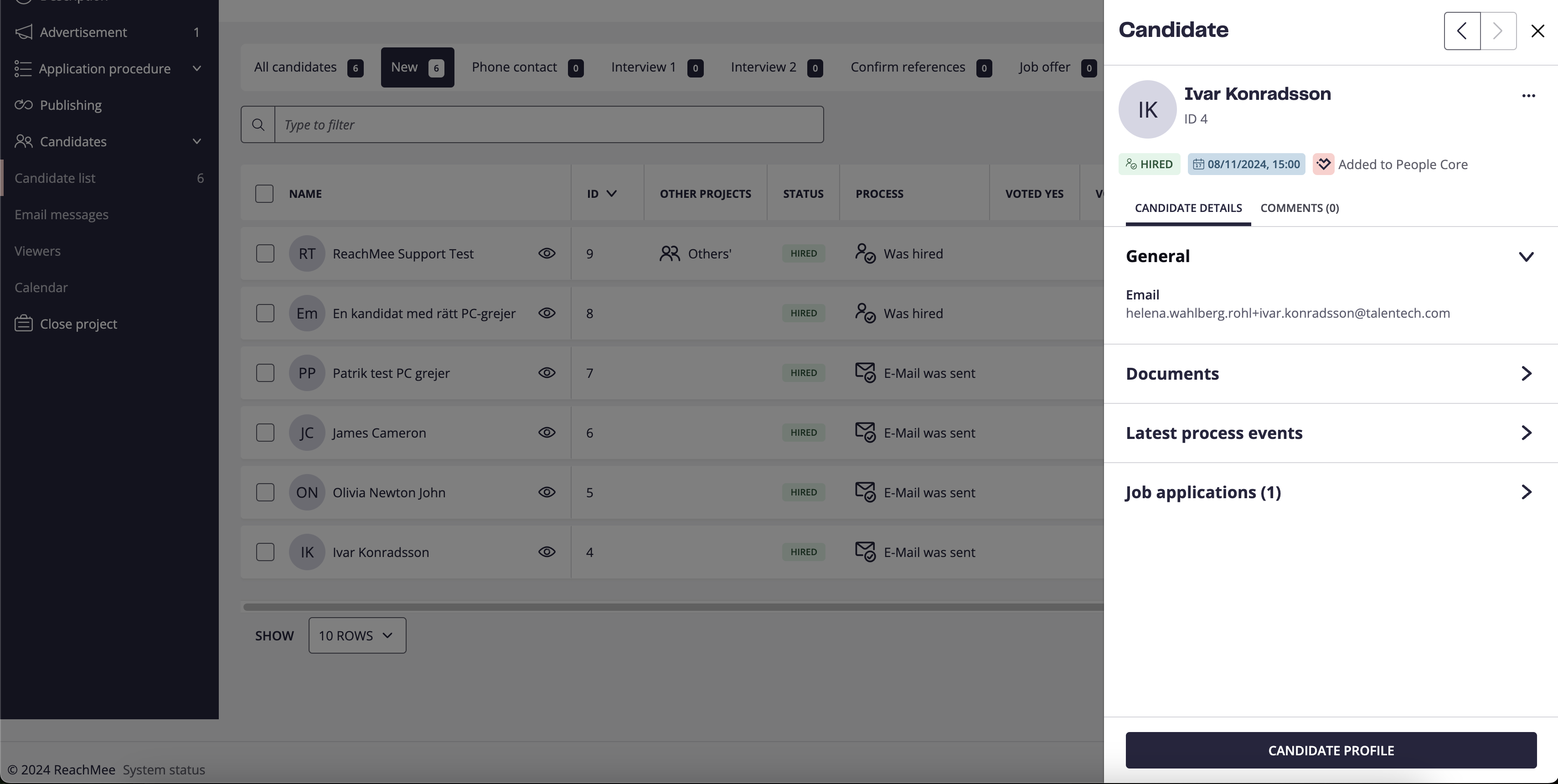
Accepted interviews can also be found on the candidate canvas, where you can click on the meeting to enter the overall view:
New/Previous version
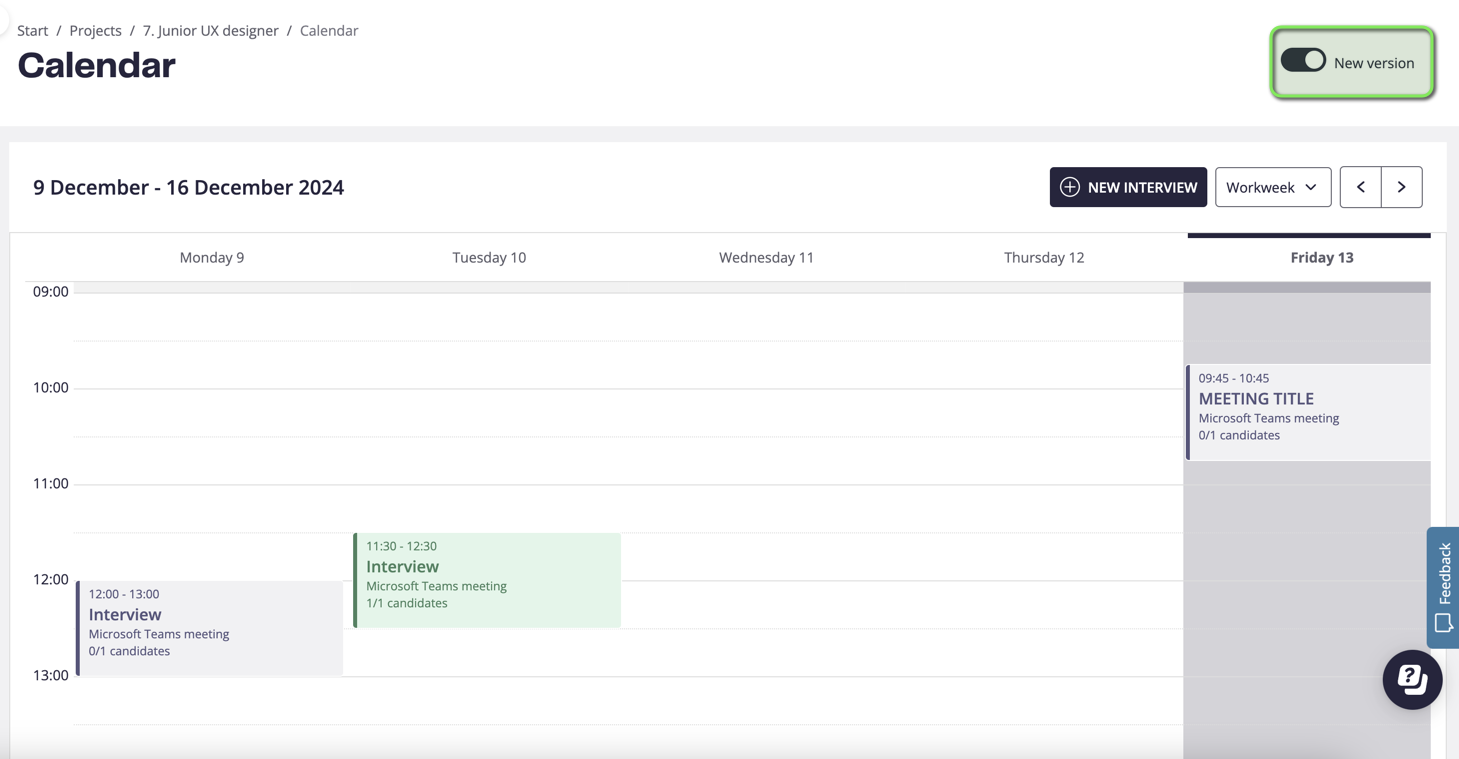
During the time that it's possible to try it out, before we converted everyone to the new function, you can switch between new and previous version here: