
Webhooks are commonly used to:
- Integrate with external HR or IT systems
- Trigger automation workflows
- Synchronize onboarding or user data
- Collect analytics or event-based insights
Each customer can configure and manage their own webhooks directly in the application.
How Webhooks Work
- A webhook is configured with:
- An event trigger
- An HTTP request method
- A target URL
- A JSON payload
- Optional authentication
- When the selected event occurs:
- Talmundo sends an HTTP request to the configured URL.
- Each execution is logged and can be reviewed.
- Failed executions can be manually resent by the user.
Webhook Configuration
Webhook Properties
Each webhook consists of the following configuration options: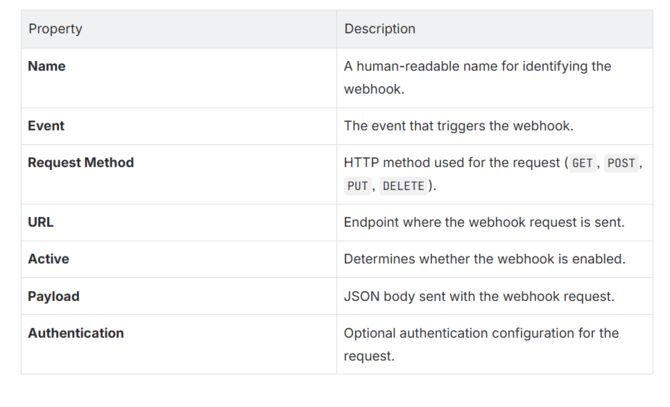
Webhook Payload
Payload Format
- The webhook payload must be valid JSON.
- Payload structure is fully configurable by the customer.
- Payloads are validated for correct JSON syntax before execution.
If the payload is not valid JSON, the webhook is marked as invalid and will not execute. Check here for more information and an example payload.
Supported Payload Data
Customers can include properties related to:
- User data
- Onboarding data
- Event-specific data, depending on the selected trigger
Examples of event-specific payloads include:
- Submitted forms
- Completed pulse checks
The exact payload structure depends on customer configuration and the selected event.
Authentication
Webhooks support the following authentication methods:
- None
- Basic Authentication
- API Key Authentication
More advanced authentication mechanisms (such as OAuth or request signing) are not supported at this time.
Webhook Events
Webhook events are predefined and grouped into categories. Customers select from these options when configuring a webhook.
Module Events
Triggered when a specific onboarding module is completed by an onboardee.
Supported module events:
- Form v2 completed
- Form completed
- Pulse check completed
- Introduce yourself completed
- Test yourself completed
Onboarding Events
Triggered by lifecycle changes in an onboarding.
Supported onboarding events:
- Onboarding created
- Onboarding updated
- Onboarding deleted
- Onboarding started
- Onboarding ended
- Onboarding activated
User Events
Triggered by user lifecycle actions.
Supported user events:
- User created
Managing Webhooks
Webhooks Overview
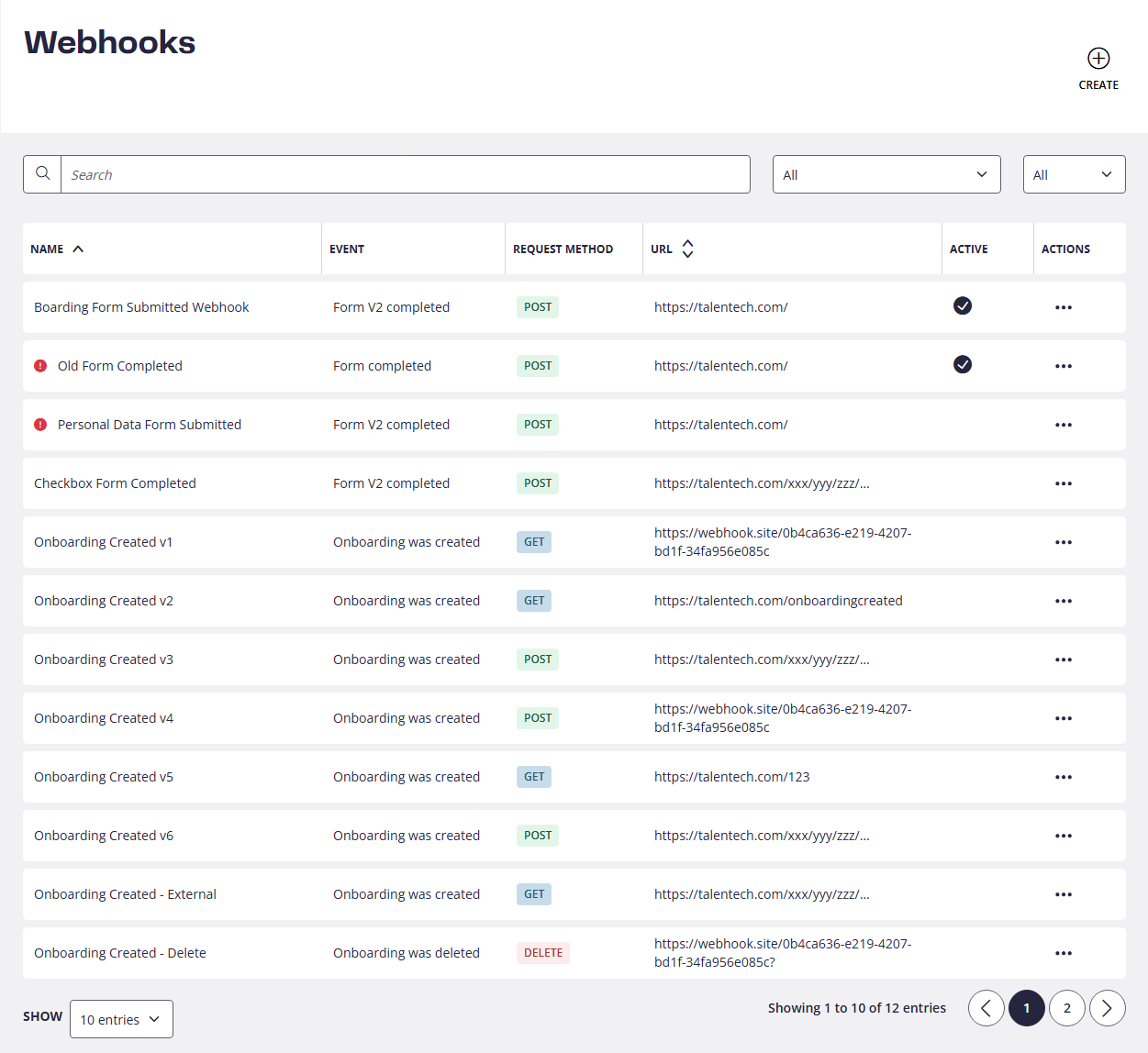
The Webhooks Table provides an overview of all configured webhooks for a customer.
It allows users to:
- View all webhooks
- Search by webhook name or URL
- Filter by event trigger
- Filter by request method
- Edit or delete existing webhooks
Validation & Status Indicators
- A webhook is marked as invalid if its JSON payload cannot be parsed correctly.
- Invalid webhooks are visually indicated with a red exclamation icon next to the webhook name.
- URL validity or endpoint reachability is not validated during configuration.
- Issues such as unreachable endpoints or server errors are only detected during execution and visible in the logs.
- Issues such as unreachable endpoints or server errors are only detected during execution and visible in the logs.

Creating & Editing Webhooks
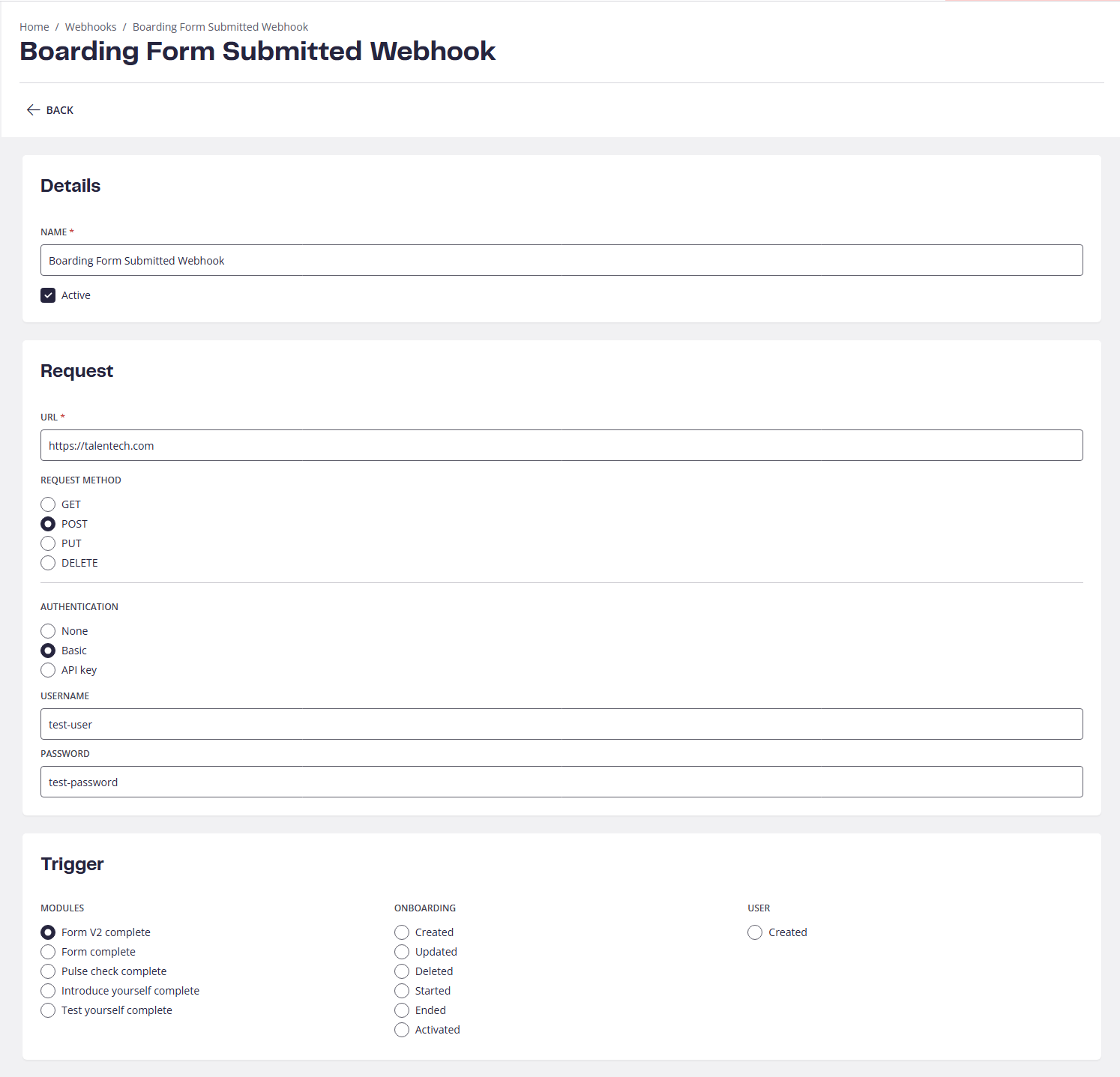
The Create/Edit Webhook pages are used for creating new webhooks and modifying existing ones.
Users can:
- Select an event trigger
- Define the request method and URL
- Configure authentication
- Build a custom JSON payload
- Enable or disable the webhook
Webhook Execution & Logs
Webhook Logs
Each webhook execution is recorded and displayed in the Webhook Logs view.
Logs allow users to:
- Monitor webhook activity
- Identify failed executions
- Verify successful deliveries
Each log entry represents a single execution of a webhook.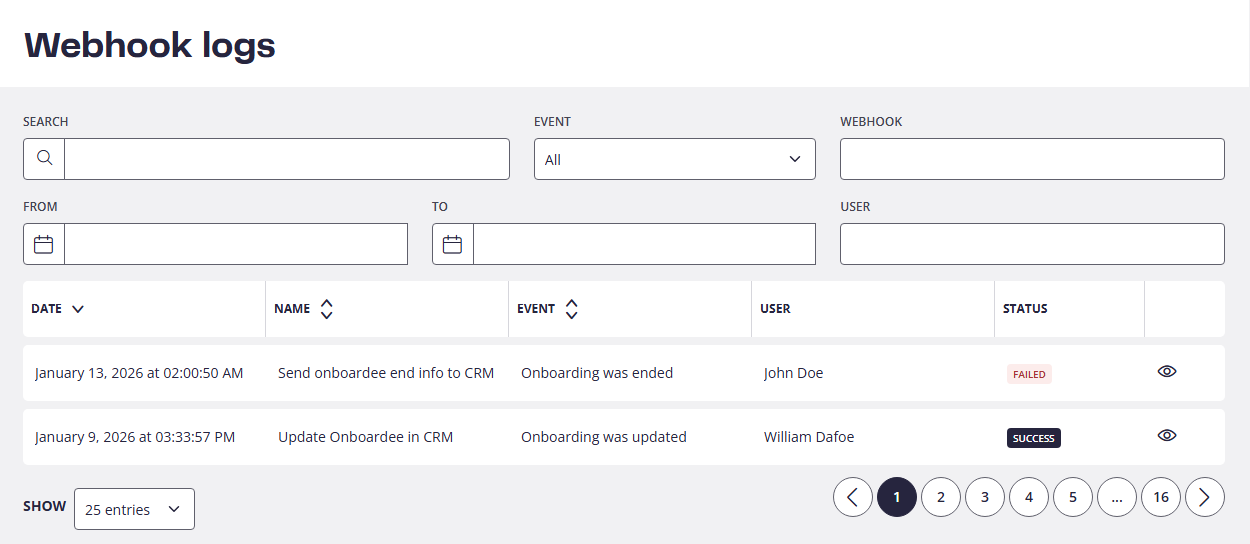
Webhook Log Details
Opening a log entry shows detailed execution information, including:
- Timestamp of execution
- Webhook configuration used
- Execution result (success or failure)
- Request and response details (where applicable)
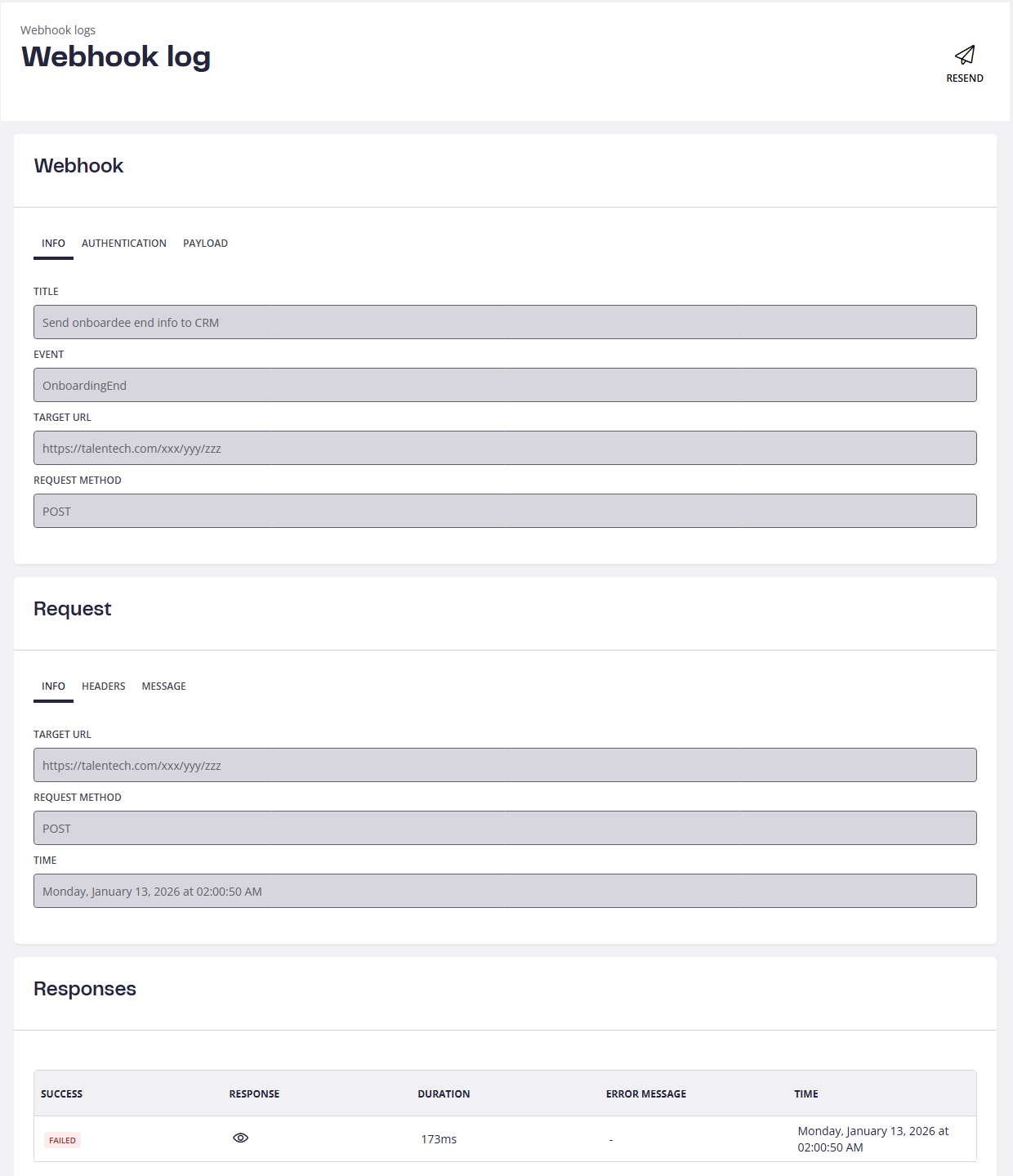
Resending Webhooks
- Webhooks do not have an automatic retry mechanism.
- If a webhook execution fails, users can manually resend it using the Resend action available in the webhook log detail view.
This allows controlled retries without risking duplicate or unintended executions.
Typical Webhook Flow
- Customer creates and activates a webhook.
- A supported event occurs in Talmundo.
- Talmundo sends an HTTP request with the configured JSON payload.
- The execution is logged.
- If the request fails:
- The failure is visible in the logs.
- The user can manually resend the webhook.
Example Webhook Payload
Webhook payloads are defined as JSON only and are fully configurable by the customer.
Important Rules
- ✅ Property names (keys) are fully customizable
Users can name properties however they like. - ❗ Property values starting with
$must remain unchanged
These values represent supported system properties for the selected event trigger. - ⚠️ Payload must be valid JSON
Invalid JSON will mark the webhook as invalid.
All supported properties available for an event are listed above the payload editor, grouped into tabs by category (for example: User, Onboarding, Pulse Check, etc.).
Below is an example payload for a webhook event.
The structure and property names are configurable, but the $-prefixed values must stay exactly as provided. 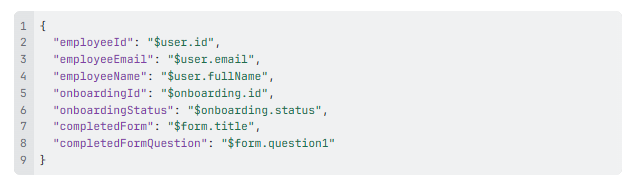
Explanation
- Keys such as
employeeId,employeeEmail, andcompletedModuleare customer-defined - Values like
$user.id,$onboarding.id, and$form.titleare system-provided placeholders - At execution time, Talmundo replaces these placeholders with actual event data
Validation Behavior
- If the JSON payload cannot be parsed, the webhook is marked as invalid
- Invalid webhooks are highlighted in the webhooks overview with a red exclamation icon
- Payload content is not validated semantically (only JSON syntax is checked)