
Content Data Export
What Data Can Be Exported?
Using the Data Export feature, you can export the following data types:
- Pulse Check Results
Export answers and results from your pulse checks to analyze engagement and sentiment over time.
- Introduce Yourself Submissions
Download responses submitted through the “Introduce Yourself” feature.
- Learning Page Popularity
Get insights into how your learning content is being used, including popularity and engagement data.
Customizing Your Data Export
The Data Export feature is fully customizable, giving you control over what data you download and how it is structured.
1. Select a Date Range
Choose the specific time period you want to export data from. This is useful when you only need recent data or want to analyze a particular timeframe.
2. Choose the Export Format
Select your preferred file format (for example, CSV or Excel), depending on how you plan to use the data afterward.
3. Select and Arrange Columns
You can decide exactly which columns are included in the export.
Exporting Data for All Users
In addition to active users, the Data Export feature also allows you to include:
You can choose whether to include or exclude these users before exporting the data, depending on your reporting needs.
How to Export Your Data
In addition to the Data Export feature described above, we also offer a User Data Export feature. While this is not a new functionality, we’d like to highlight it here for clarity.
The User Data Export allows you to export data related to:
Just like with the content data export, you can fully customize your export by:
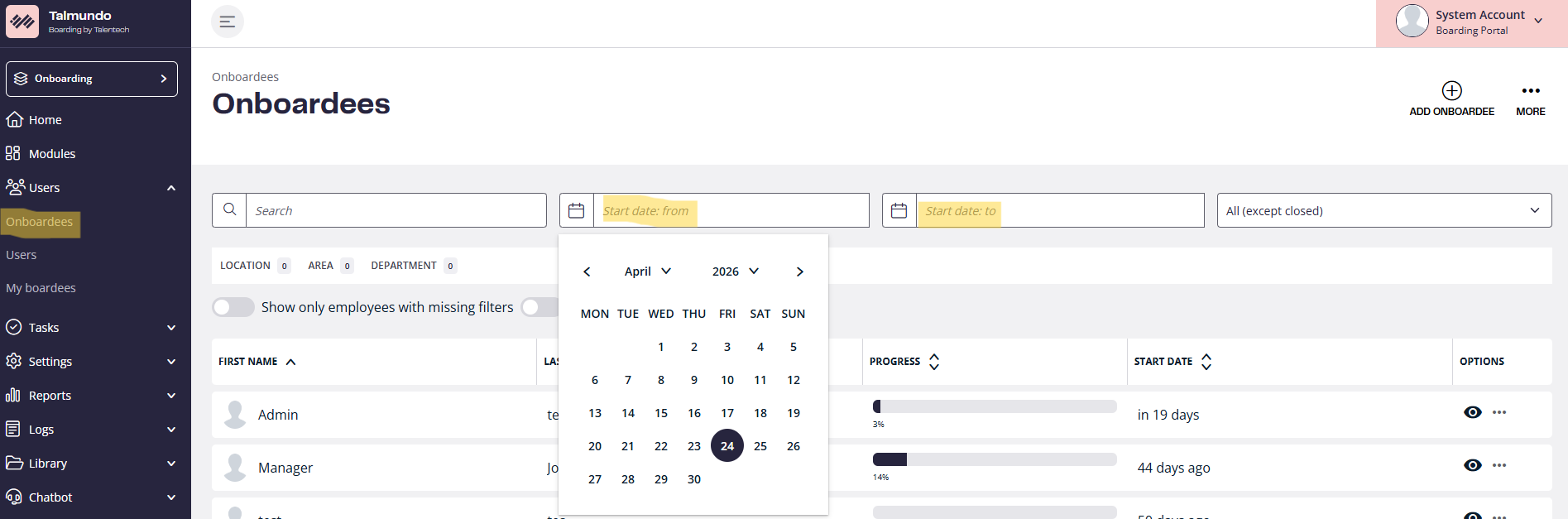
You can set your export dates by opening the calendar picker on the Boardee's page:
Where to Find This Export
The User Data Export is available in multiple locations:
What Data Can Be Exported?
Using the Data Export feature, you can export the following data types:
- Pulse Check Results
Export answers and results from your pulse checks to analyze engagement and sentiment over time.
- Introduce Yourself Submissions
Download responses submitted through the “Introduce Yourself” feature.
- Learning Page Popularity
Get insights into how your learning content is being used, including popularity and engagement data.
Customizing Your Data Export
The Data Export feature is fully customizable, giving you control over what data you download and how it is structured.
1. Select a Date Range
Choose the specific time period you want to export data from. This is useful when you only need recent data or want to analyze a particular timeframe.
2. Choose the Export Format
Select your preferred file format (for example, CSV or Excel), depending on how you plan to use the data afterward.
3. Select and Arrange Columns
You can decide exactly which columns are included in the export.
- Add or remove columns as needed
- Change the order of columns by moving them
Exporting Data for All Users
In addition to active users, the Data Export feature also allows you to include:
- Deleted users – Useful for historical reporting or audits
- Users without filters – Ensures a complete dataset when no filters are applied
You can choose whether to include or exclude these users before exporting the data, depending on your reporting needs.
How to Export Your Data
- Go to Modules Page
- Top Right corner click on Export
- Choose your preferred date range
- Select the export format
- Choose and arrange the columns
- (Optional) Include deleted users or users without filters
- Click Export to download your file
User data export
In addition to the Data Export feature described above, we also offer a User Data Export feature. While this is not a new functionality, we’d like to highlight it here for clarity.
The User Data Export allows you to export data related to:
- Onboardees
- Offboardees
Just like with the content data export, you can fully customize your export by:
- Selecting which columns to include
- Reordering columns to match your preferred layout
You can set your export dates by opening the calendar picker on the Boardee's page:
Where to Find This Export
The User Data Export is available in multiple locations:
- In the Onboardees page
- In the Offboarding page
- In the Users section