Task Library
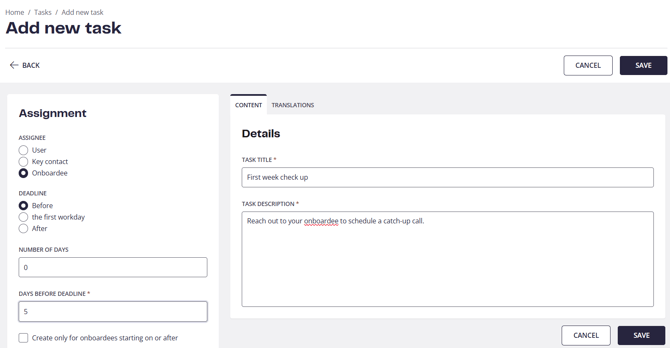
The Task Library is where you set up and manage all the general task creation rules for your onboarding or offboarding template.
- Define the types of tasks that should be created.
- Configure when tasks should be triggered, such as:
- X days before the first workday
- On the first workday
- X days after the first workday
- Determine who the task should be assigned to, such as onboardees, managers, buddies, or other key contacts.
- Manage and maintain task templates across your onboarding and offboarding journeys.
Note: Tasks in the Task Library are templates and assignment rules only. They are not linked to any individual person until they are generated.
Automatic Task Generation
Once a task has been added to the Library, when a new employee is added to Talmundo, the system automatically generates tasks based on the rules configured in the Task Library.
Role-Based Assignment
Tasks can be configured to automatically assign to the appropriate stakeholder, including:
- Onboardees
- Offboardees
- Managers
- Buddies
- Other Key Contacts
Task Reminder
The platform can send reminder notifications for outstanding tasks, helping users stay on track and meet deadlines.
Task reminders are sent:
-
When the task is created
-
7 days before the due date
-
1 day before the due date
Assigned Tasks
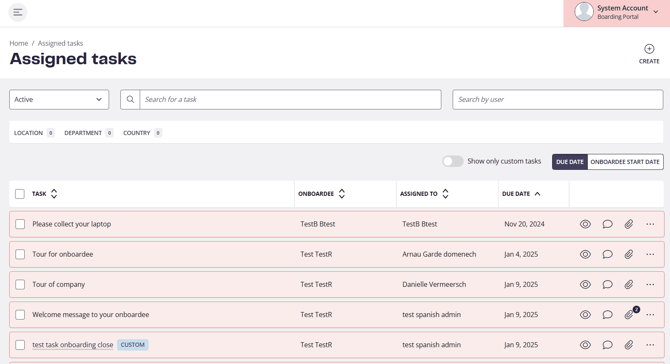
The Assigned Tasks page contains all individual tasks generated from the rules configured in the Task Library.
These are real tasks assigned to specific users and are used to track progress throughout the onboarding or offboarding journey.
From this page, administrators can:
- View all assigned tasks.
- Monitor task progress and completion.
- Access task details.
- Review comments and attachments.
- Reassign eligible tasks when needed.
- Create custom tasks for individual users.
- Search tasks assigned per user.
Features
Custom Tasks
In addition to automatically generated tasks, administrators can create Custom Tasks.
Custom Tasks:
- Are created manually.
- Are assigned to a specific user only.
- Are not linked to Task Library rules.
- Can be used for unique situations that require individual follow-up or actions outside the standard onboarding or offboarding process.
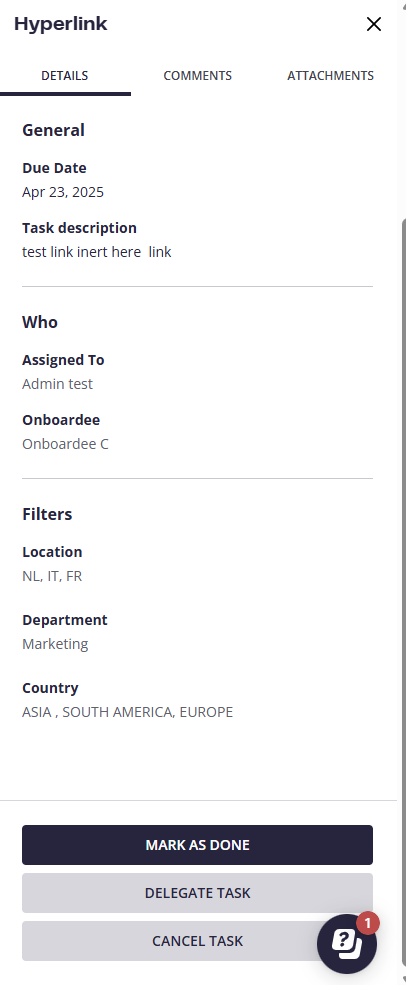
Quick Task Details Panel
Users can open the task details panel by selecting the Eye icon.
This panel provides access to:
- Task information
- Comments
- Attachments
- Activity related to the task
Task Status Filtering
Tasks can be filtered to display:
- Active Tasks
- Completed Tasks
- Cancelled Tasks
This helps users quickly locate the tasks they need to manage. 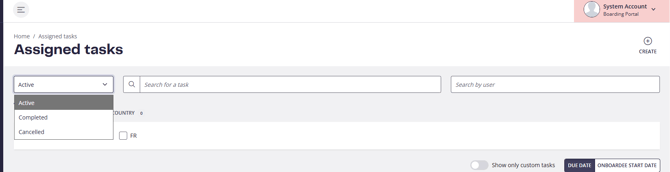
Comments and Attachments
Tasks support collaboration through comments and file attachments, both of which can be accessed directly from the task details panel.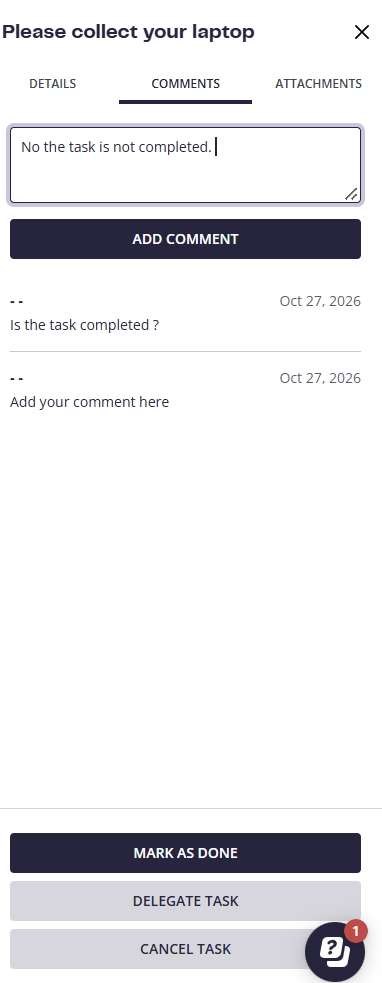
Task Delegation
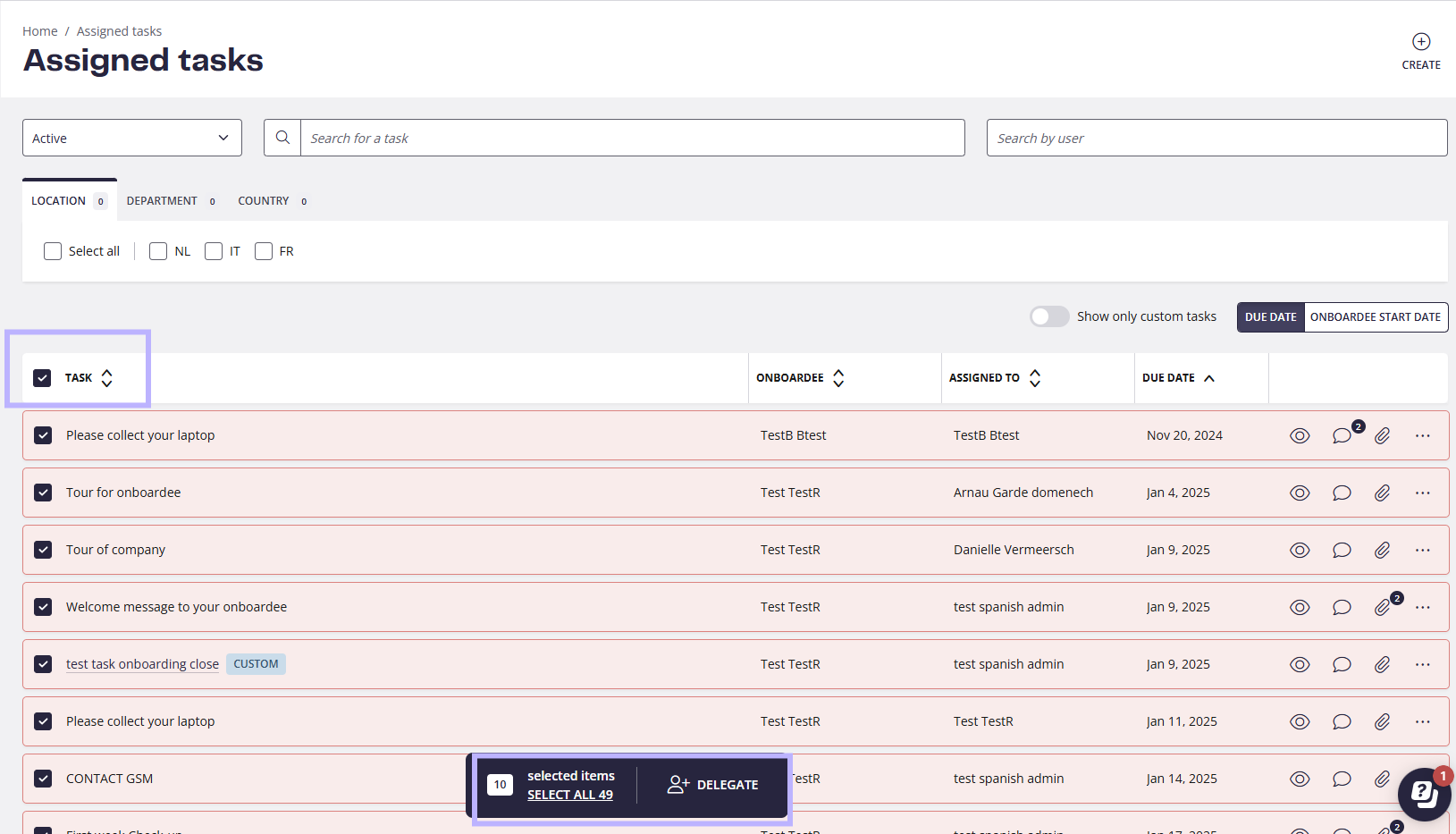
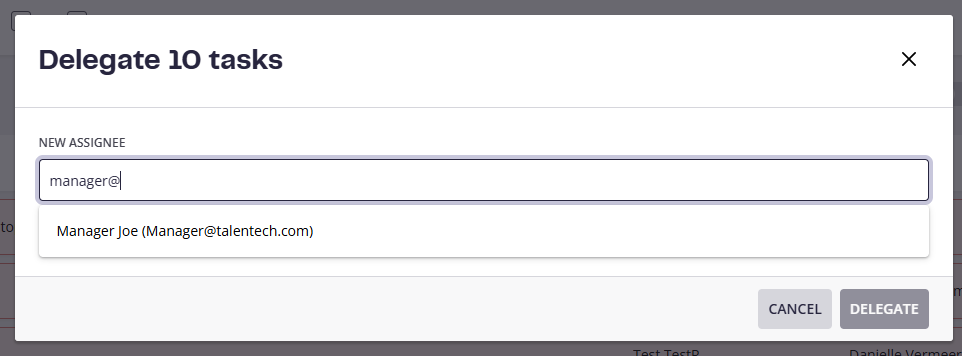
Active tasks assigned to Key Contacts can be delegated to another Key Contact when required, for example during vacations or periods of absence.
Important: Delegation is only possible between Key Contacts (for example, Manager to Manager). Tasks assigned to onboardees or offboardees cannot be delegated