
TABLE OF CONTENTS
Intro
In this article, we will go through how to successfully use the ‘All employee data template’ in People Core. This is a good suggestion for organisations who would like to import all their employees and positions at once, with the accompanied information. After this import, the customer will have their data in People Core with the possibility to make further settings in the system.
Instructions
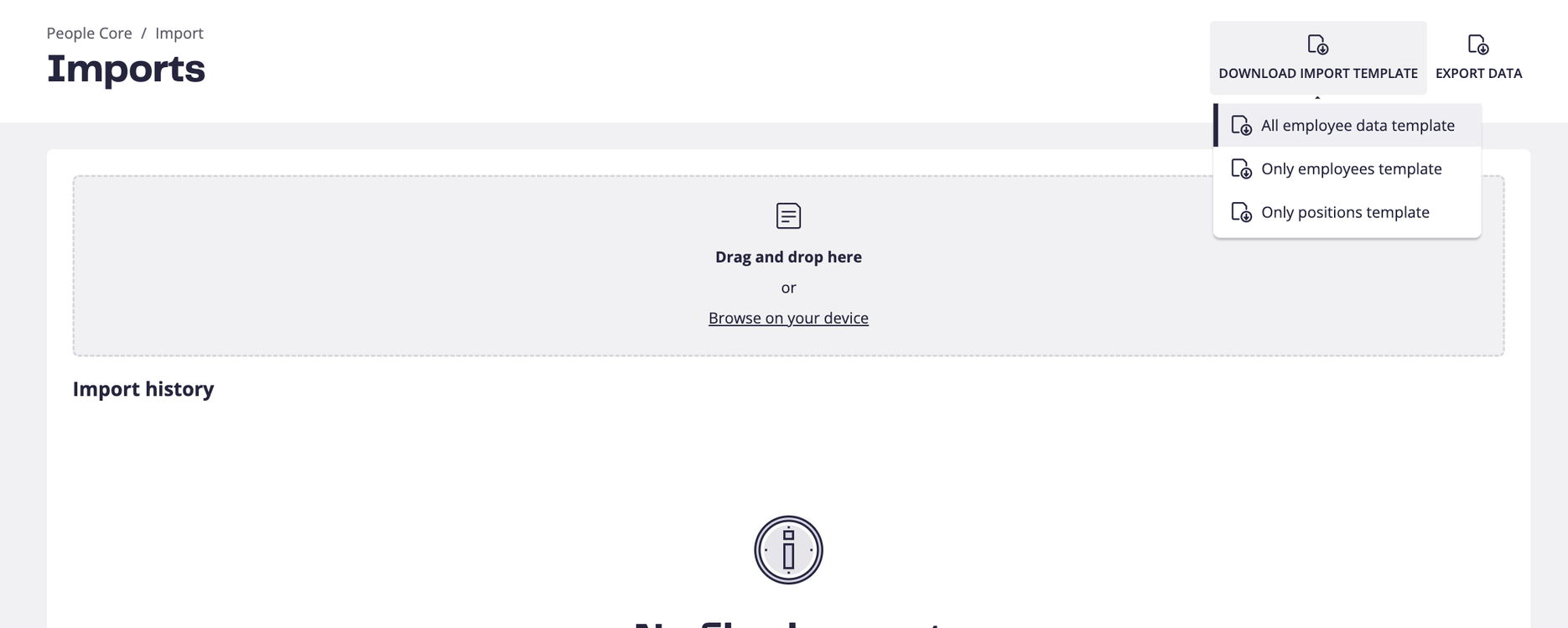
Go to Imports > Download import template > All employee data template. An excel file is now downloaded to your computer.
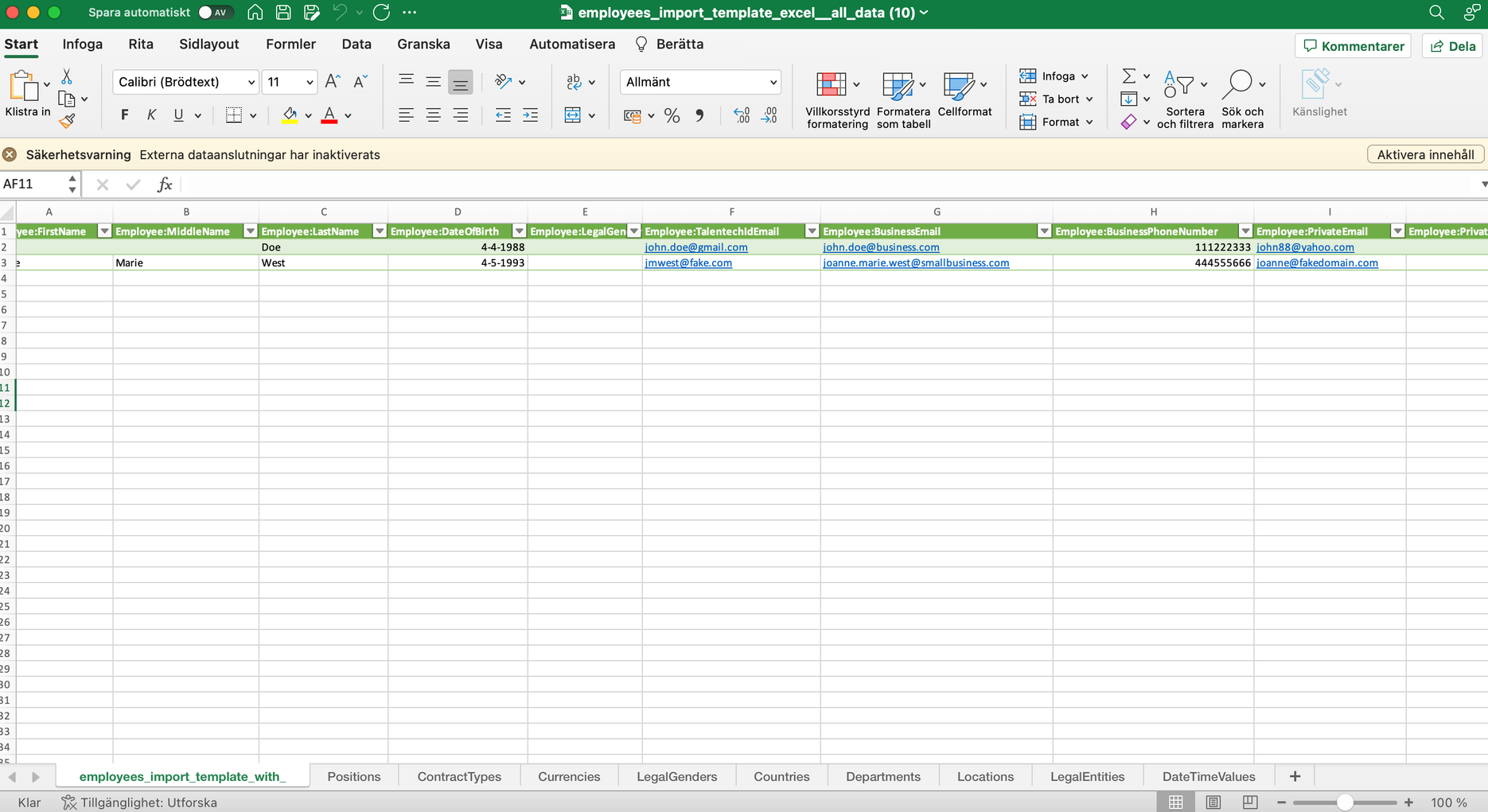
Open up the excel sheet, it should look like the picture below. This excel sheet contains columns that are related to three different categories: Employee, Position and Contract. They are all three equally important to make the import a success - especially contracts that connects the employee to the right position:
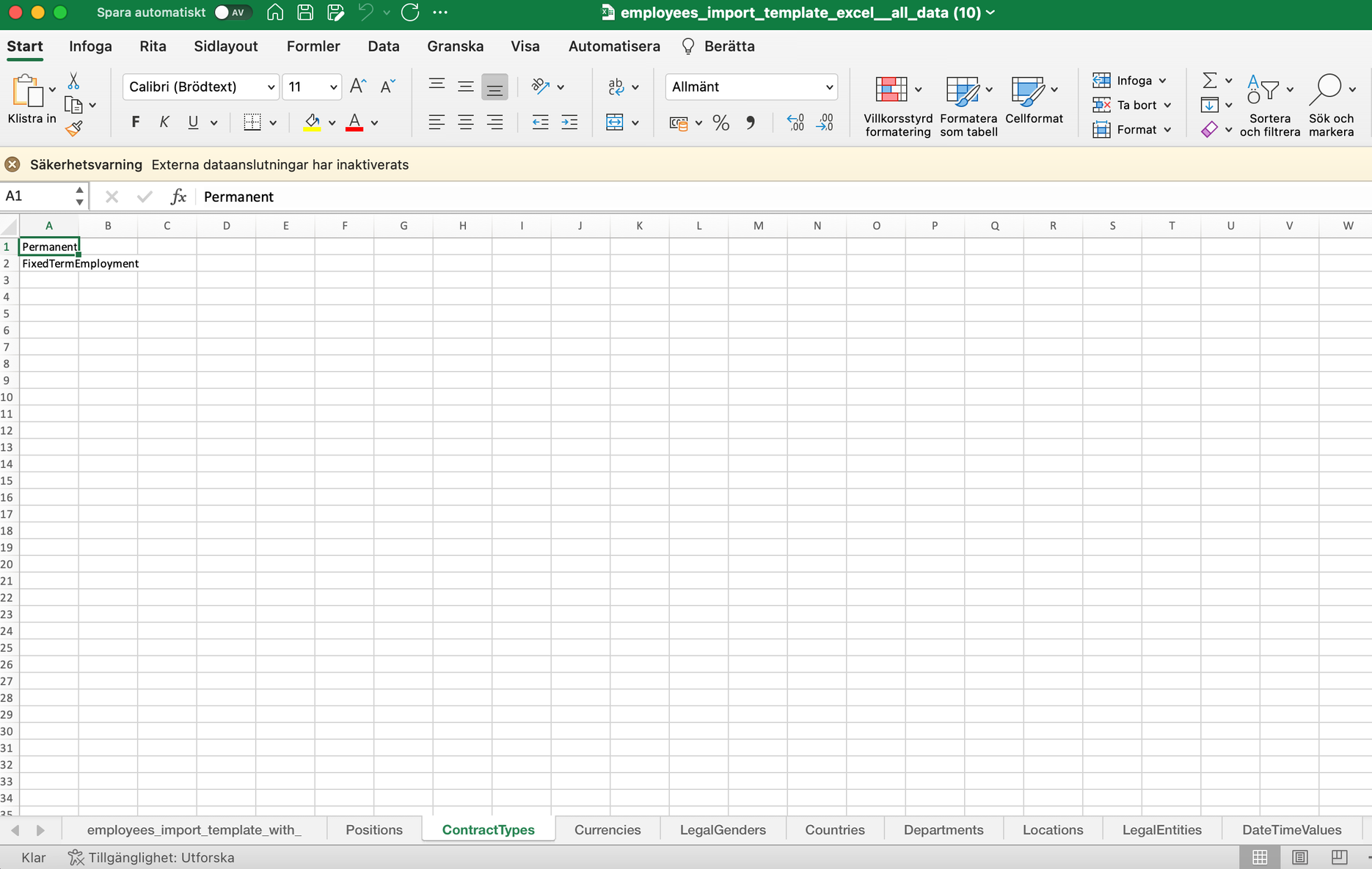
At the bottom of the sheet, you’ll find tabs with different names. They are connected to the columns with adjacent name and there you can find the accepted values to choose from. For instance, under ContractTypes we only accept Permanent or FixedTermEmployment:
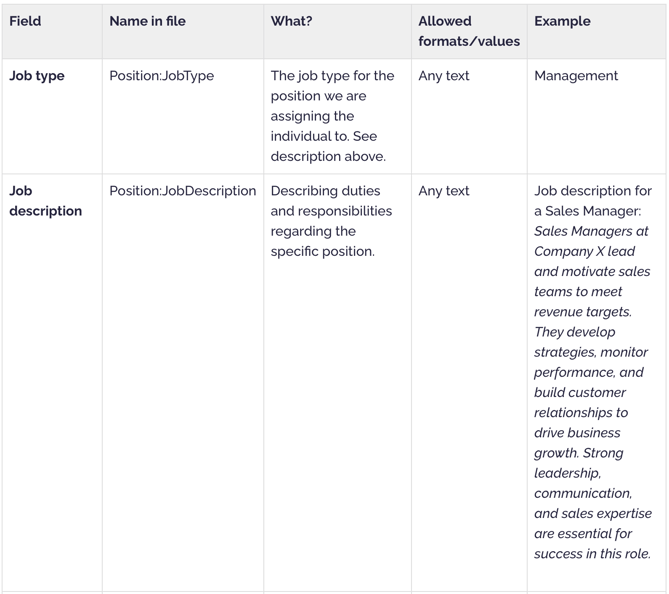
Now follows a detailed instruction on how to successfully fill in each column, divided in the categories Employee, Position and Contract:
Required Employee data
The only required fields for importing an employee are:
-
First name
-
Last name
The rest of the columns are optional.
This means that if you would rather import or fill it out in the system later - that works (but is not recommended if you have the data accessible now.
Format and valid data in each field


Tags
Tags is a way to categorize employees in different ways using single or multiple words. These tags become searchable and will be able to be visible for managers and/or employees on employee profile.
Allowed formats/values:
Any text or numbers
# for separating tags if several are added in the same cell
Seniority date
The Seniority feature allows you to track how long each employee has been employed in your organization and to follow up and analyze this information across your workforce.
Allowed formats/values:
YYYY-MM-DD
Example: 2000-03-28
Read more about Seniority here: https://customerportal.talentech.com/sv/knowledge/employee-seniority
Required Position data
The only required fields for importing an employee with position are:
-
Job title
This is what will be shown in the Position tree in People Core e.g Country Manager Sweden, Implementation Lead Denmark. - Parent Position
This is the position the employee is reporting to. There will be a drop down option in each cell for chosing the correct manager after adding the other mandatory fields thus far. Employee First & Last name and Job Title.
This means that you would rather import this/fill it out in the system later - that works (but not recommended if you have the data accessible now).
Keep in mind that the position data should relate to the actual position information, not necessarily the employee that is filling the position right now. E.g Weekly hours should be based on if the position is intended to be a full time or part time position, not if the employee that has the position right now works full time or not.
Format and valid data in each field


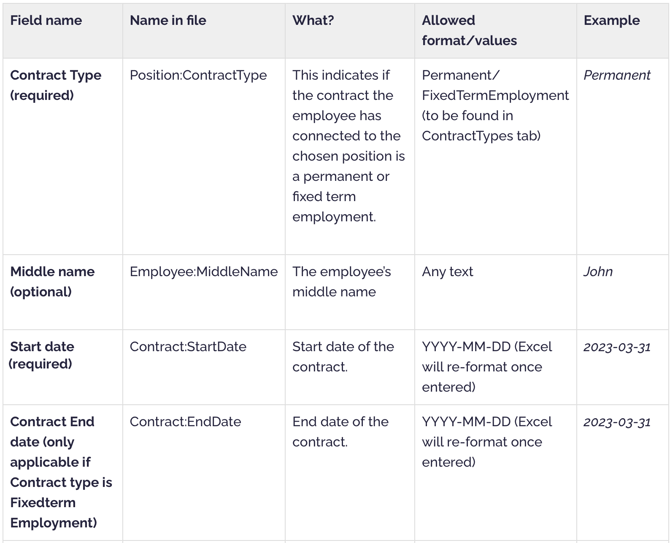
Required Contract data
You need to select:
- Contract Type
This indicates if the contract the employee has connected to the chosen position is a permanent or fixed term employment. Depending on what you select here, different fields need to be filled out: - Contact Start Date
This indicates the date the current employment had its first start date.
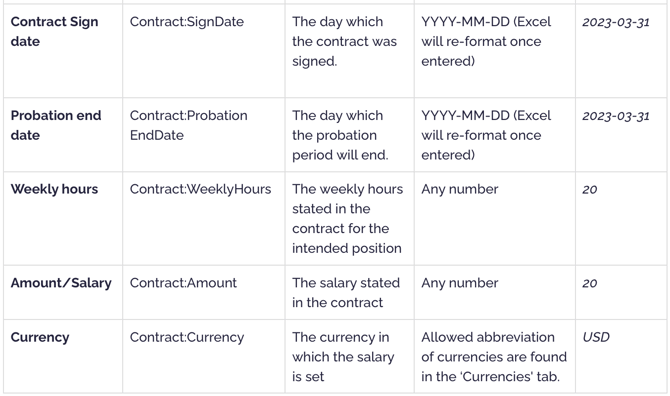
The rest of the fields connected to the employment are optional.
Format and valid data in each field
Import
When all required and voluntary columns of choice are filled, it’s time to import it back to People Core by dropping your file in the grey box or by selecting the file from your computer.
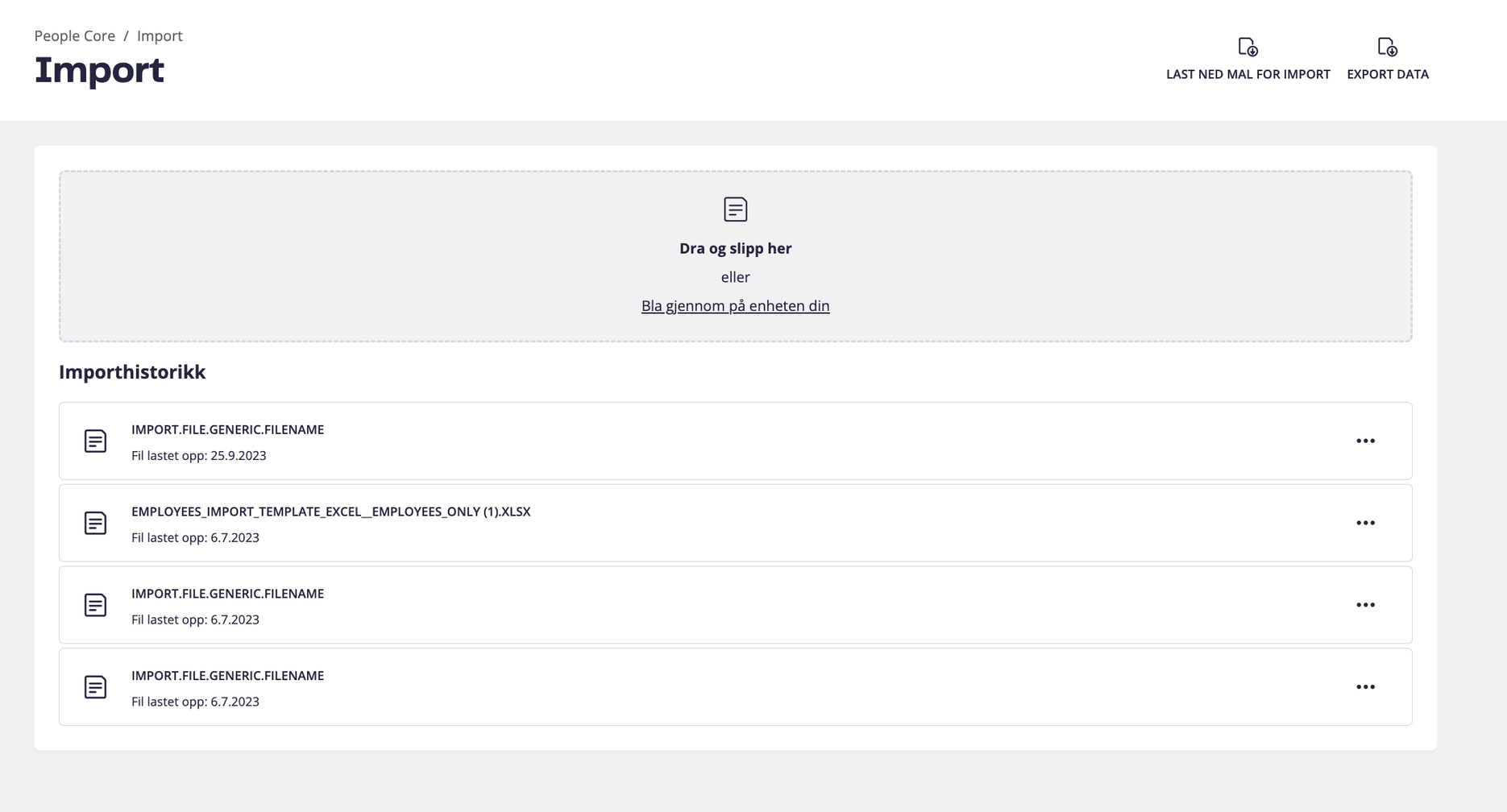
If there are any problems with the import, e.g a value was entered in the wrong formatting that is not allowed, then People Core’s importing tool will help guide you where the error is.
Any Questions?
Please reach out to us here if you have any questions, we are always happy to help!
Related articles