
How it works
Users in People Core can ask Copilot questions in any language, at any time. Copilot searches the organization’s documents to provide suitable answers for the employee. Copilot isn’t allowed to generate answers other than what is available in the documentation, and we follow strict principles to ensure secure and GDPR compliant AI throughout Talentech.
What do I need to do?
No special setup is required. All existing shared PDF documents will automatically be searchable by the AI, and all user roles will have this enabled by default. As long as relevant documentation exists for the employee, the “Ask Copilot” option will appear on the Home page.
How can I prepare for the best setup?
Make sure your organization’s employee handbooks, policies, guidelines, and similar materials are added to Shared Documents in People Core in PDF format, with the correct access controls applied.
Add a new or edit an existing document
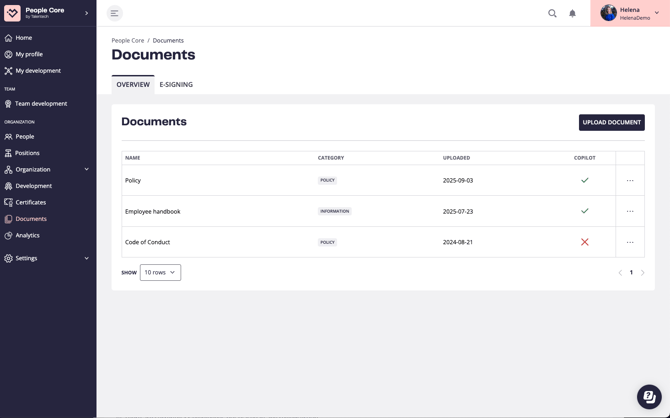
Go to Documents to access your Shared Documents. Here you will also be able to see whether Copilot search is enabled for specific documents.
-
To add a new document, click the Upload document button in the top right. In the following steps, upload your PDF and set the appropriate access controls.
-
To edit an existing document, click the three dots next to it and select Edit.
When uploading or editing, you can choose whether the document should be searchable by the AI using the toggle switch (this will be enabled by default at release).
How do I limit access to Copilot?
Control access to specific content
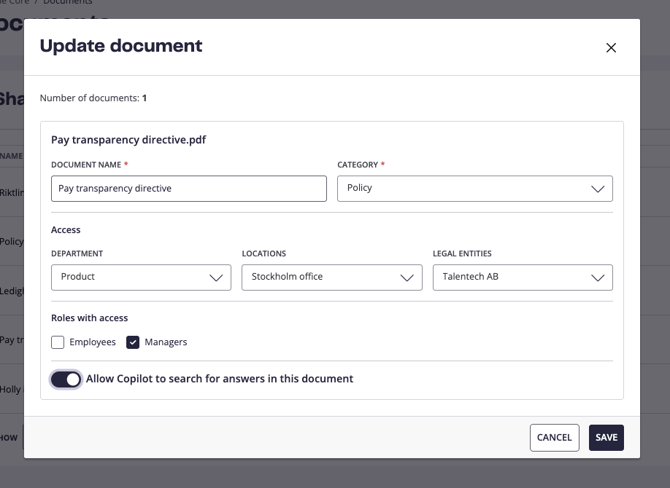
In the document settings, you can limit access to the document overall that will also apply to the access Copilot has to search in this document for specific users. If you for example would like some information to only apply to a specific department or user role, select e.g. “Department X” and check “managers”. Users that don’t match these criteria will not have access to this document and Copilot will not provide answers based on this information to these users.

For specific documents
In the document settings, you can limit access to the document overall that will also apply to the access Copilot has to search in this document for specific users. If you for example would like some information to only apply to a specific department or user role, select e.g. “Department X” and check “managers”. Users that don’t match these criteria will not have access to this document and Copilot will not provide answers based on this information to these users.
Control access by user role
If you want to disable this functionality for certain user roles, go to Settings → User roles.
-
Select the user role you want to restrict (e.g., “Employee”).
-
Go to Copilot.
-
Switch the toggle to Off.
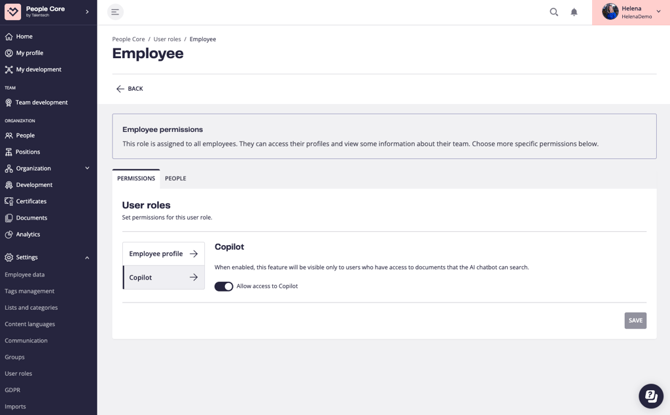
Users in that role will no longer see the “Ask Copilot” option on their Home page.