
Roles in salary review
Administrator Sets up new salary review process, follows process during review/approval and manages publishing of salaries. They are also allowed to act as anyone in the process to help out or move a stuck process forward.
Manager Sets new salary proposals for salary review groups. Anyone can be assigned the manager role in the salary review process.
Group approver Approves proposal or requests changes from manager on salary review group level. Anyone can be assigned the manager role in the salary review process.
Final approver Approves full salary review or requests changes for specific salary review groups. Anyone can be assigned the manager role in the salary review process.
Employee Takes part of their individual new salary.
Salary review process statuses
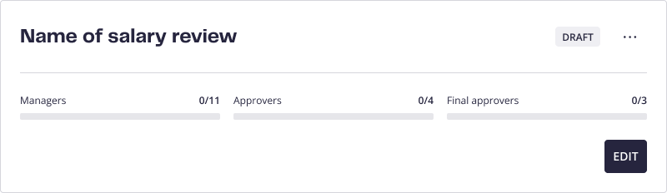
Draft
A salary review process not yet scheduled, changes to setup are still possible
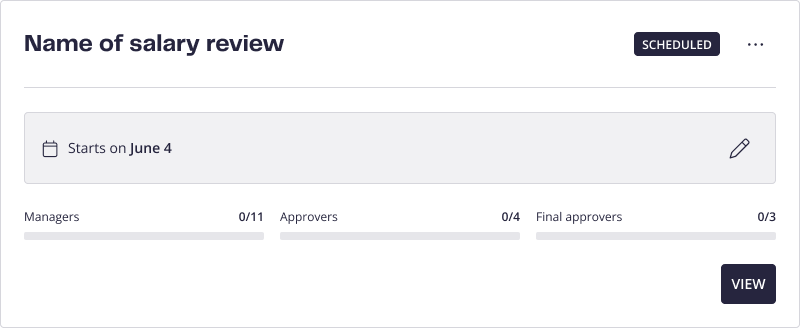
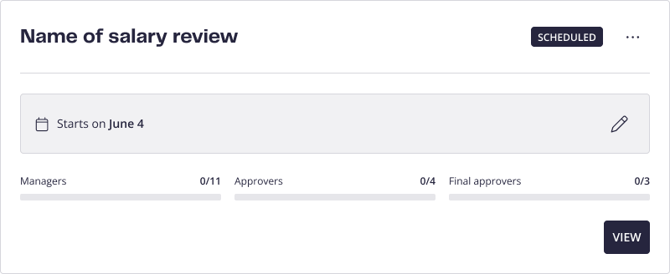
Scheduled
A salary review process is scheduled but not yet available for participants
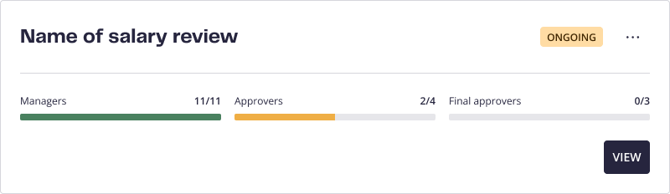
Ongoing
A salary review has started, participants have been informed and are continuously notified when they should act in the process.
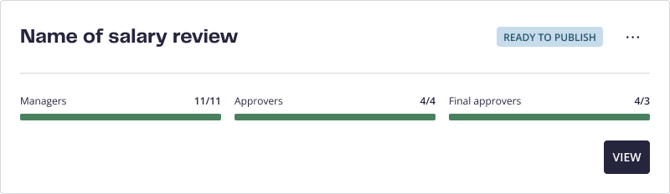
Ready to publish
The review is fully approved and awaits publication.
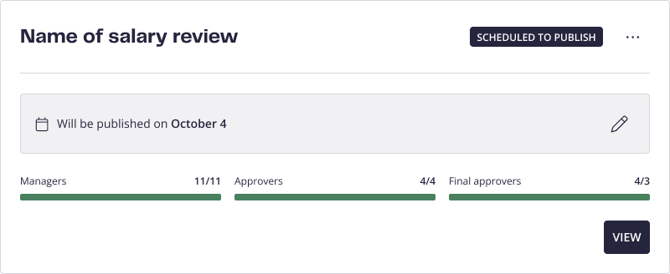
Scheduled to publish
The review has a scheduled publication that hasn’t yet occured
Key parts of the salary review process and who are involved
Administrator
-
Setting up a salary review, create groups and define budget
-
Setting up deadlines for milestones in the process, e.g. when managers should be done with their proposals, when approvers should have approved
Manager
-
Enter new salaries and submit
Group approver
-
Approve salaries proposed by manager or request change
Final approver
-
Approve the full salary review or request change for specific groups
Administrator
-
Schedule publication of new salaries and setting salaries effective dates
Employee
-
Taking part of new salary as an employee
Creating a salary review process
As an administrator you’re allowed to create and manage salary reviews in the organization.
Follow the steps to create a new salary review:
-
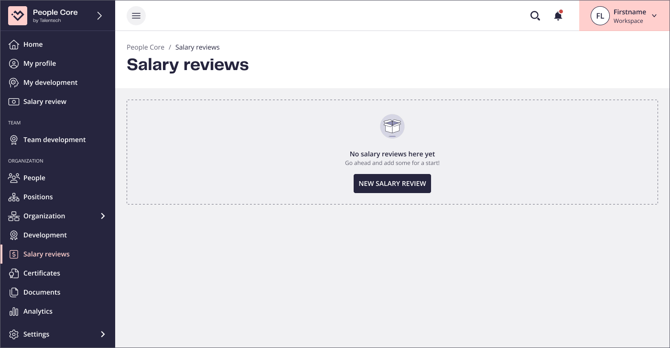
Go to Salary review in the left menu
-
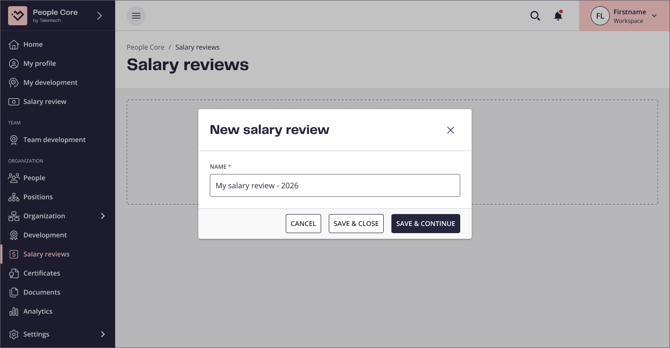
Click New salary review.
-
Give your salary review a name.
Now the salary review is set up but still in draft mode so you can make changes and come back at any time to proceed.
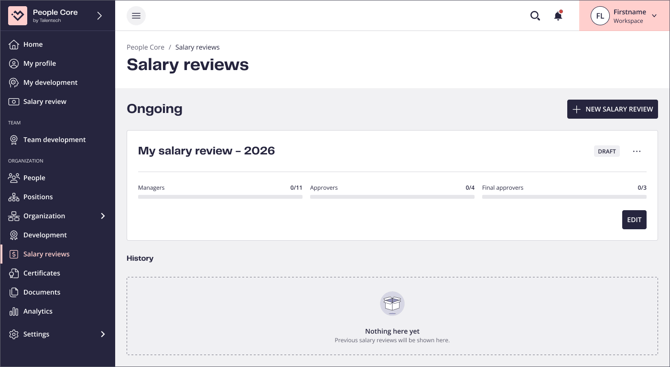
Setting scope, organizing groups and assigning managers and approvers
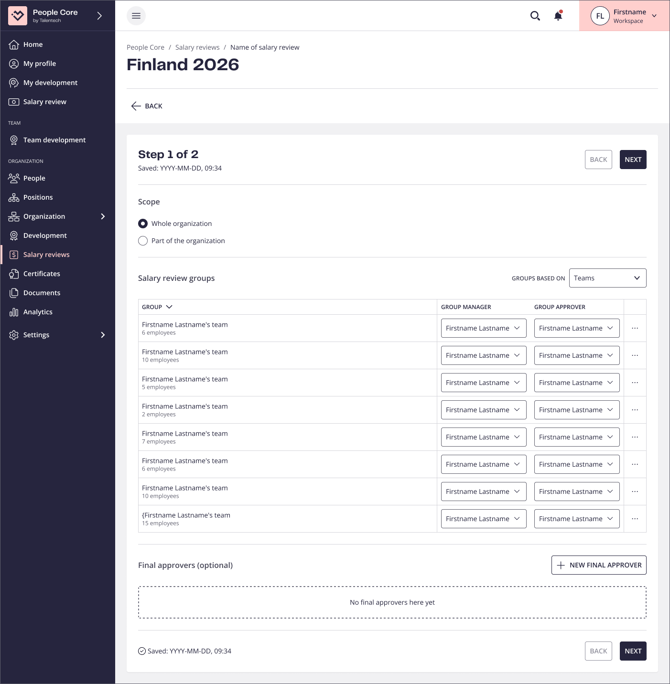
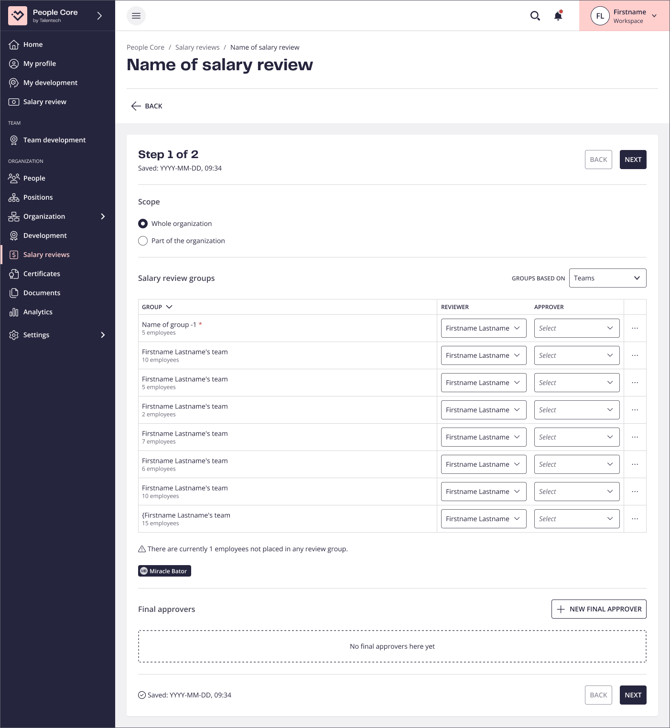
Next, you’ll set up details for the salary review in two steps. In the first step, you’re selecting scope for the review by selecting whole or parts of the organization to conduct the salary review in, organize the groups and assign group and final approvers.
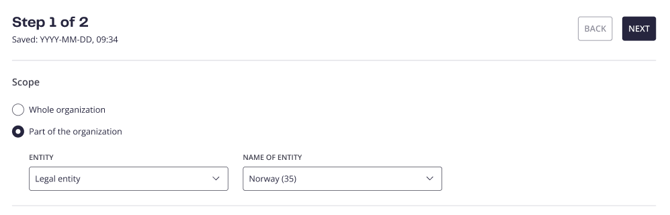
Selecting scope for your salary review
If you want to include the whole organization in the review, select Whole organization. If you only want to include parts of the employee, select Part of organization. Here you’ll be able to select specific departments, locations, legal entities or employees with a specific collective agreement to proceed with and only the employees connected to one of these entities will be included when creating the groups.
If your organization wants to assign separate budgets for different parts of the organization, we recommend to create separate salary reviews. This way, you’ll achieve working with different budget pools.
Creating salary review groups
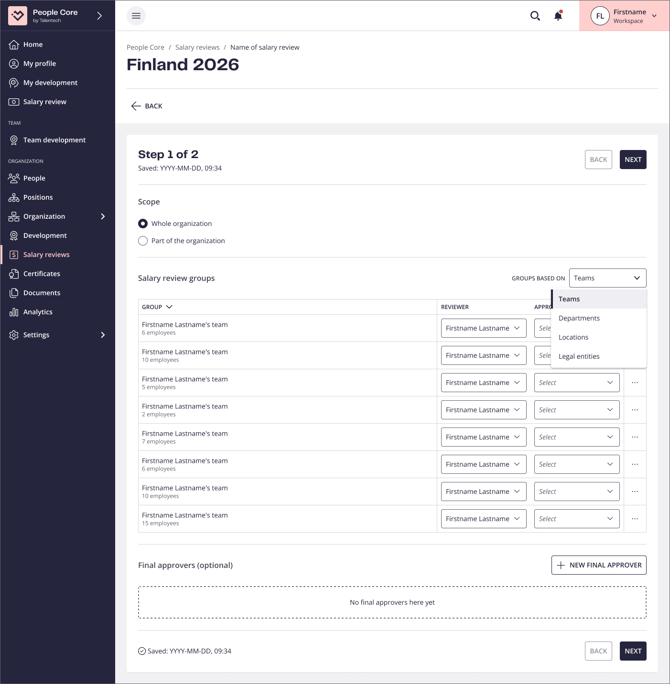
When having selected the scope for the salary review, you’ll organize the review into groups where you freely can assign who should propose the new salaries and who should approve the proposals.
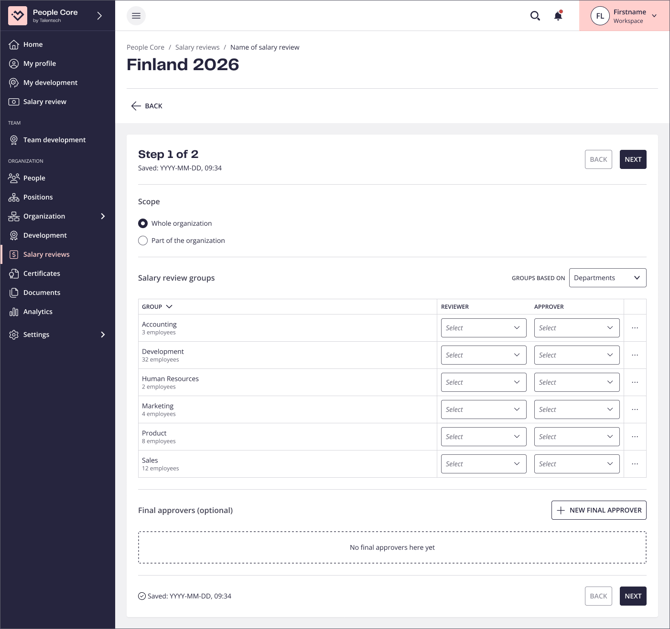
Groups are created automatically based on different criteria. You can create groups based on teams (reporting structure), departments, locations and legal entities. By default the groups will be made up from teams. If you want to change this, you can use the dropdown to the right.
Assigning managers
If you’ve selected to group by teams, the direct manager is set as the default for the manager role in the process, but this can be changed to anyone in the organization. If you’ve selected any other criteria for creating groups, you’ll have to manually assign who should be the manager for the groups.
Assigning approvers
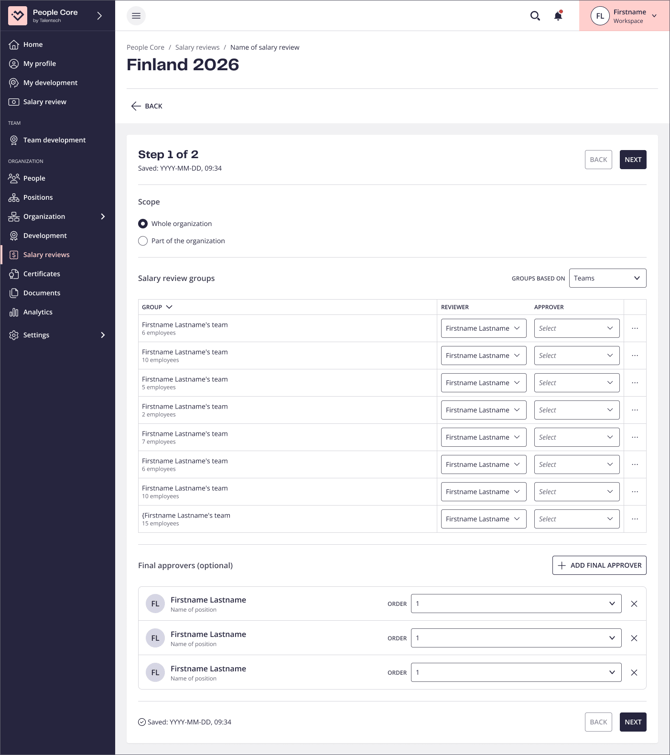
No matter what group criteria you’ve selected, you have to manually assign the right approver for each group. You can select anyone in the organization. The group approval step is mandatory in the process.
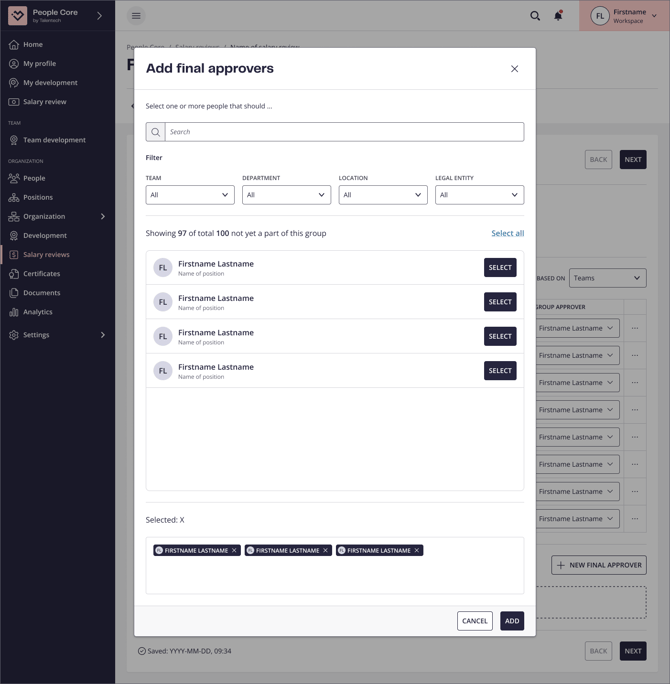
Assigning final approvers
An optional step in the salary review process is to assign final approvers who will approve the full salary review. You can add anyone from the organization and select whether they approve everyone at once or in turn. If you want to change order, change the number next to the final approver. You can for example set two approvers as “1” and one as “2”, with the result of the first two approving at any time and the last one can only approve once the first two has approved.
Moving employees between groups and removing employees from salary review
You can remove employees from groups and add them again to another group if needed.
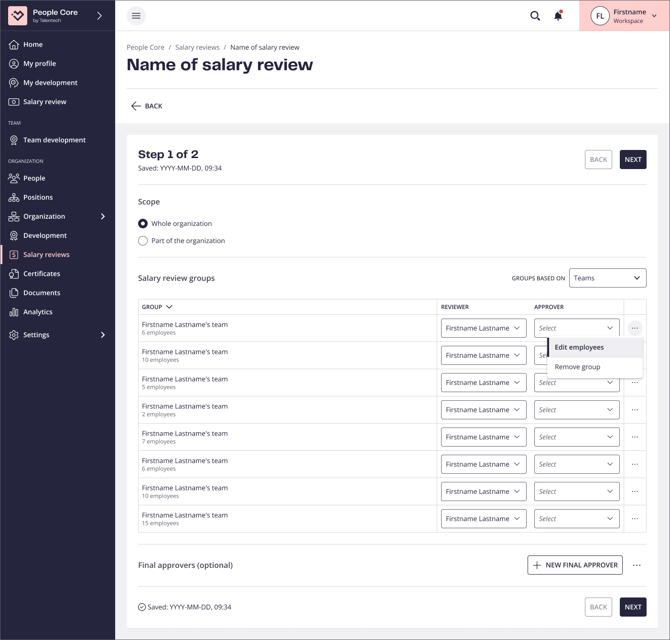
Remove employee from a group
-
Click the three dots connected to a group and select Edit employees.
-
In the modal, click the cross of an employee in the “Selected” area.
-
Click Save.
-
Now this employee will show as not placed in a group.
.png?width=670&height=640&name=Manage%20group%20employees%202%20(1).png)
.png?width=670&height=640&name=Manage%20group%20employees%203%20(1).png)
Adding an employee to a group
If you have employees not yet placed in a group, you can assign them to another group.
-
Click the three dots connected to a group and select Edit employees.
-
In the modal, find the employee you want to add. You can search or filter to make searching easier.
-
Click Select for the right employee(s).
-
Now the employee(s) are added to the group.
Setting budget target for the salary review
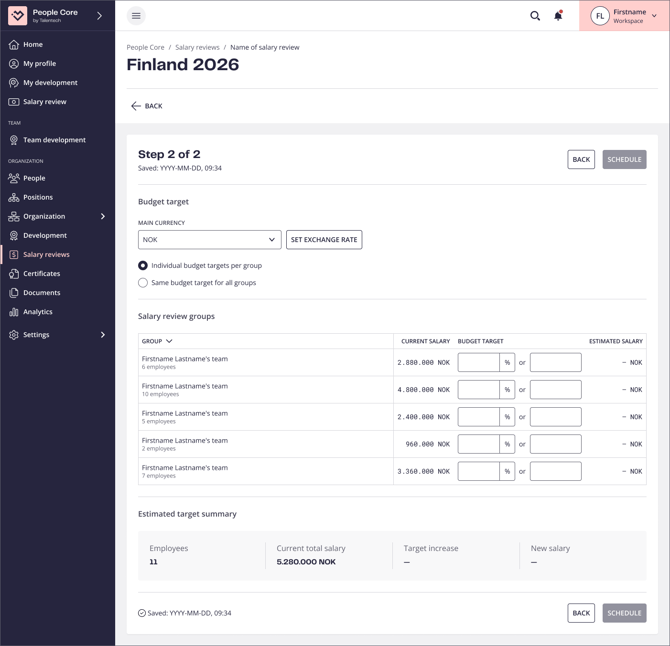
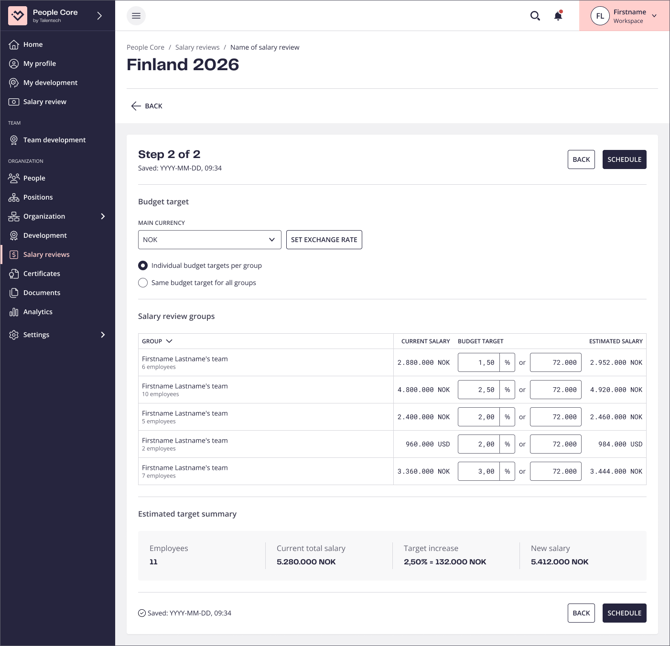
In the next step, you’ll set the budget target for the salary review.
Main currency and exchange rates
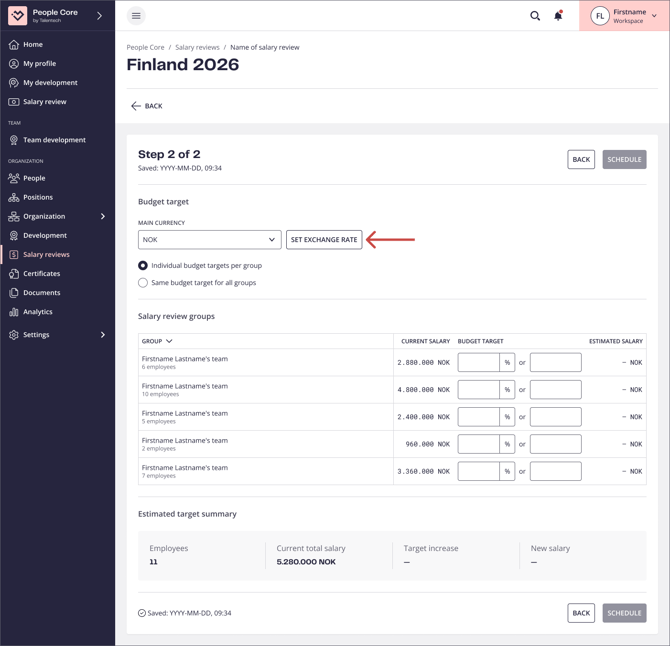
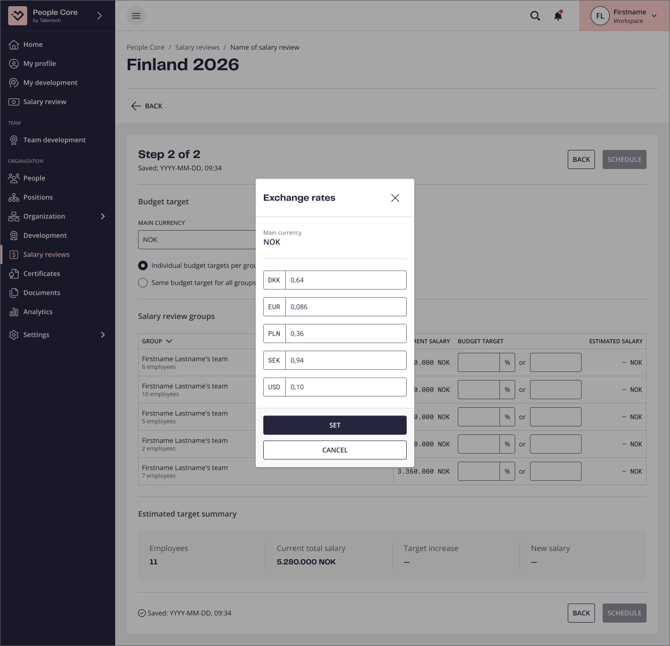
If your salary review contains employees with salary in different currencies, you’ll get the option to define the main currency and define exchange rates. With this, all salaries will be presented in the actual currency to the manager, but on group level it will be calculated back into the main currency, making it possible to compare increases.
Defining budget
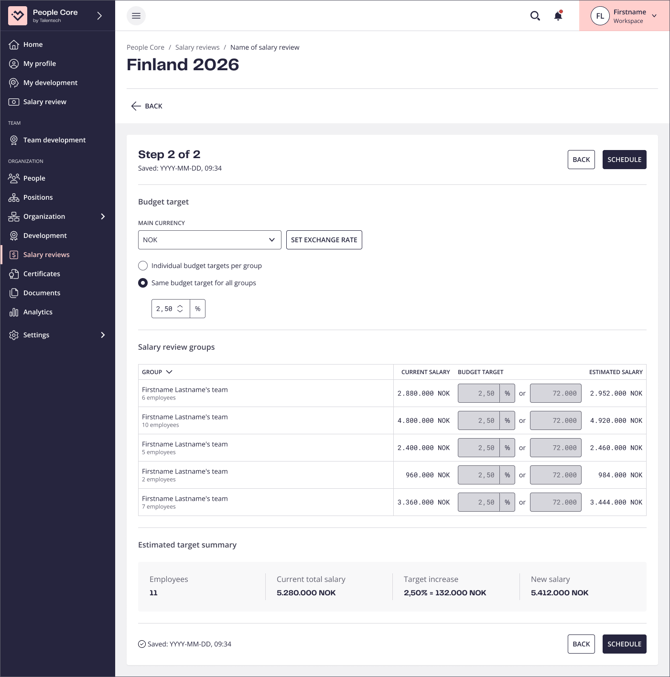
Budget can be defined in two ways. Either by setting the same target in percentage for all groups, or defining set budget targets per group. You can then choose a fixed sum that will automatically calculate the percentage increase, or vice versa. The budget target is calculated based on current salary for all employees in groups.
Scheduling the salary review
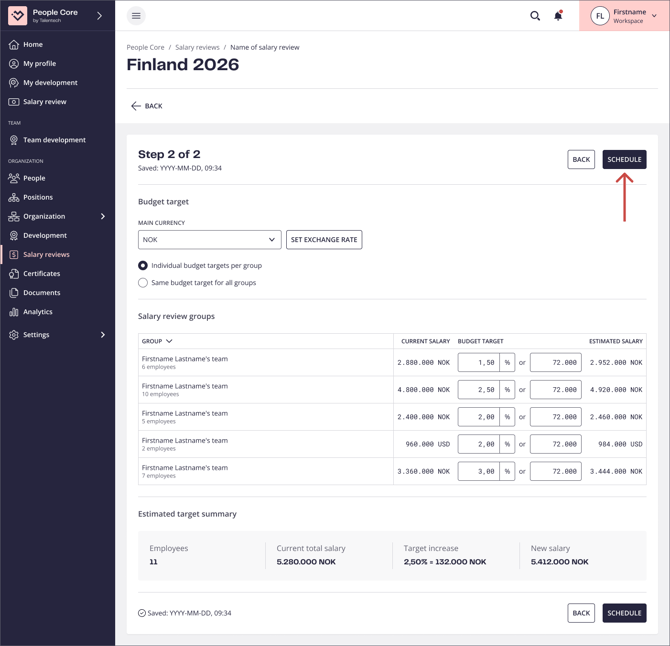
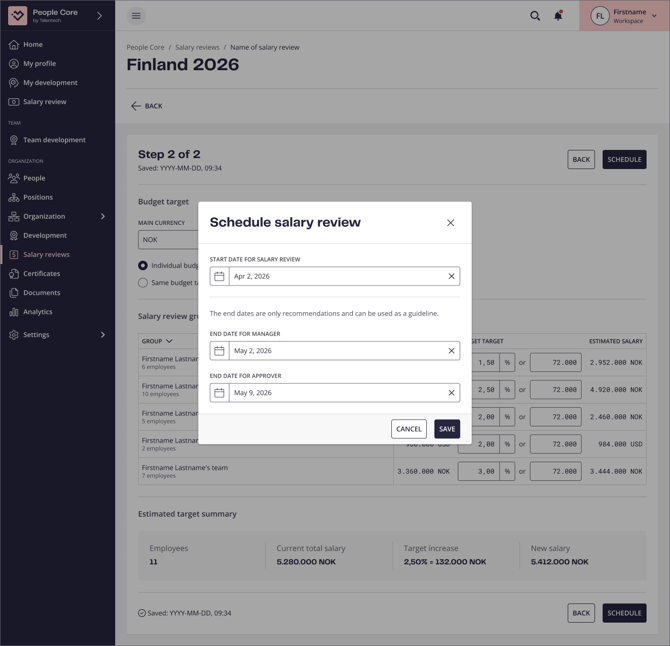
In the last step of setting up the salary review, you’re scheduling the date for when the salary review should be published for participants. At this date, all participants will get emails that the process has started. If you want to start it right away, just select today’s date.
The manager and approver deadlines will show to users when working with the salary review and be included in notifications in the salary review process, but is not a hard deadline – users won’t be blocked from submitting new salaries or making approvals even though the date has passed.
Salary review is published
When reaching the date you scheduled the salary review to start, participants will get email notifications about the process being started. Managers that are expected to begin the process by providing their suggestions will get a notification and will access their groups in the People Core side menu, while approvers and final approvers will be informed that they will be notified when they are supposed to act. They will also see the Salary review menu item, but can not click into the process until the time is due. During an active salary review process, you can’t make updates to salaries on the employee profile. This is to not interfere with the salary review.
Participants overview process
Participants get access to the salary review overview containing all tasks for them as individuals in the process. If having multiple groups or multiple roles in the process, all of them will show in this view, but only the ones where you’re supposed to act right now will be open. The other tasks will show with the status “Not ready”.
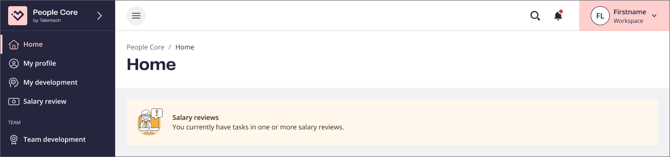
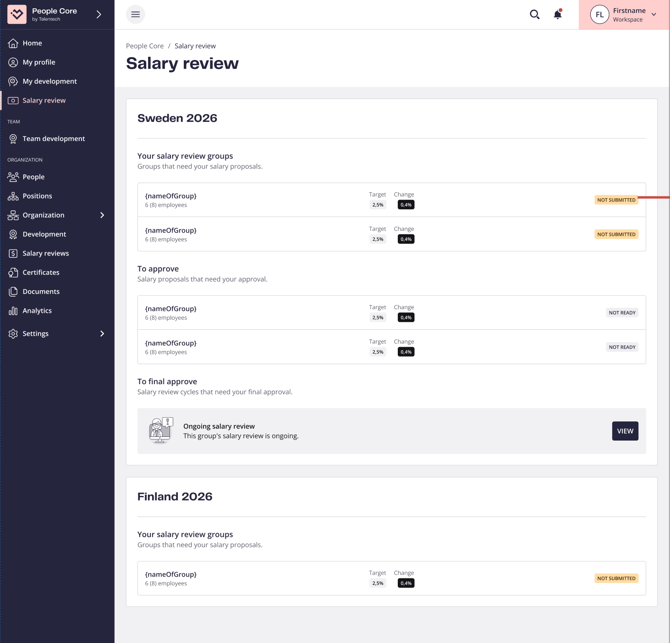
Managers work with proposals
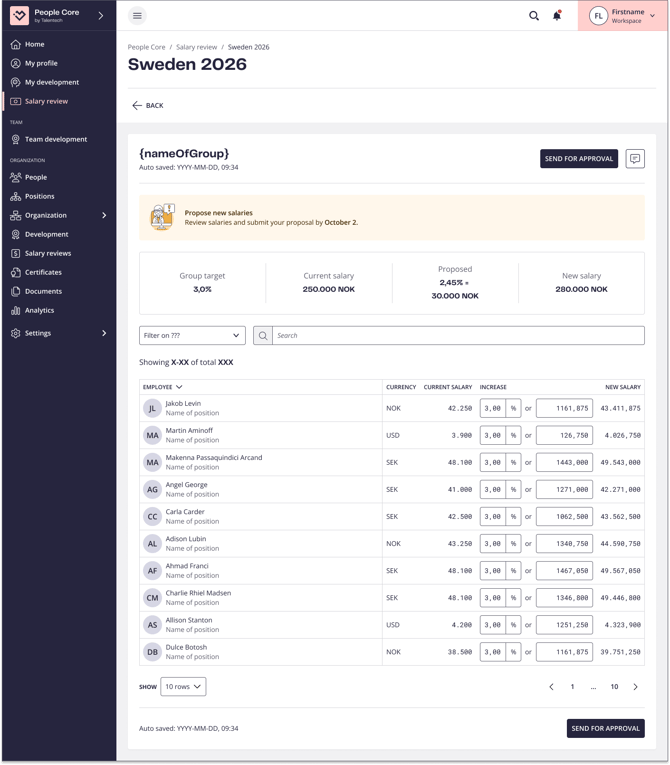
When managers go into the view for the first time, they will get the information on by when they are recommended to submit the new salary proposals. When entering the view for the first time, the group’s budget is allocated evenly among the employees so for example if a 3 % target is set, all employees have a 3 % increase from start.
At the top, managers get an overview showing the target in percentage, current salary in group, current proposed increase in percentage and sum and the total sum for the proposed new salaries.
Any changes in the view for individuals will update the overall proposed and new salaries, allowing managers to simulate how different percentages and amounts will affect the overall budget and how they stick to the target. All changes will be automatically saved, and users working in this view will see an indication on when it was last saved.
If clicking an employee in the list, the salary history in People Core for this specific employee will show.
Managers sends for approvals
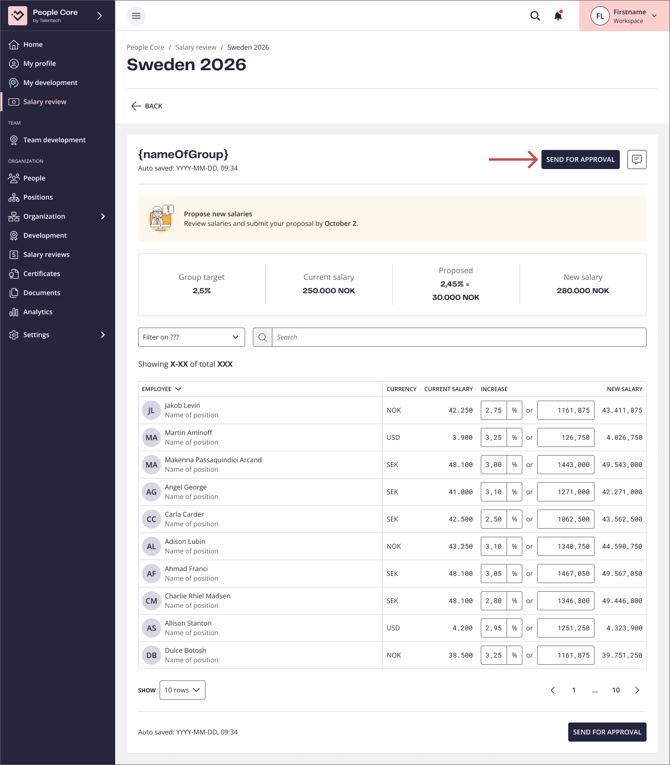
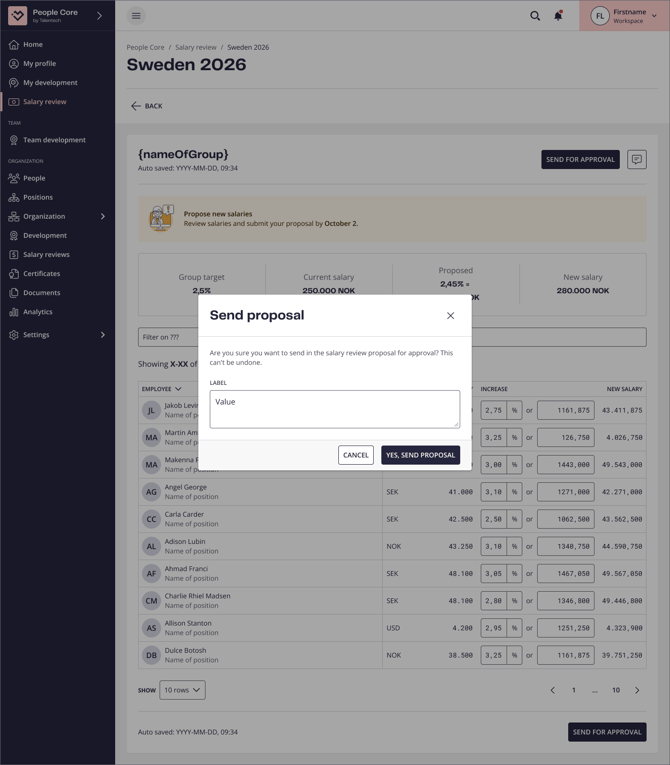
When managers are done with their proposals, they click “Send for approval” to the top right. When doing this, they can also leave a comment at the same time that will show to the approver and will also be accessed in a history log for the group to everyone that has access to the salary review (manager, group approver, final approver and administrator/salary review owner). This will notify the approver that it’s their turn in the process.
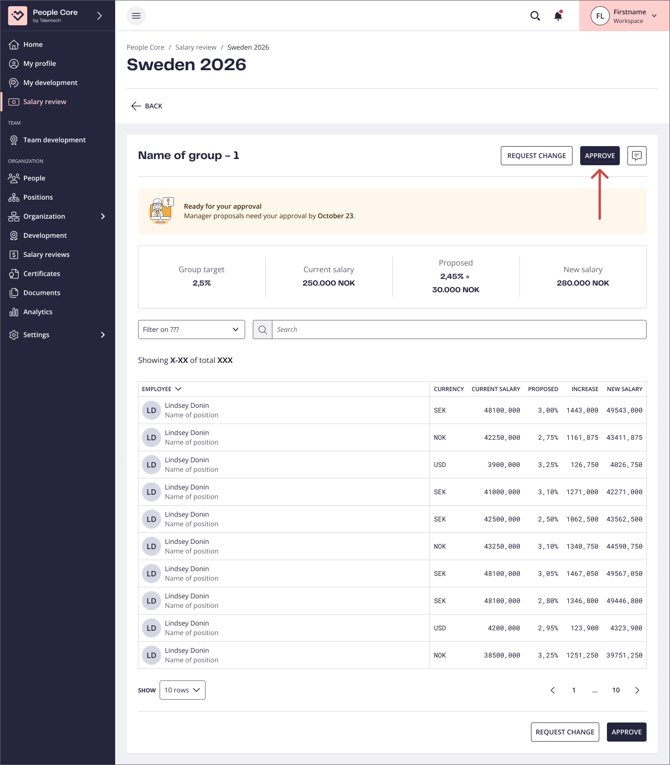
Approve salaries for a group
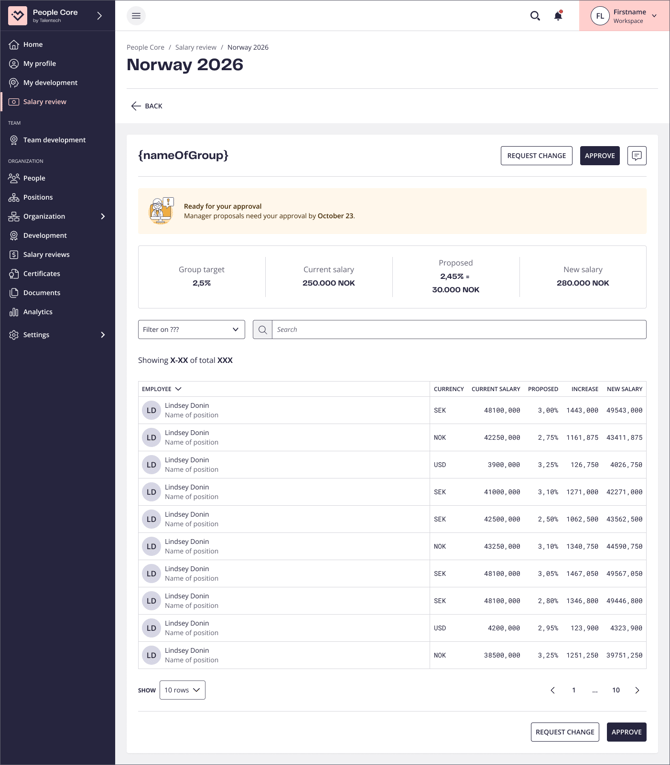
When group approvers go into the group view, they will get the information on when they are recommended to make their approvals.
They will also similar to the manager see the target in percentage, current salary in group, current proposed increase in percentage and sum and the total sum for the proposed new salaries.
All employees are then presented in a list with their individual information: current salary, suggested increase in percentage and sum, and the suggested new salary.
Request change
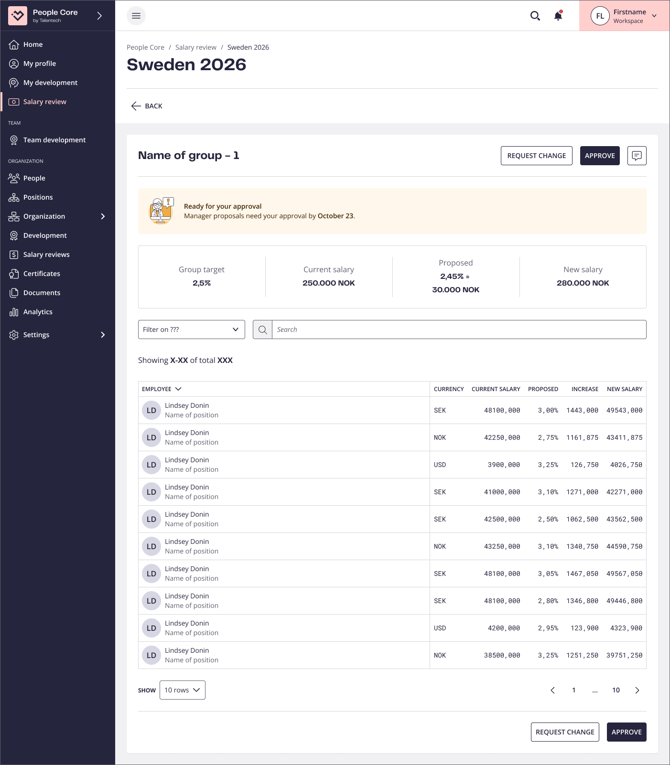
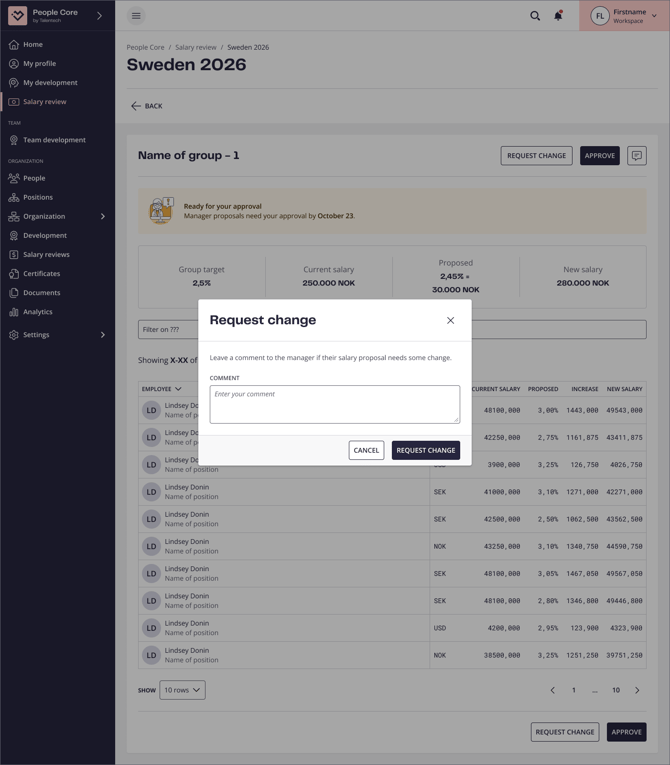
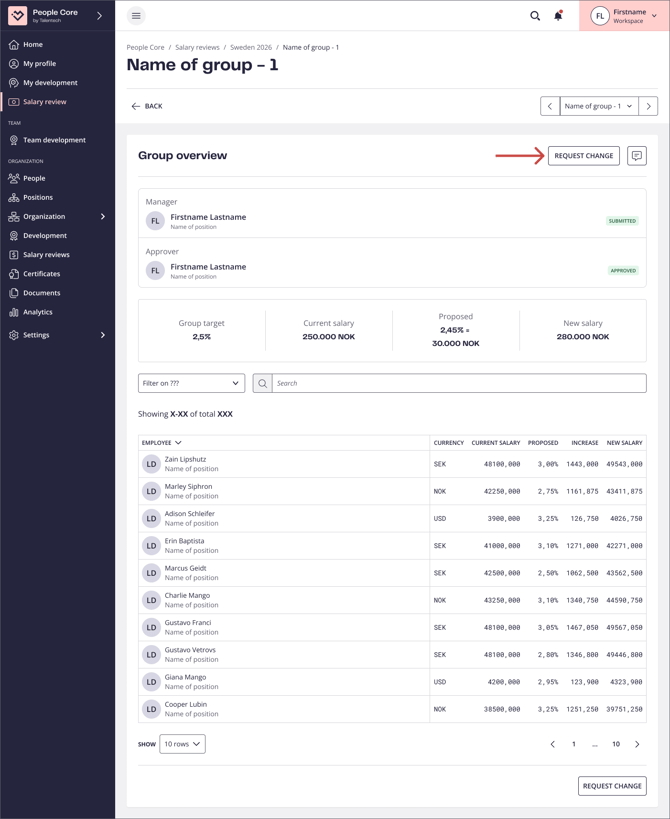
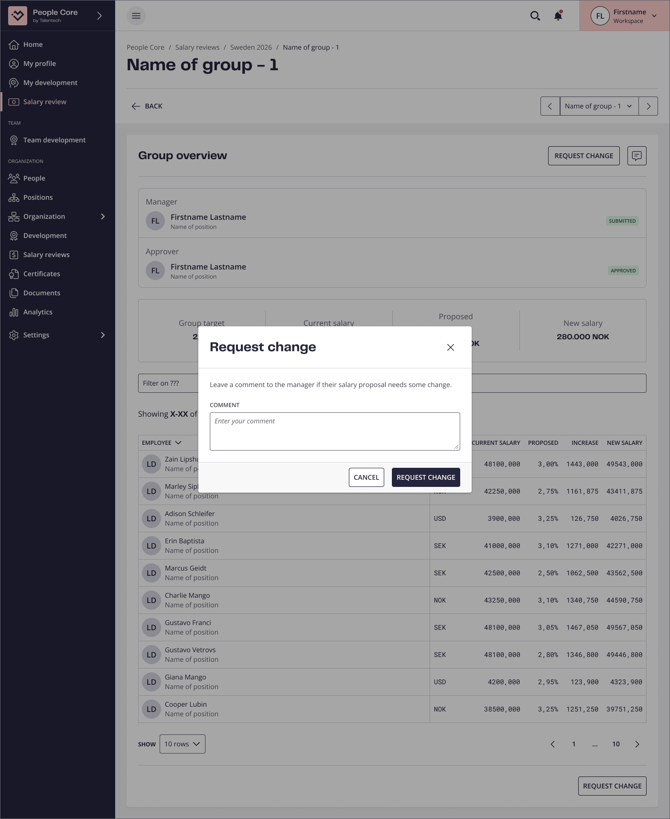
If group approvers find that something needs review, they can use the “Request change” button to the top right. To make the change request clearer, they can add a comment that will show to the manager. When a change is requested, the manager will be notified, the proposals will be open for edits again and when submitted it needs to be approved once more.
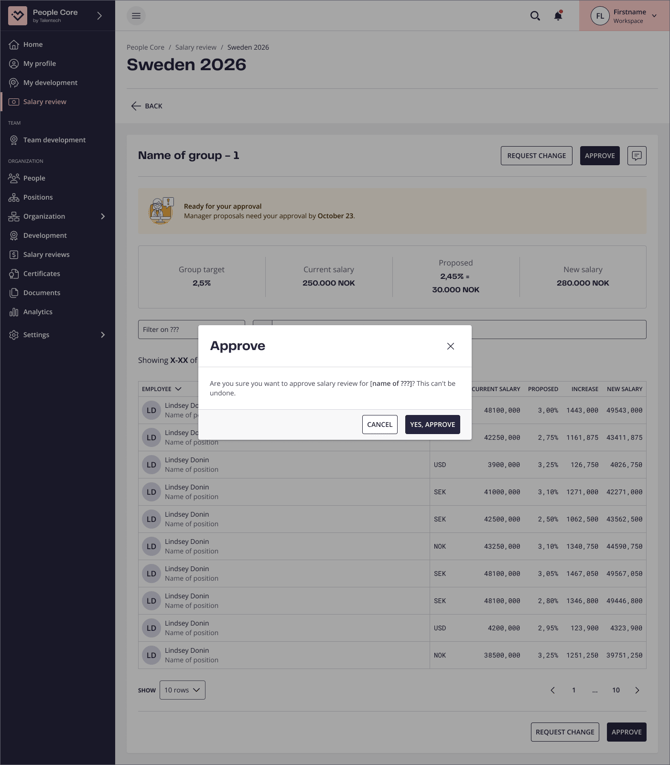
Approve a group
When everything’s in order, the group approver will approve the proposal. When the group is approved, the group is considered done in the salary review and waits only for the optional final approval and scheduling of publishing salaries to be finalized.
Work as a final approver
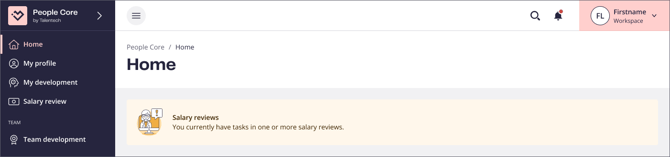
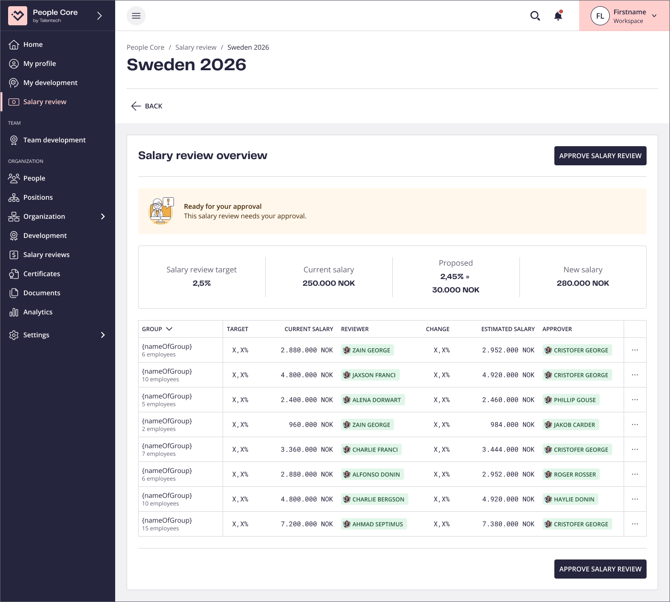
When all groups are approved, the final approver(s) will be notified that it’s their turn to approve. As this is an optional step, if no final approvers have been assigned in the process, the process goes right into scheduling publishing of new salaries.
The final approver gets an overview of all groups and the proposals. If clicking a group, they will see the group overview with all employees and the individual proposals. They also access the group history log showing process and comments in the process so far.
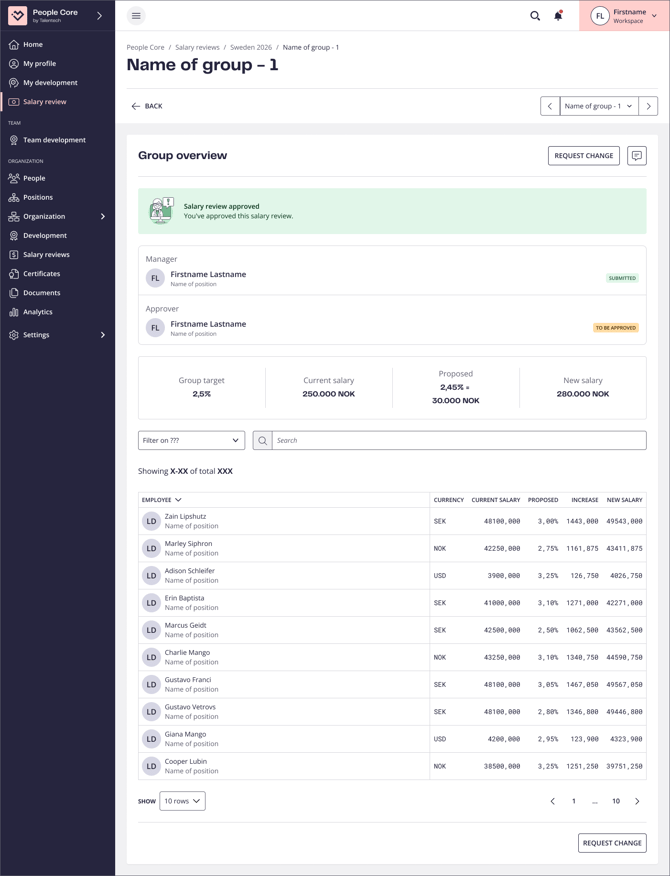
Request change
If a final approver finds something needs correction, they can use the “Request change” button to the top right in a specific group. To make the change request clearer, they can add a comment that will show to the manager. When a change is requested for a specific group, the manager will be notified, the proposals will be open for edits again and needs to be sent for approval once more but it only applies to the specific groups where changes have been requested. Once new proposals and approvals are done, the process for final approvals starts again and if final multiple approvers, all have to approve once more.
Scheduling when salaries are to be published
When all groups are approved and the final approvers have approved the full salary review, the process is coming to an end and what is left is to decide when salaries should be published. The administrator will then be able to set either that salaries should be published immediately, or at a specific date. At the same time, the effective date for the new salaries are entered.
New salary published on employee profiles
When the publish date has occured, the new salaries will be shown on the employee salary tab with the right effective date. There is also a notification that can be sent out to employees, informing them there’s a new salary to view in People Core.