Managing collective agreements
As an administrator, you can create new and manage the list of collective agreements in your organization.
Create new collective agreement
-
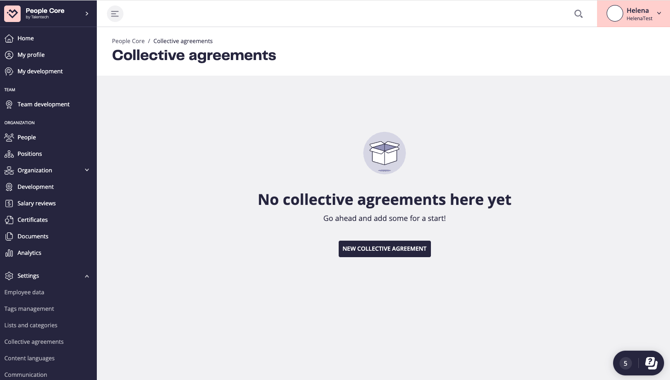
Go to Settings → Collective agreements.
-
Click New collective agreement.
-
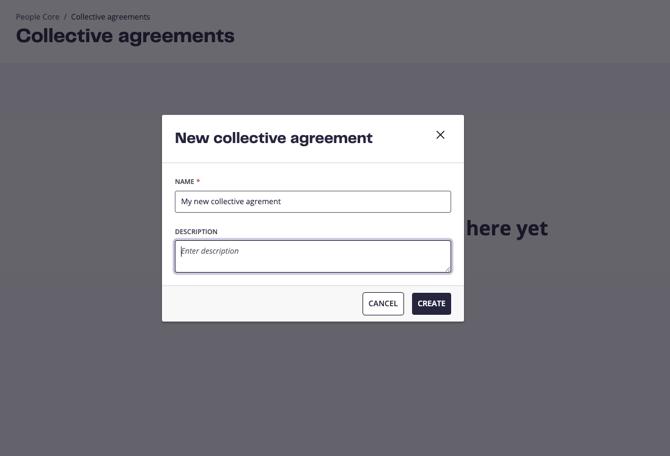
Give your collective agreement a name and an optional description.
-
Click Create.
Now your collective agreement is created and can be assigned to positions.
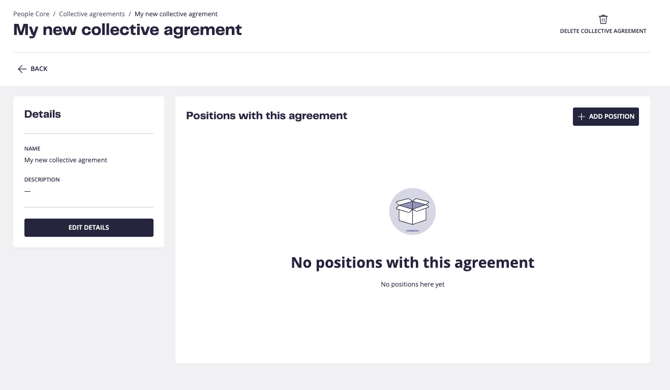
When viewing your collective agreement you can also make changes and delete the agreement.
Bulk assign collective agreements to positions
You and anyone with the permissions can assign a collective agreement from Positions by editing a specific position, but an administrator can also assign the collective agreement to many positions at the same time. Follow the steps:
-
Go to Settings → Collective agreements.
-
Click the three dots of an existing collective agreement and select View collective agreement.
-
Click Add position.
-
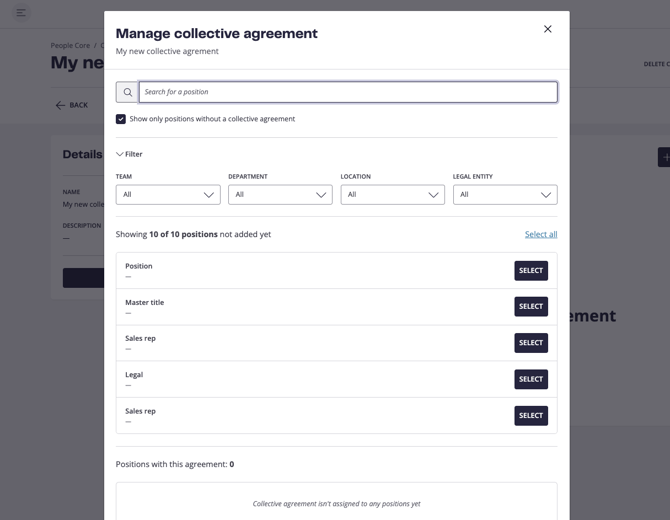
Search and filter to find the right position(s). Click Select next to the positions you want to assign.
-
Click Save.
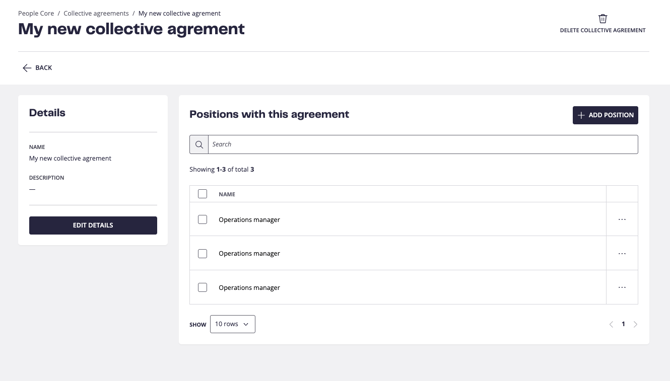
Now the positions are updated with the selected collective agreement and you’ll also see in the overview of the specific collective agreement which ones and in the overview for all collective agreements the number of assigned positions for each agreement.