This article describes
-
How you can initiate e-signing with employees and follow status on e-signings
-
The signing process from a signer perspective
-
Declining, cancelling, expiring and deleting
-
Controlling access to e-signing for user roles
Initiate an e-signing process
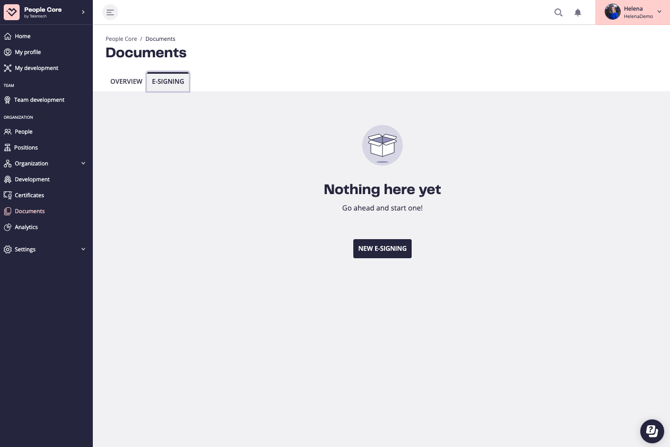
To start an e-signing process for an employee, go to Documents → E-signing and click New e-signing.
In the next step, choose whether you want to sign with one employee or multiple employees.

Sign with one employee
This flow is ideal when you want to sign a document with a single employee.
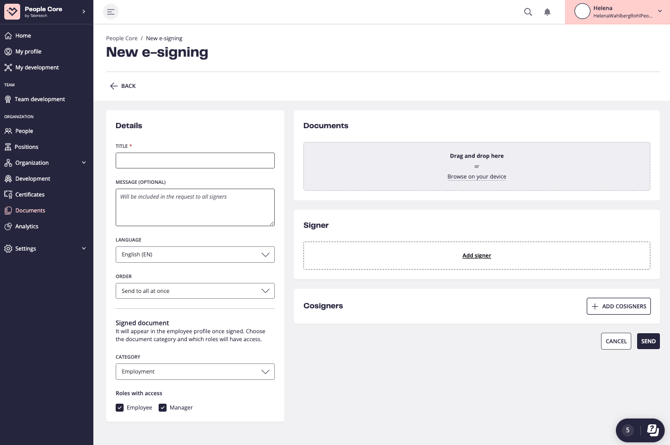

Title: The title will appear both in the list and for all signing parties during the signing process. For example, if this is an employment agreement, you could name it Employment Agreement.
Message: The message will be included in the e-signing request email sent to all signers.
Language: Determines the language used in the signing process and on the verification page of the signed document.
Order: Choose whether to send the signing request to all signers at once (everyone can sign in any order) or in sequence (each signer receives the request after the previous person has signed).
Category: Select how the document should be categorized in People Core once signed.
Roles with access: Define which user roles will have access to the signed document in People Core.
Documents: Upload one or more PDF files. If multiple files are uploaded, they will be merged into a single document with a signature section at the end. The finalized document will then be stored on the employee’s profile.
Signer: Select the employee who is the main signer of the document. The signed document will be stored on this employee’s profile. Employees must have a user account to appear in this list.
Co-signers: Add any additional signers, such as a manager or other relevant parties. Multiple co-signers can be added. They also need user accounts to appear in the list.
Authentication: Once you’ve added signers and co-signers, choose the authentication method for each signer.
Order: Define the signing order if “Sign in order” has been selected.
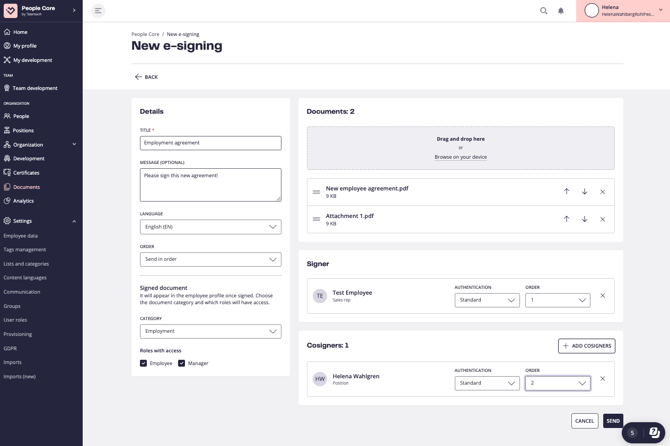
 When you’re done, click Send.
You’ll first see a summary of your settings. If everything looks correct, confirm by clicking Send again.
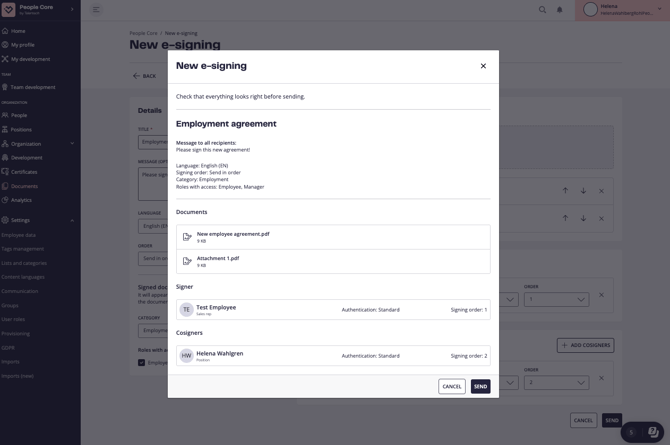

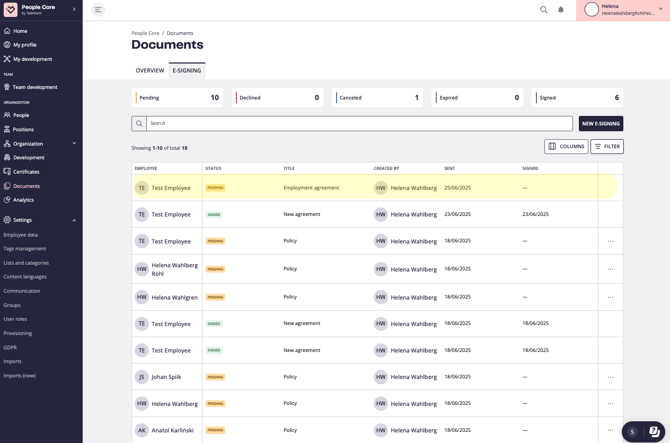
Now the e-signing is created, and the signing request is sent to employees. The status will be Pending until all parties have signed.

Sign with many employees
This flow is ideal when you want to send the same document to multiple employees for signing. The setup is the same as for a single employee, except you can add several signers at once.
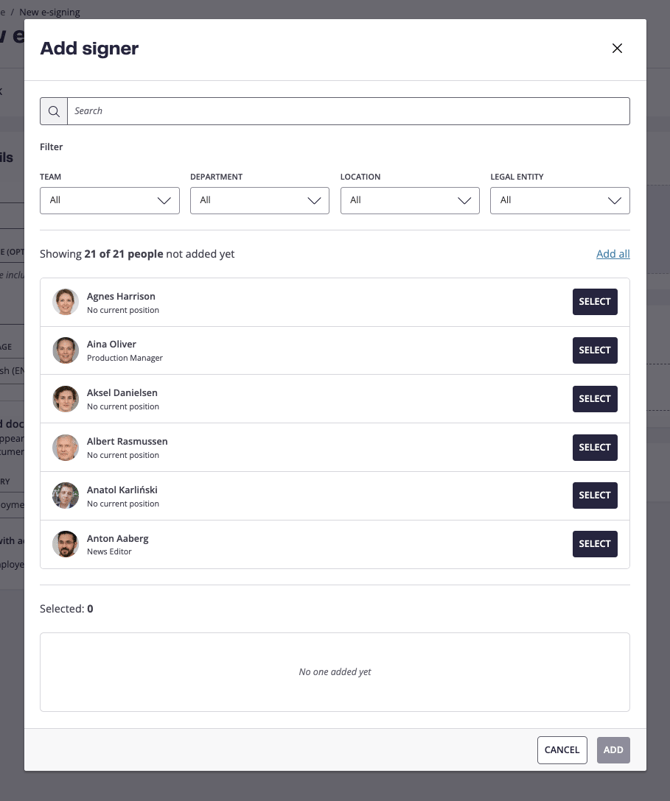
Signers: Search for employees or filter by team, department, etc. Click Add all to include everyone in a filtered group, or Select to add individuals.
Co-signers: You can also add co-signers when sending to multiple employees, but note that each co-signer will sign separately for every employee included in the process.

Signing flow for employee
Employees who are asked to sign a document will receive an email to their user account address containing a signing link. A reminder will automatically be sent after one week if they haven’t signed.
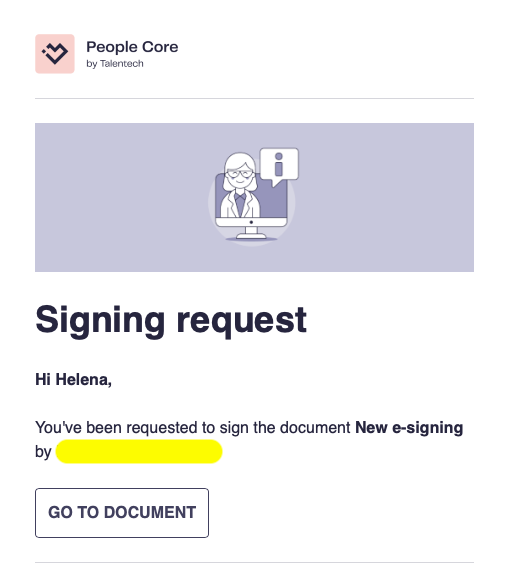

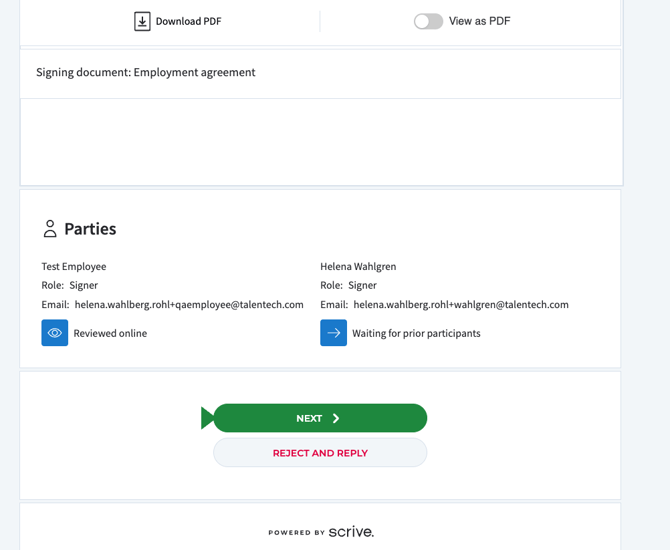
By clicking Go to document, the employee is taken to People Core’s e-signing partner, Scrive, to review and sign the document.
At the end of the document, the employee signs using the selected authentication method.
For example, if the Default authentication method is used, the employee simply clicks Sign.
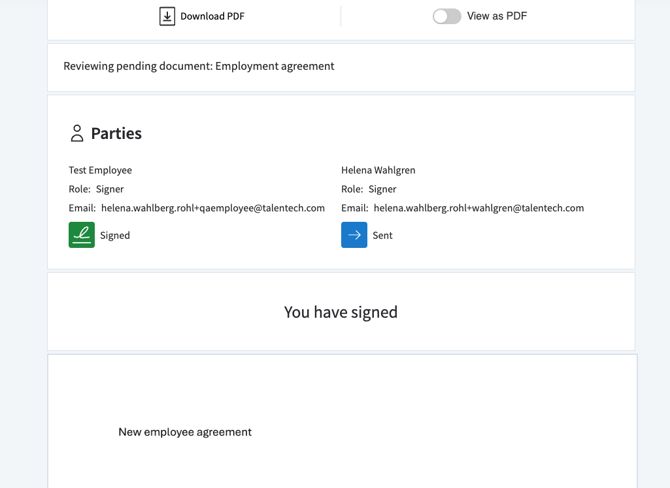
Once the document is signed, the signer can download the PDF immediately or access it later via the follow-up email sent when all parties have signed.
The e-signing status in People Core will also update automatically.


Rejecting to sign as an employee
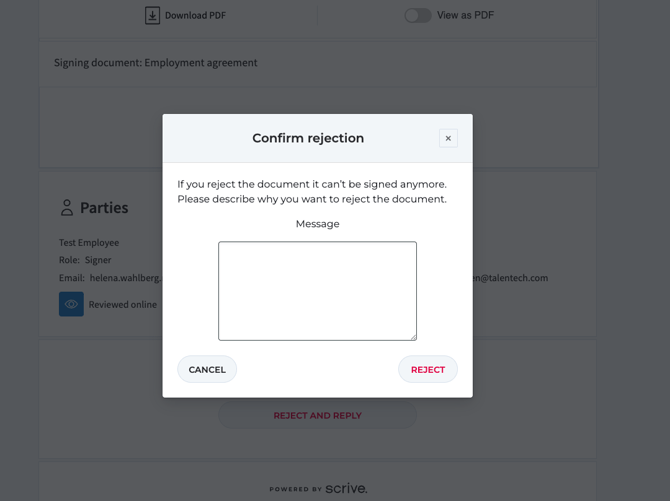
If an employee chooses not to sign, they can reject the request and optionally include a message.
When this happens, the e-signing owner receives a notification including the message, and the e-signing status in People Core changes to Declined.

Overview of ongoing e-signings
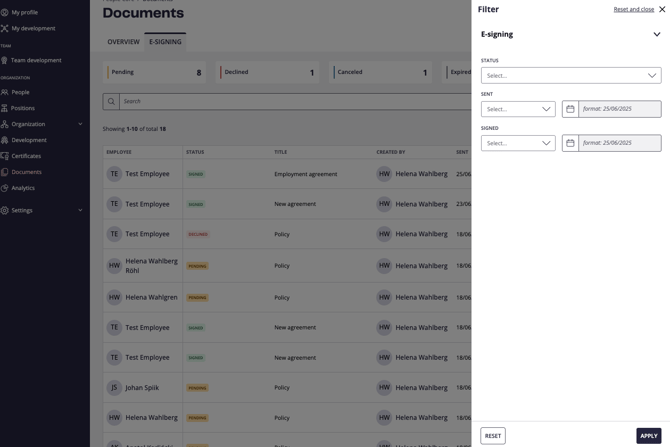
The main page lists all active and paused e-signing processes. Administrators can see all processes, while managers or users with specific permissions only see their own.
The list can be filtered by status or by sent/signed date.

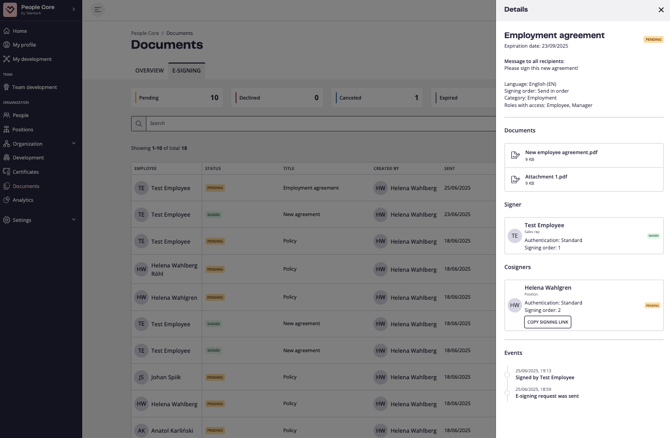
When someone signs a document, this is reflected in the side panel with a Signed status next to that signer’s name. The overall e-signing status remains Pending until all parties have signed.

Signing complete
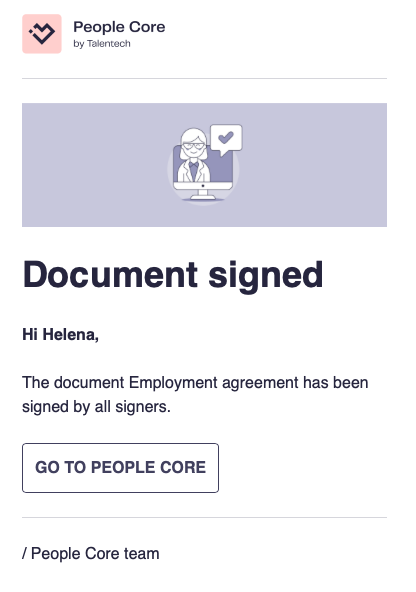
When all signers have completed the process, an email is sent to the e-signing owner with a link to the process in People Core.

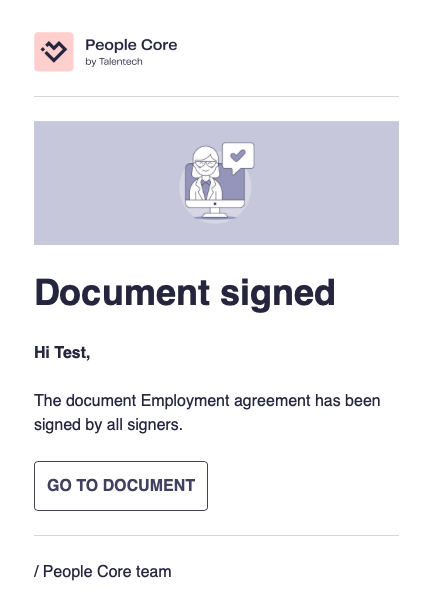
All signers also receive a confirmation email with a link to the final document.

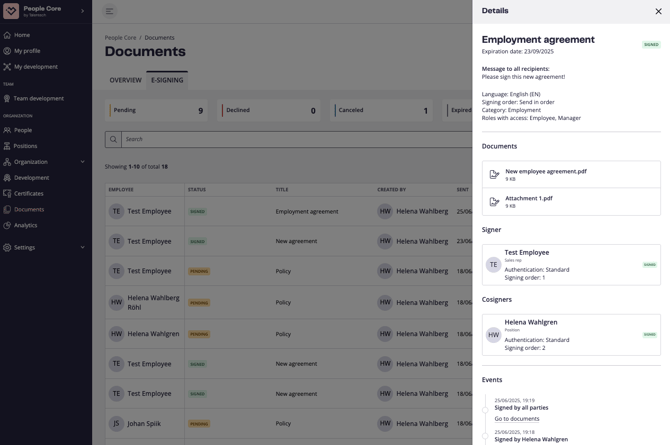
In People Core, the e-signing status changes to Signed.

The signed document is stored on the employee’s profile under the Documents tab, following the category and access settings defined during setup.
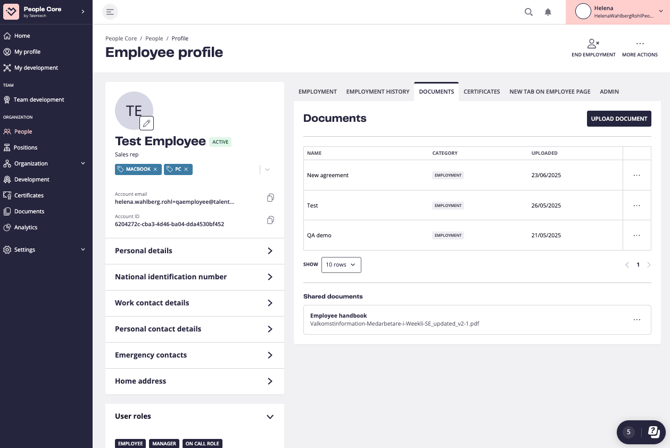

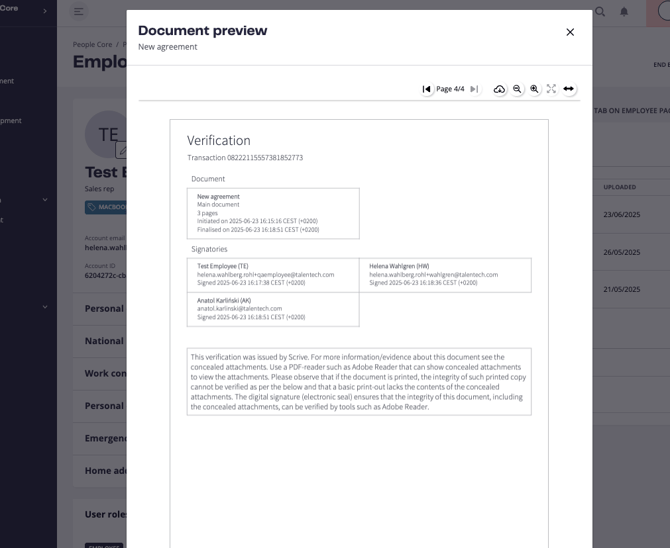
The finalized document includes a verification page at the end as proof of signing.

Declined, canceled and expired e-signings
These situations will stop the e-signing process. The initiator is notified and can decide how to proceed.
Signer declines: If any signer declines, the status for that signer will show as Declined, and the overall process status will also become Declined.
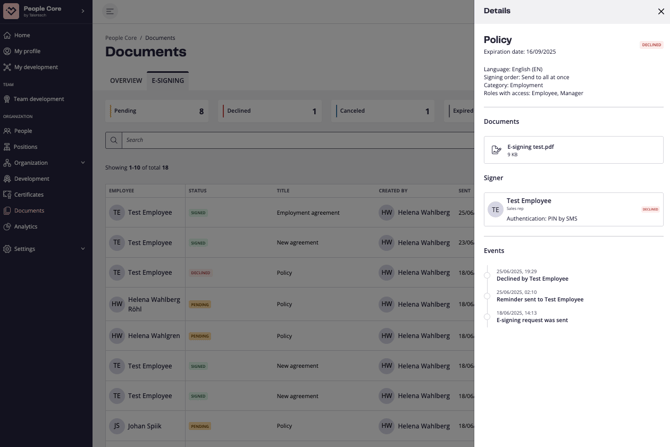

Owner cancels e-signing: The owner or an administrator can cancel a pending e-signing. All signers will be notified via email, and the status changes to Canceled.
E-signing expires: If not all signers have completed the process within 90 days, the e-signing automatically expires and receives the status Expired.
Renew e-signing process
An e-signing process that has stopped (declined, canceled, or expired) can be renewed — with or without changes.
When renewing, the previous e-signing is copied with the same settings. The owner can update documents or other details before resending.
The original process remains until it is manually deleted.
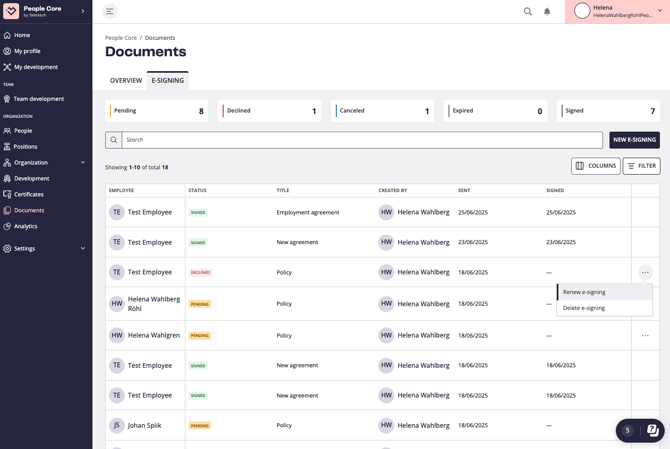

Delete e-signing
E-signings that are canceled, declined, or expired can be manually deleted from the list.
Stopped processes are automatically deleted after 90 days, including their uploaded documents.
Control access to e-signing through user roles
You can control who is allowed to e-sign with which employees by configuring the correct settings in User roles.
E-signing for administrators
When e-signing is enabled for your organization, administrators are always allowed to initiate e-signings and view the status of all e-signing processes within the tenant.
E-signing for managers
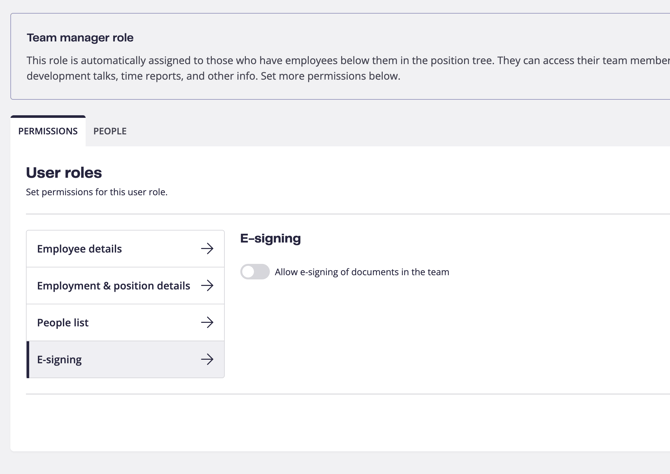
When e-signing is turned on for managers, they can initiate new e-signing processes with their team members and view the status of their signings.
How to enable this setting:
-
Go to Settings in the left-side menu.
-
Select User roles.
-
Click Managers in the list of user roles.
-
Click E-signing.
-
By default, this setting is turned off — enable it by switching the toggle.

E-signing for custom roles
E-signing with a specific group of employees can also be enabled for custom user roles.
How to enable this setting:
-
Go to Settings in the left-side menu.
-
Select User roles.
-
Create a new custom user role or edit an existing one.
-
Click E-signing.
-
By default, this setting is turned off — enable it by switching the toggle.
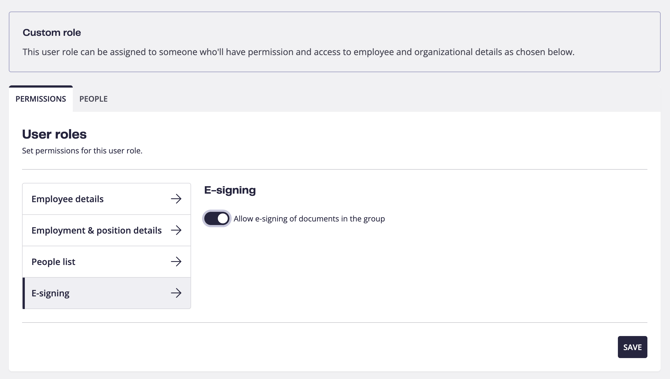

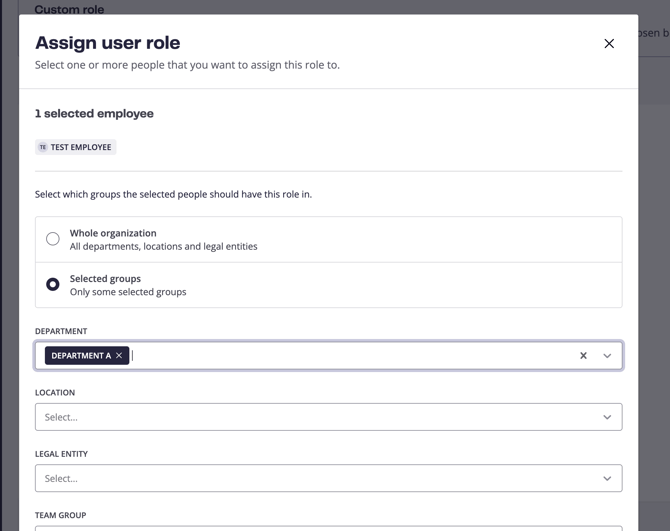
When assigning the user role to someone in People, you can also define which employees this role applies to.
Selecting Whole organization grants access to initiate e-signings for all employees, while selecting a specific department (for example, Department A) limits access to employees within that department.