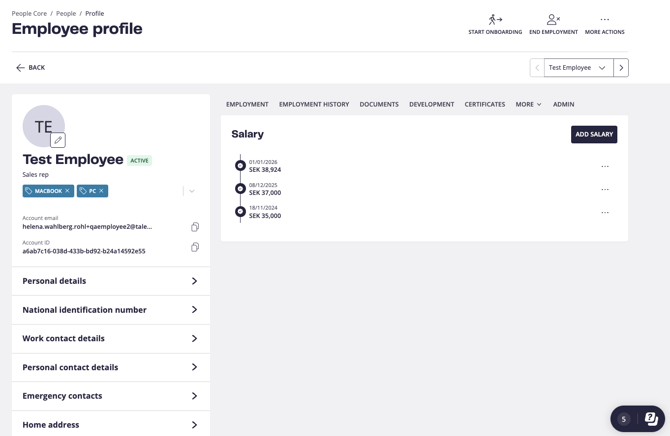
Salary tab
All employee salaries will now show in a separate tab on the employee profile called Salary. All salaries connected to the employee (previously shown connected to employments) will now show in a timeline here and it will be removed from the employments.
Add a new salary
It’s now easy to create a new salary for employees, whether it’s an upcoming salary change or a historical salary with a past date.
-
Go to an employee profile and Salary.
-
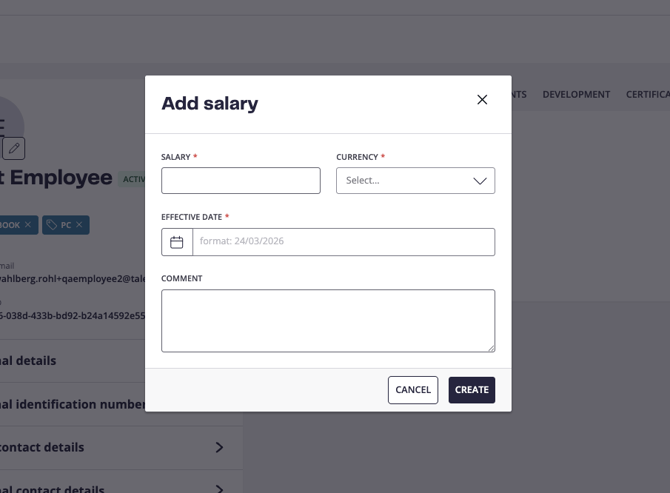
Click Add salary.
-
Enter the new salary, currency, effective date and an optional comment.
-
Click Create.
Now the new salary will appear on the timeline, placed further down if a previous salary, and as an upcoming change if the salary’s effective date hasn’t yet occured.
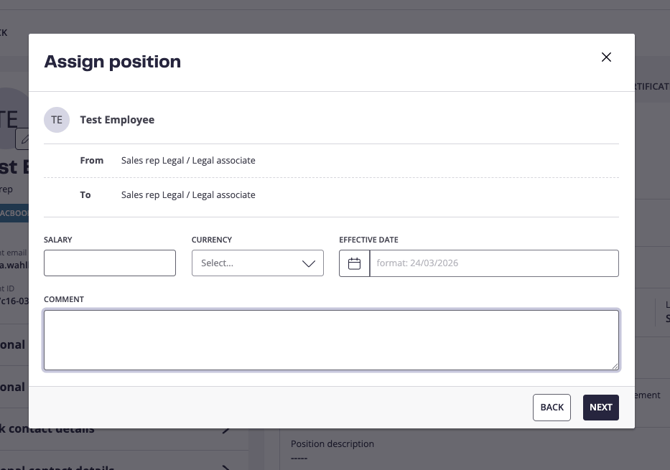
Adding salary as part of a new employment
When you’re assigning a new position, you can as before add a salary but this will be a separate step in the flow.
Importing salary history
We also support importing salaries for employees, where you can add multiple salary entries for one employee in the file. This is done through the import functionality:
-
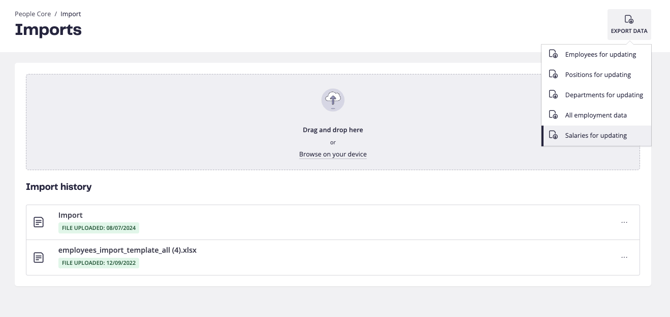
Go to Settings → Import.
-
Click Export data and Salaries for updating
-
This will generate a file with all existing employees and salaries in People Core. Open the file from your browser.
-
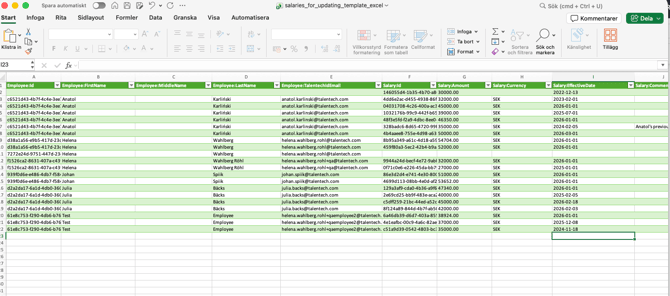
You can now make changes, and add new salary entries for employees in the file.
-
To add a new salary: Add a new row in the Excel file, find and copy the right EmployeeID into the new row and fill out Salary:Amount, Salary:Currency and Salary:EffectiveDate. Comment is optional. This will create a new salary entry for the employee in People Core.
-
To update an existing salary: Find the right row with the Employee ID and Salary ID. Make changes in any of the columns Salary:Amount, Salary:Currency, Salary:EffectiveDate and Salary:Comment. These changes will have effect on the specific salary entry when importing.
-
Save file.
-
Go back to Settings → Import and upload your file.
-
First we’re scanning the file for any problems, note the feedback from the first import step and cancel import if there are any problems with the file.
-
If everything looks good, proceed with full import. This will update the salaries in People Core according to what’s in the file.
Note: You don’t need to fill out employee name and Talentech ID email when it’s a new salary entry. This is only for making employees possible to identify in the file.