
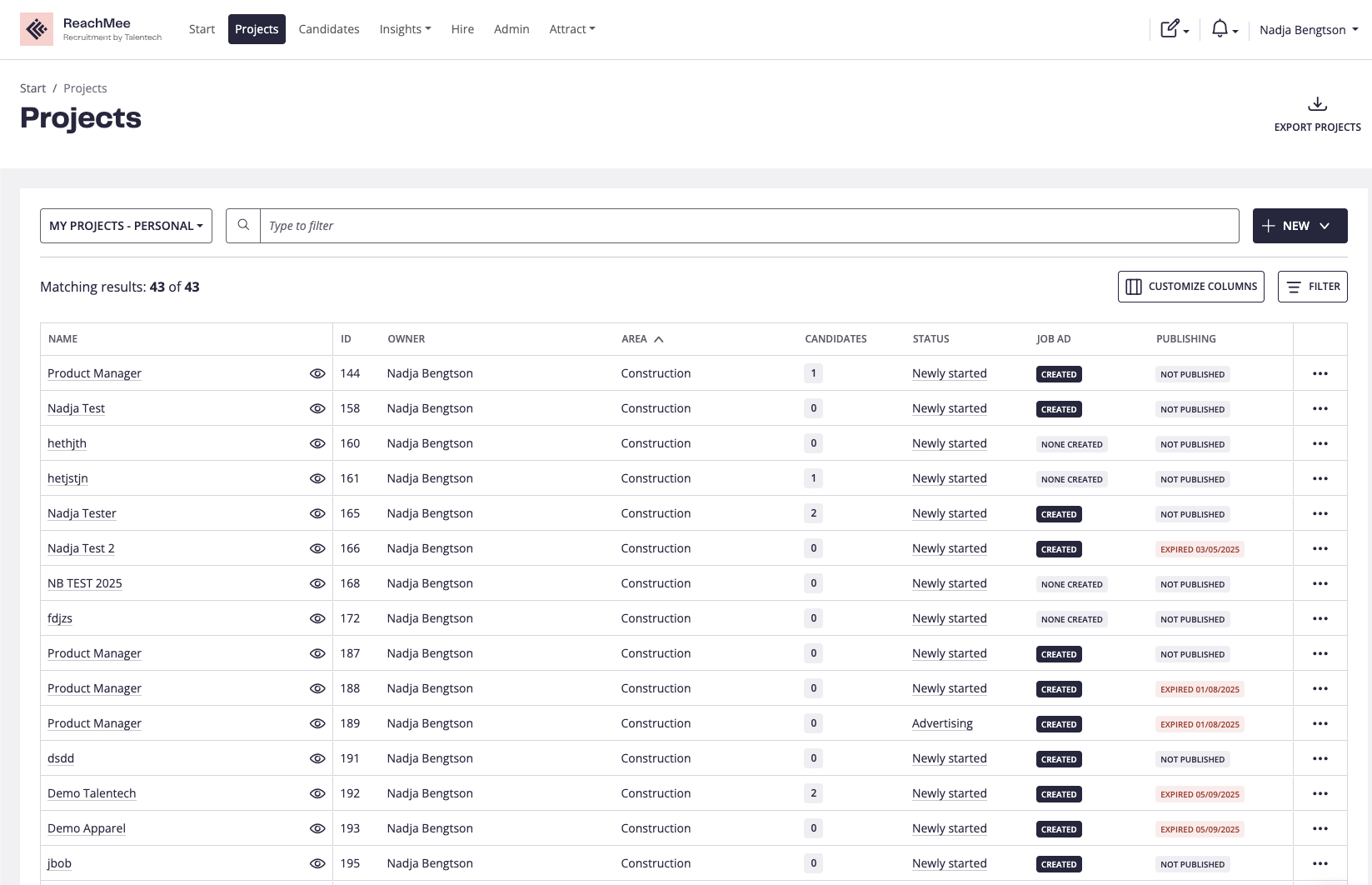
Here you can easily create new projects, find and filter for what you need, customize your list, open quick view and chat or export projects if that’s needed.
Many good options to help you get the details you need.
How does it work
When you first enter the projects, you will see the standard view.
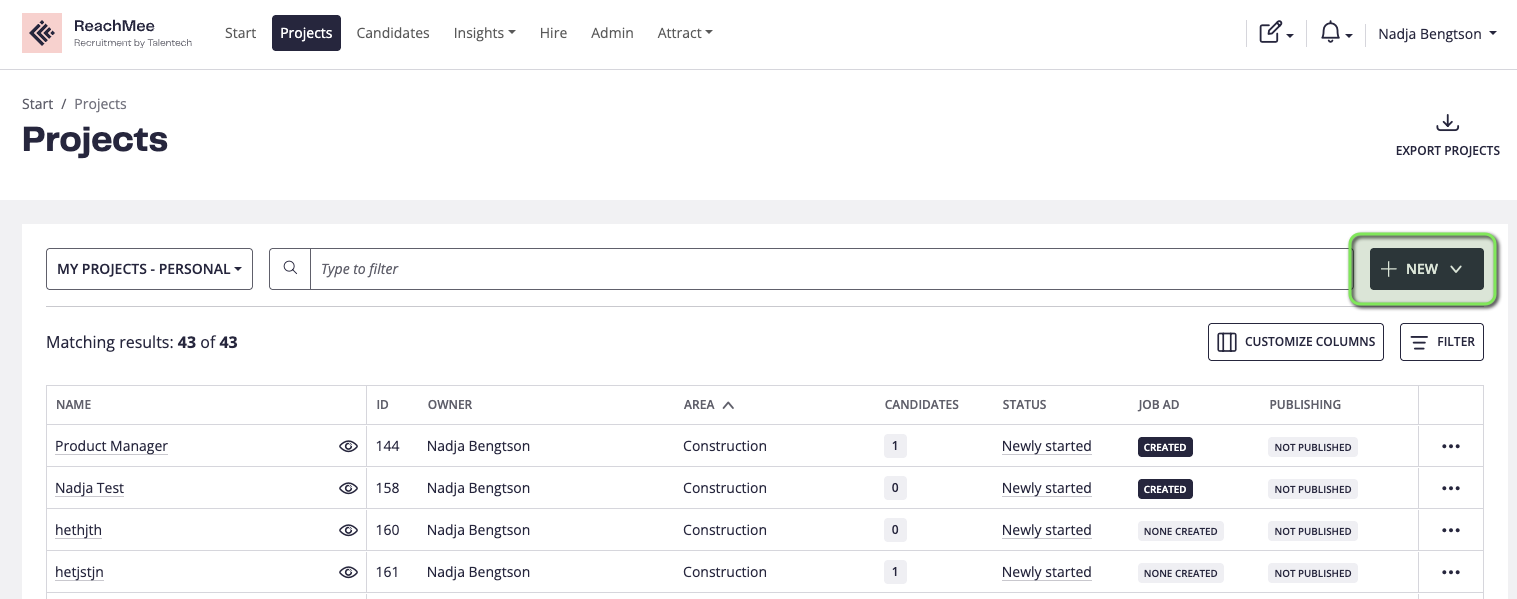
Start clicking on “New” to create new projects, that will be added to your list after being created:
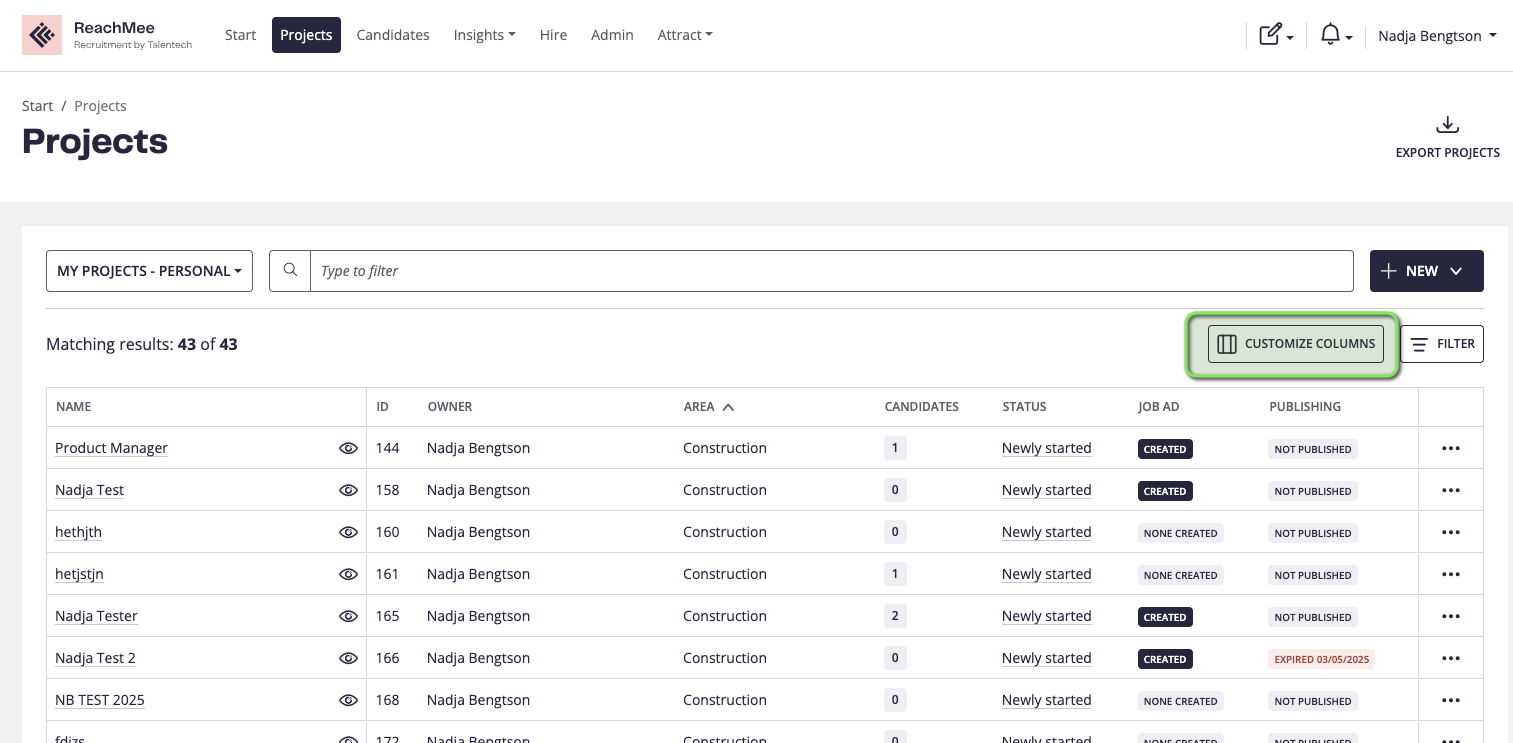
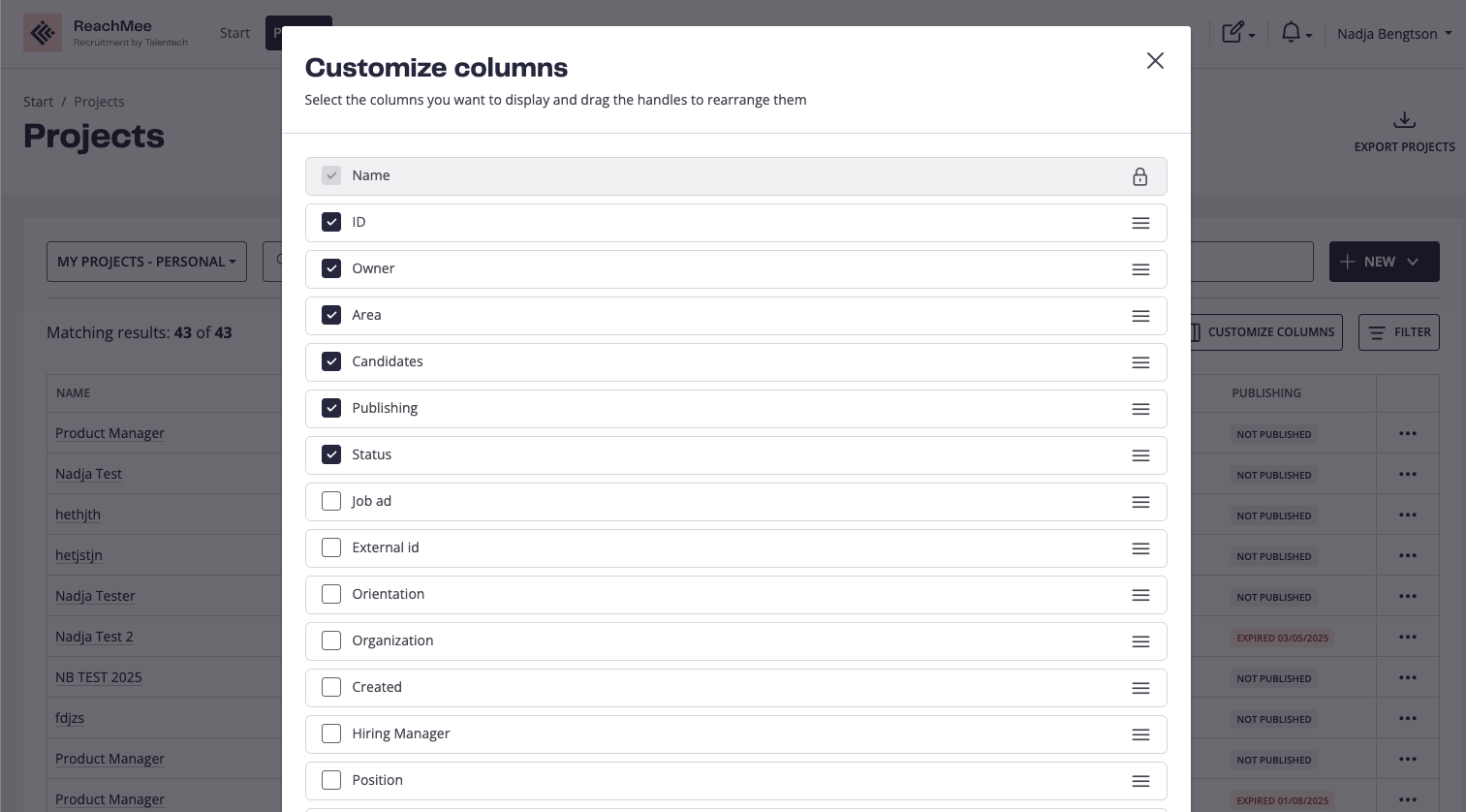
Easily customize your view by clicking on “Customize columns” and select the columns you prefer:
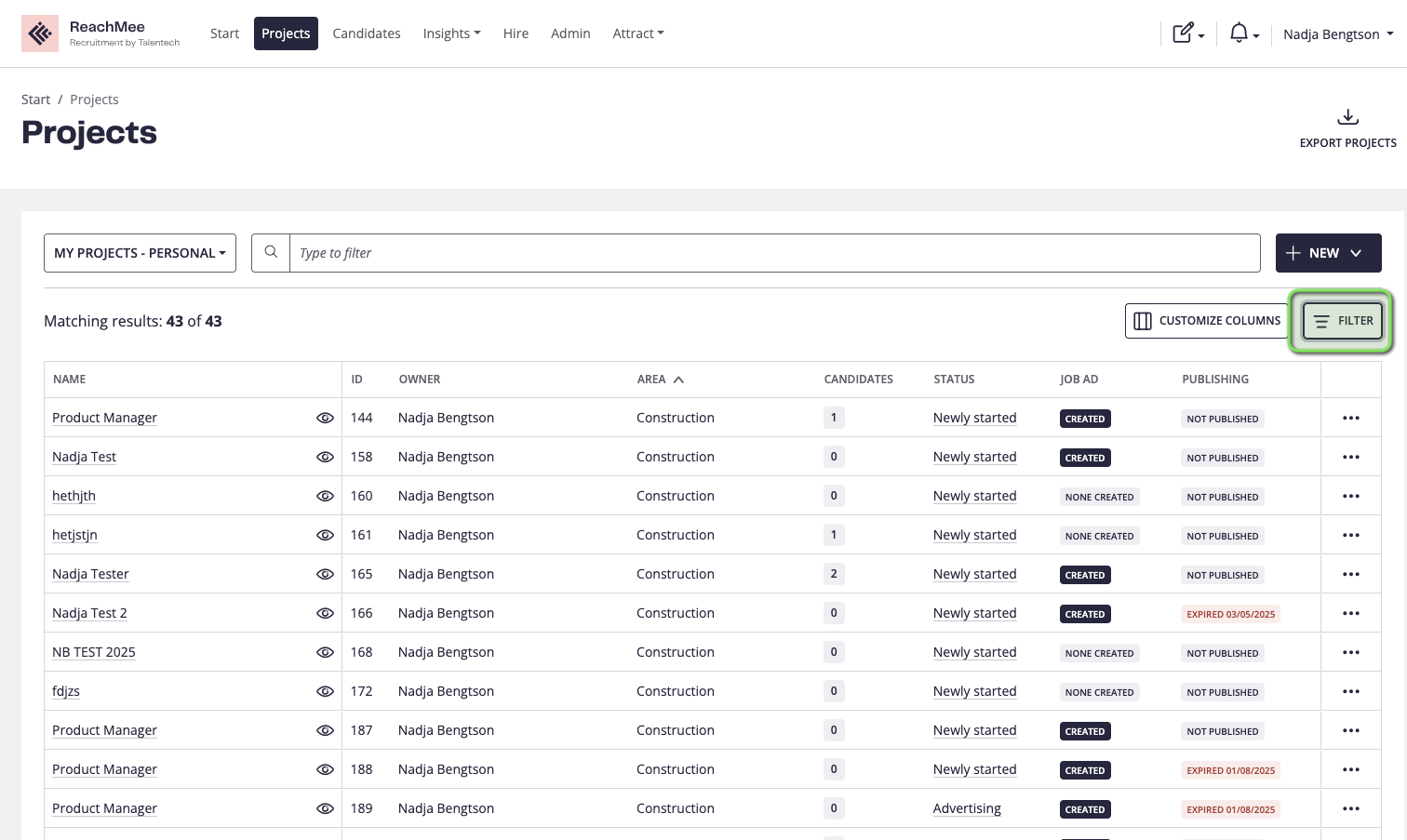
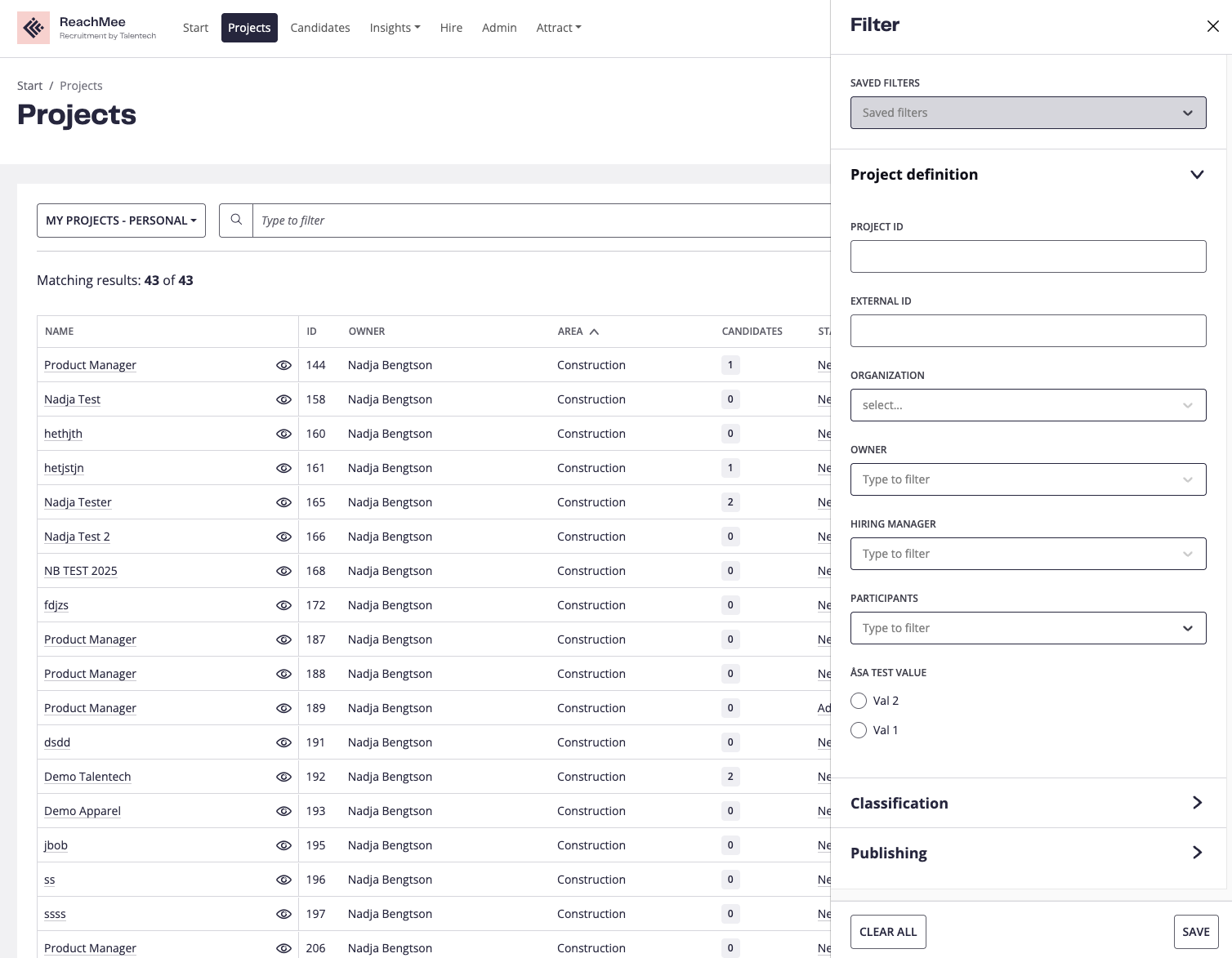
Use filters to find specific projects and save views to use them again later:
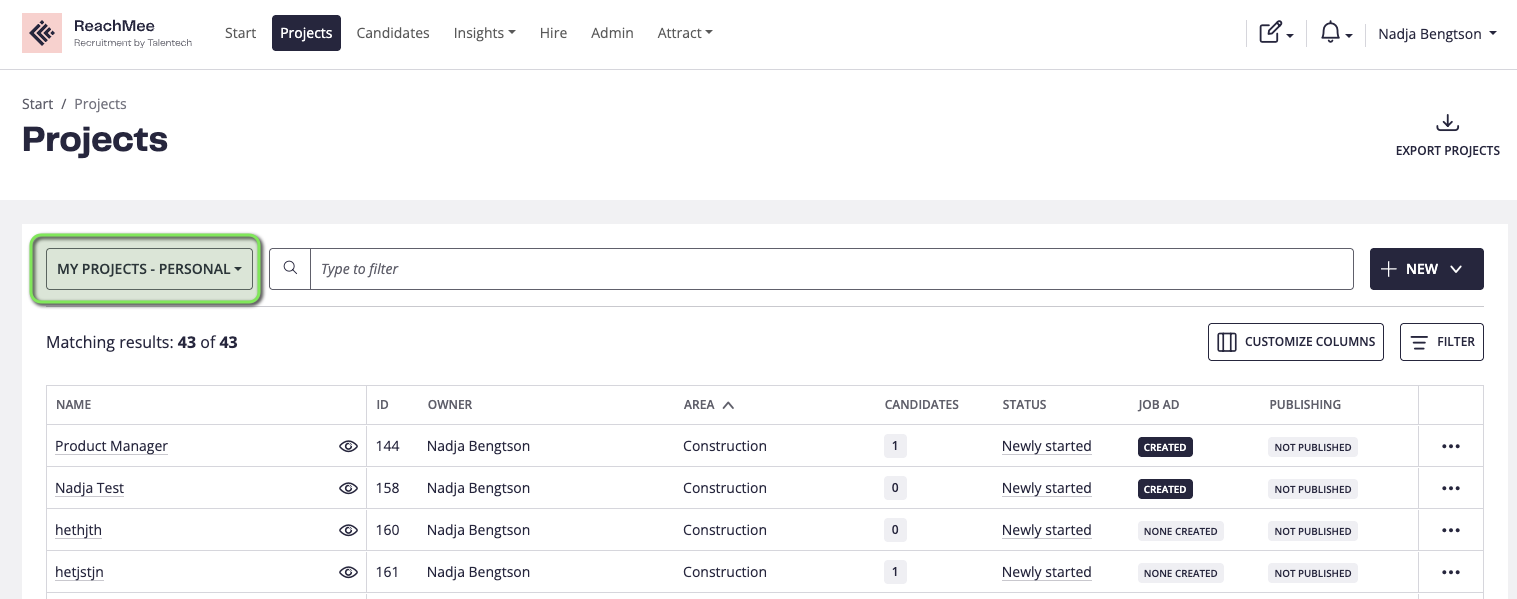
You can also filter on “My projects”, that you are part of or view all if you have access:
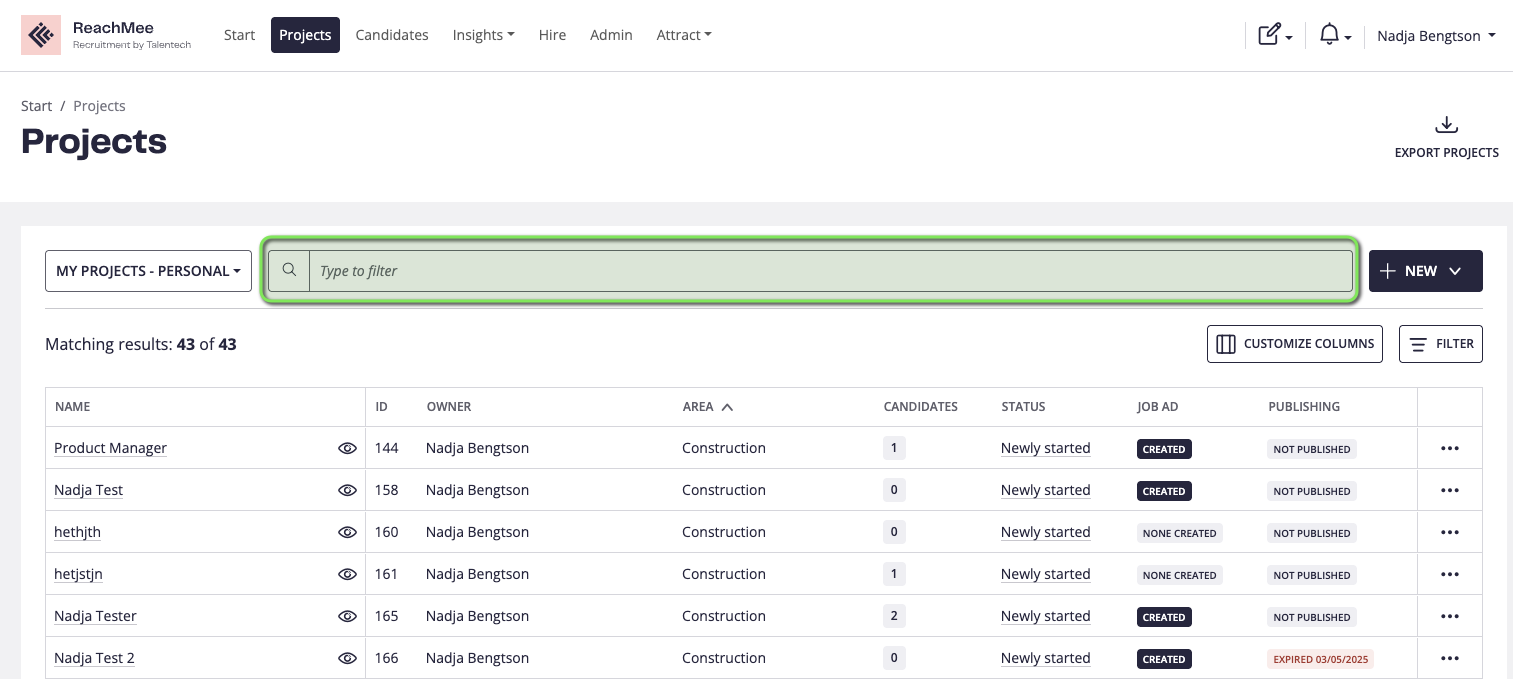
You can also use the search option that searches for project names, job ad headers and external IDs:
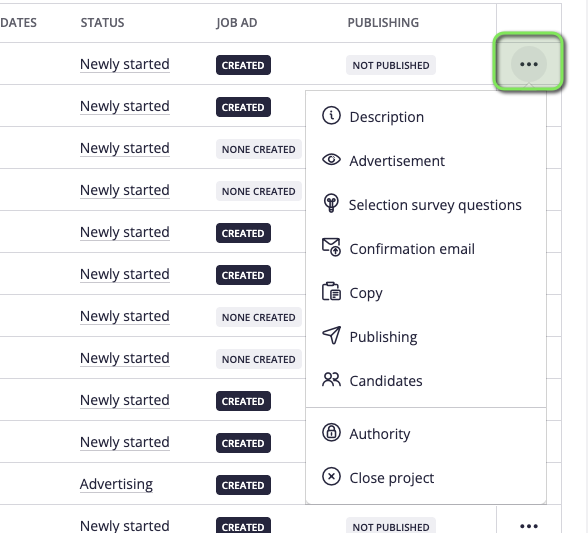
In the "three-dot" menu on each project row, you have some shortcuts to the project and extra options:
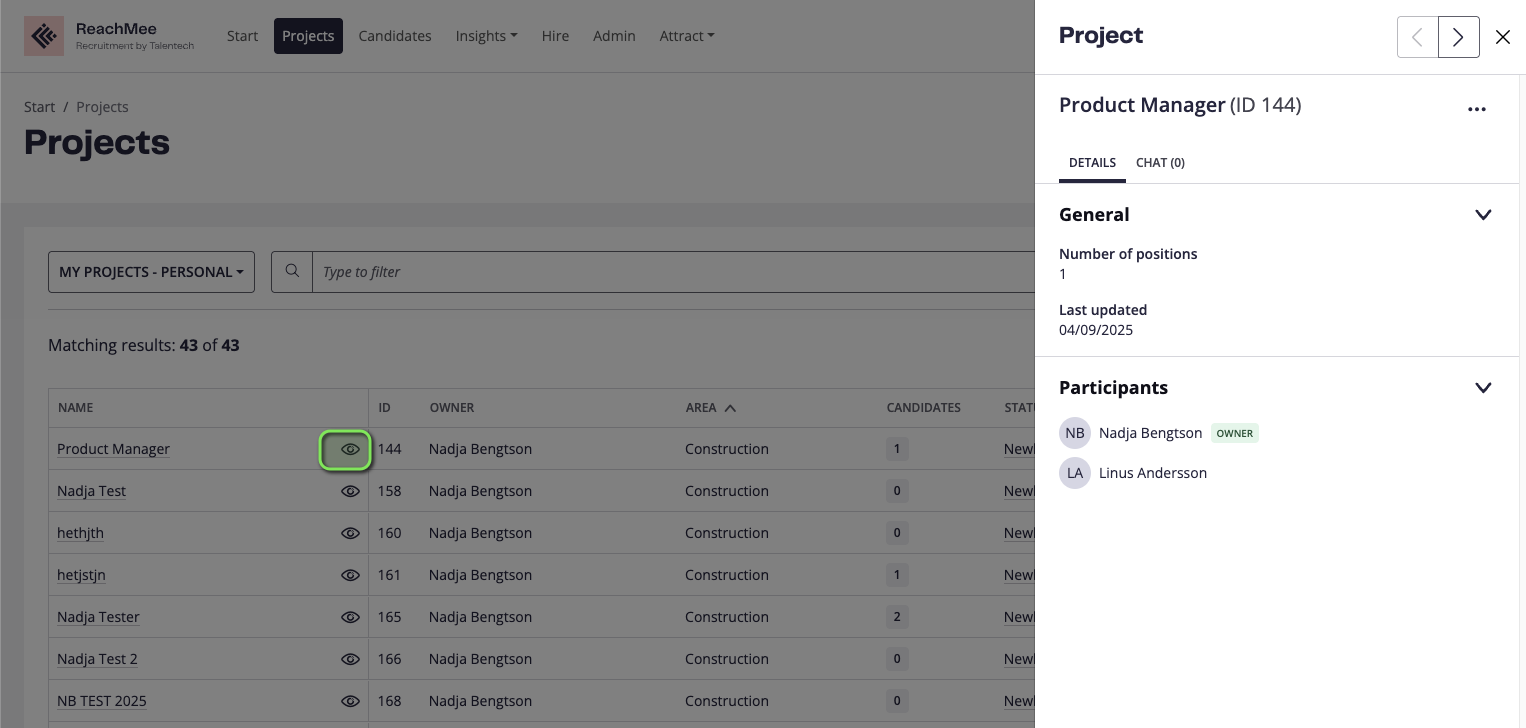
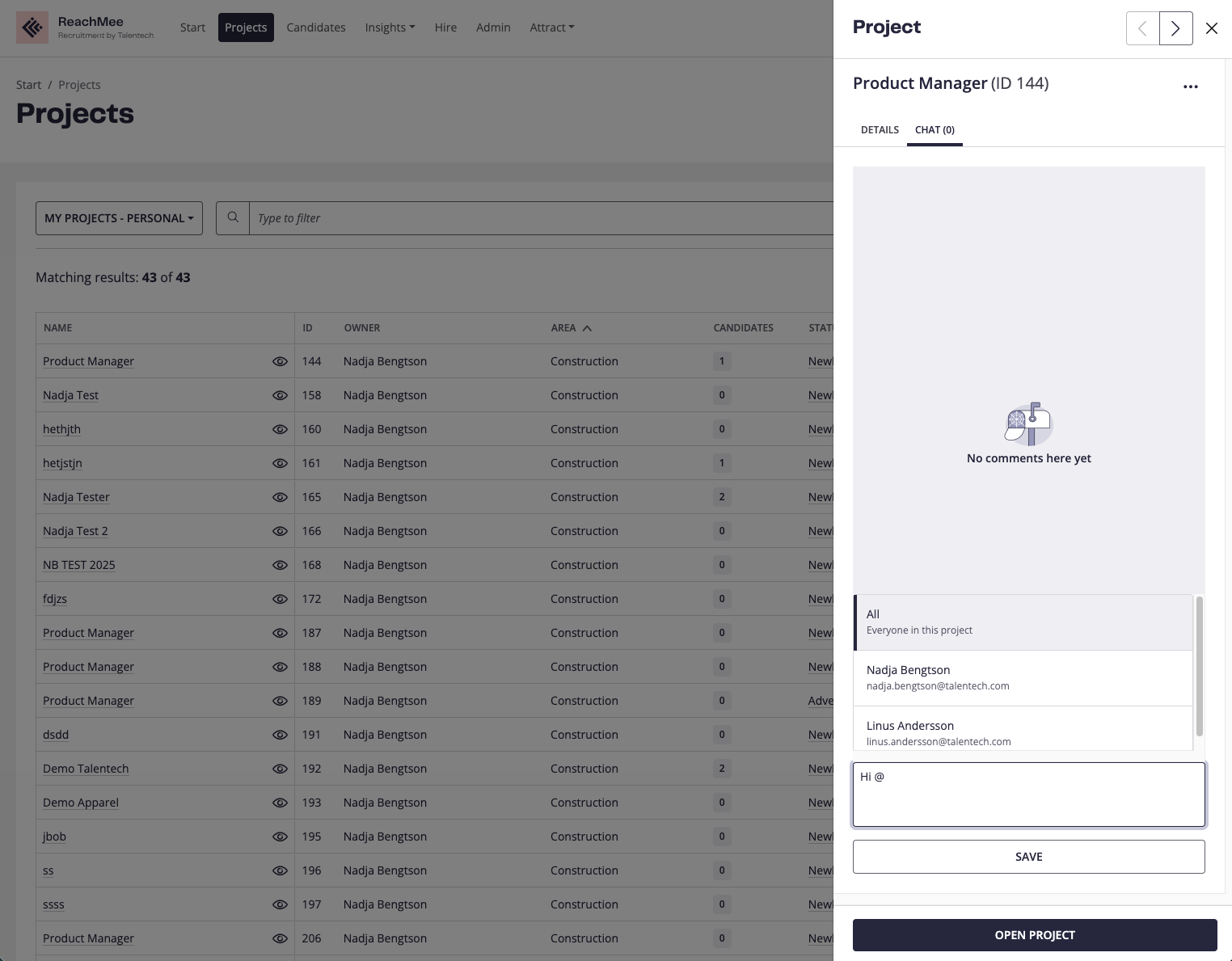
When you click on the eye on the project, you will get access to some quick details about the project, plus the option to chat with participants that you also can tag to notify:
Export projects
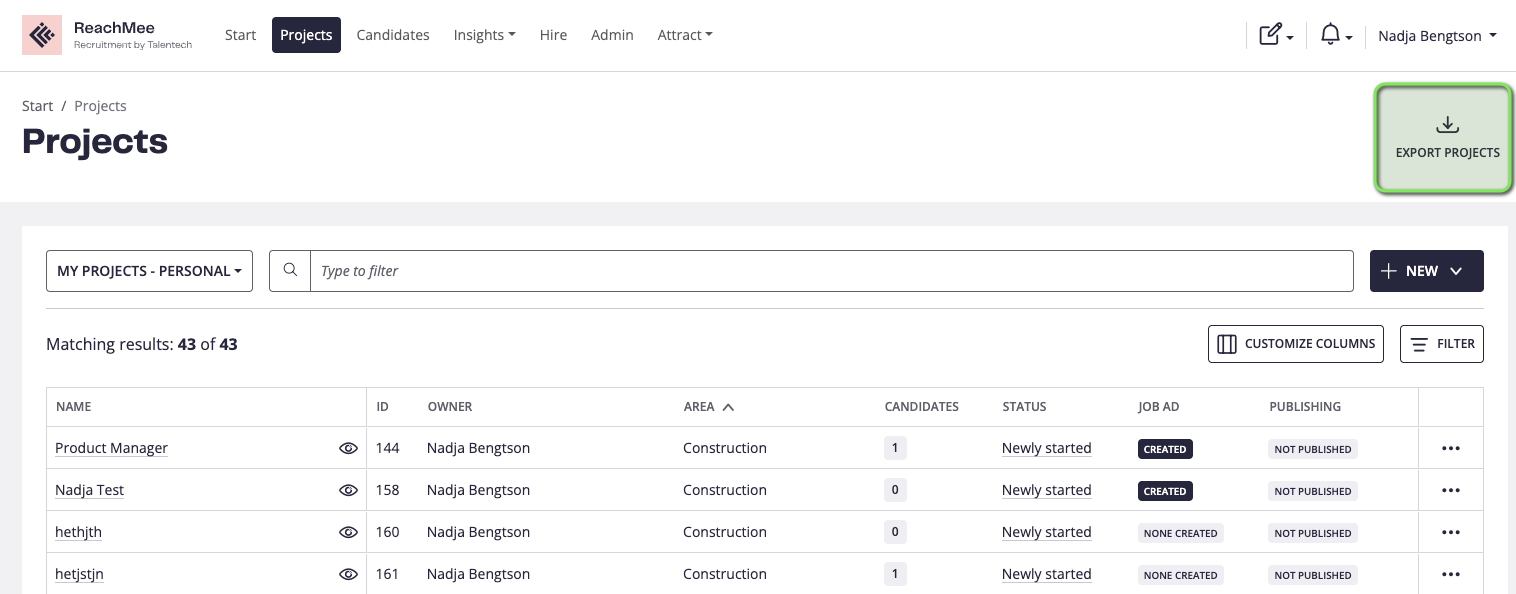
This access is typically only available for Admins, but is easily done in the top by clicking on “Export projects”:
Here you can set a date range, which date to take the details from, project status, types and organization.
You then select what should be included in your export by checkmarking the options and you can also drag them into an preferred order that will show the same in Excel.
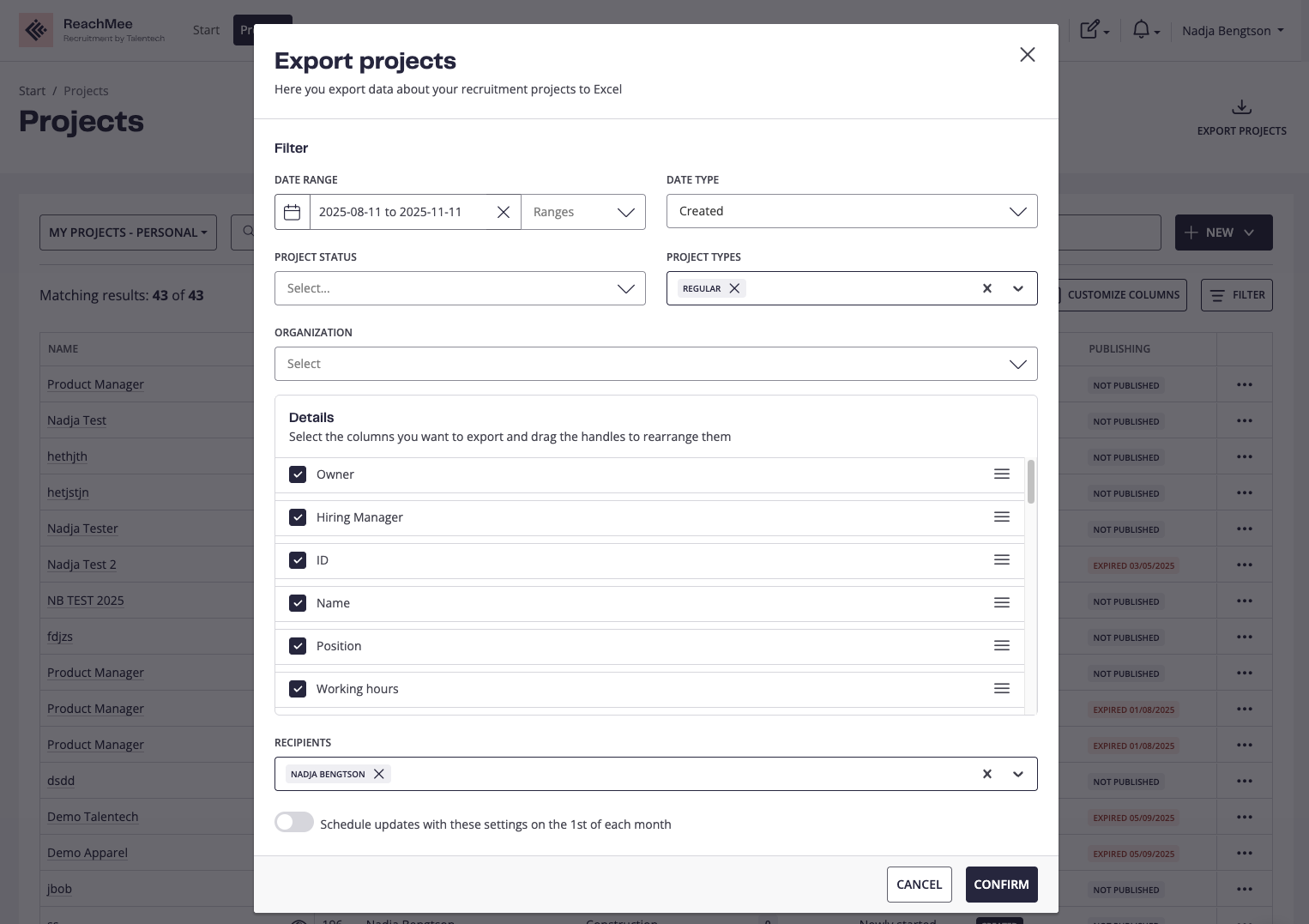
If this is an export you would do monthly or need to send to someone else, you can enable it by changing the toggle.
When the toggle is disabled, you will receive an email when it’s ready to download.
How long it takes depends on the amount of information you are exporting.
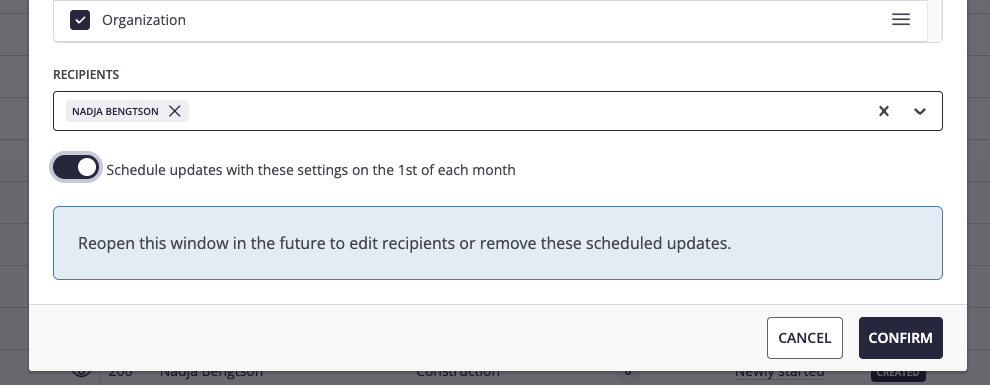
When you receive the link to download, it is valid for 14 days or will stop if you create a new export in between.
The user who creates the export owns the setting.
If this user is deleted, the monthly sending of exports, will also be stopped.
Exported Excel language setting
The file that the user receives is defined by the default language for the system. This is not possible to amend for customers, so if needed contact your local support-team for assistance.